

DBeaver PRO lets you work with different types of databases, including NoSQL. In this tutorial, you’ll go step by step through creating a connection to MongoDB, one of the most popular document‑oriented databases.
Step‑by‑Step Guide to Connect to MongoDB in DBeaver
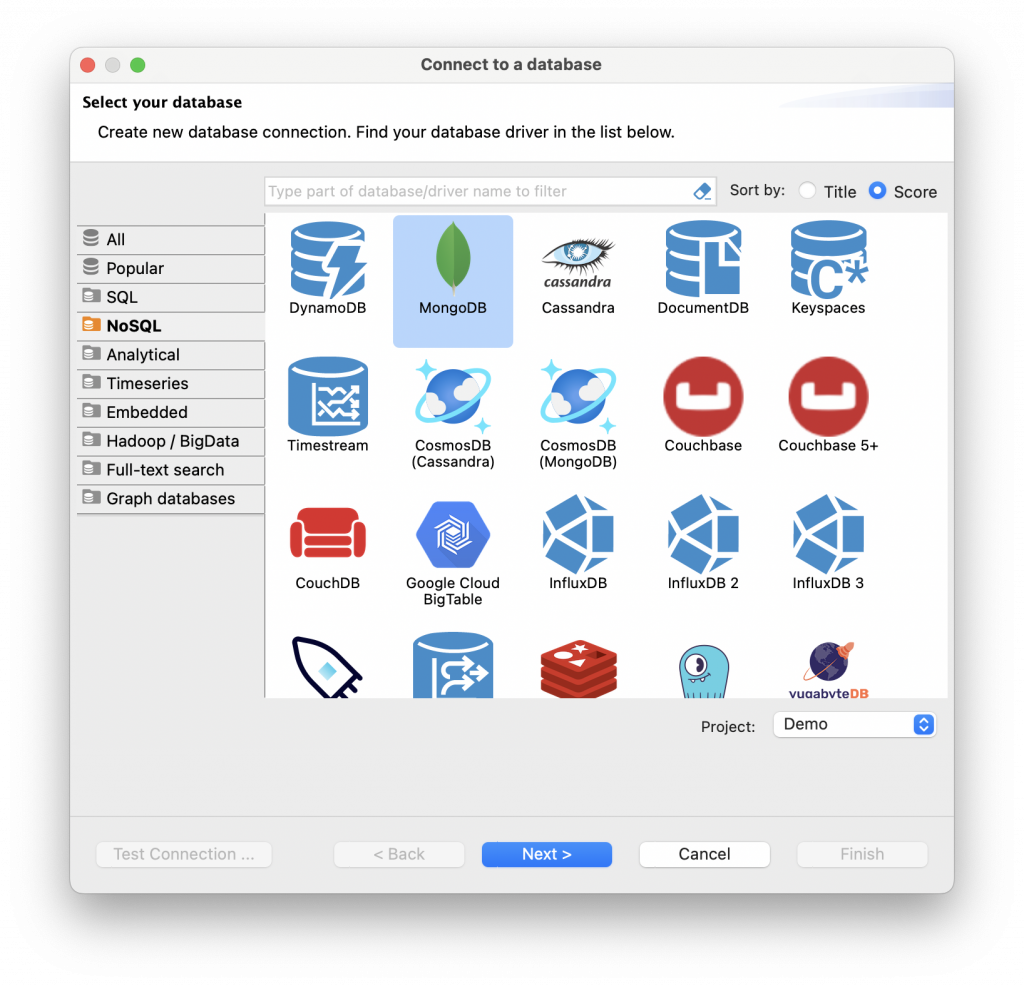
1. Start by clicking the New Database Connection button on the top toolbar to open the Connection Wizard. To find the MongoDB driver, start typing its name in the search field or go to the NoSQL section of the wizard.
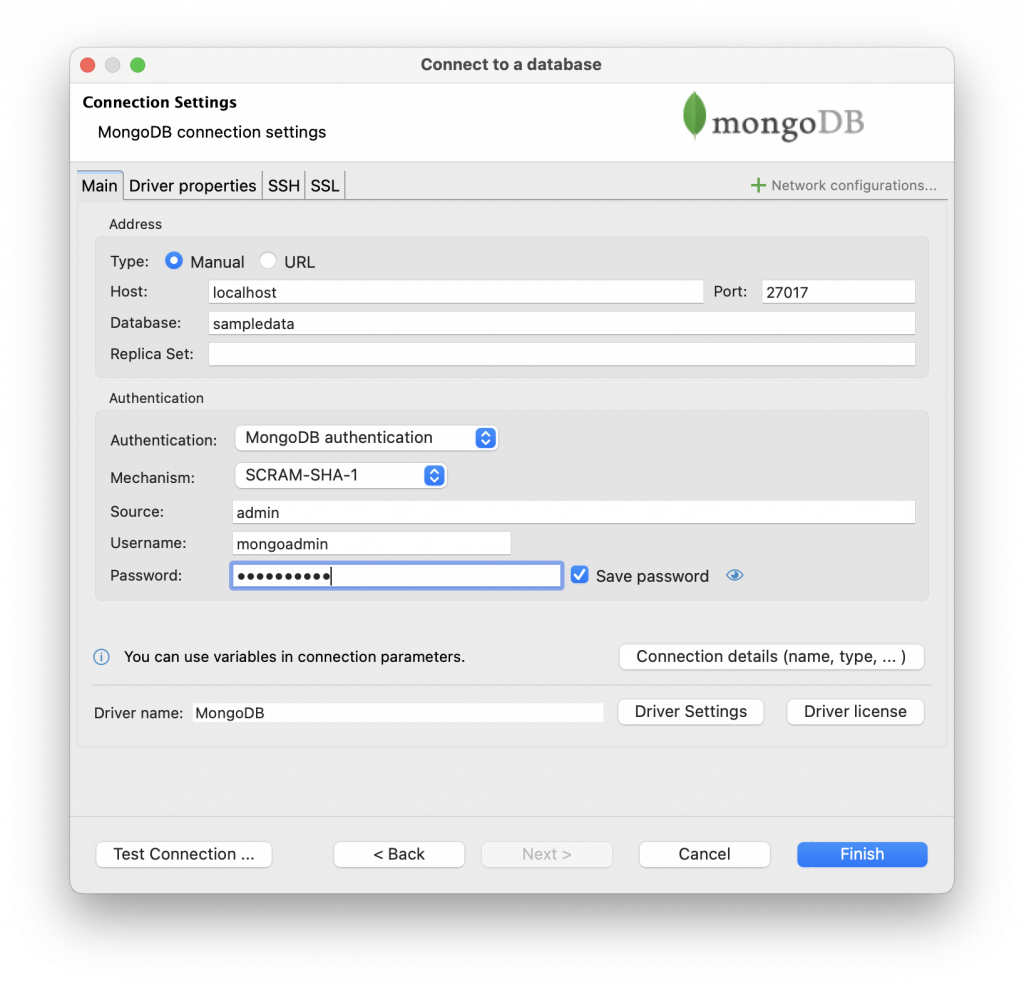
2. Double‑click the driver icon. A connection window opens with several tabs. On the Main tab, fill in the host and port and choose the authentication method from the dropdown list. Depending on the method you choose, you may need to fill in a few more fields. For example, for SCRAM‑SHA, you’ll need to enter the user and password.
3. If your database is accessible through an SSH tunnel, go to the SSH tab, select Use SSH Tunnel, and fill in the required fields.
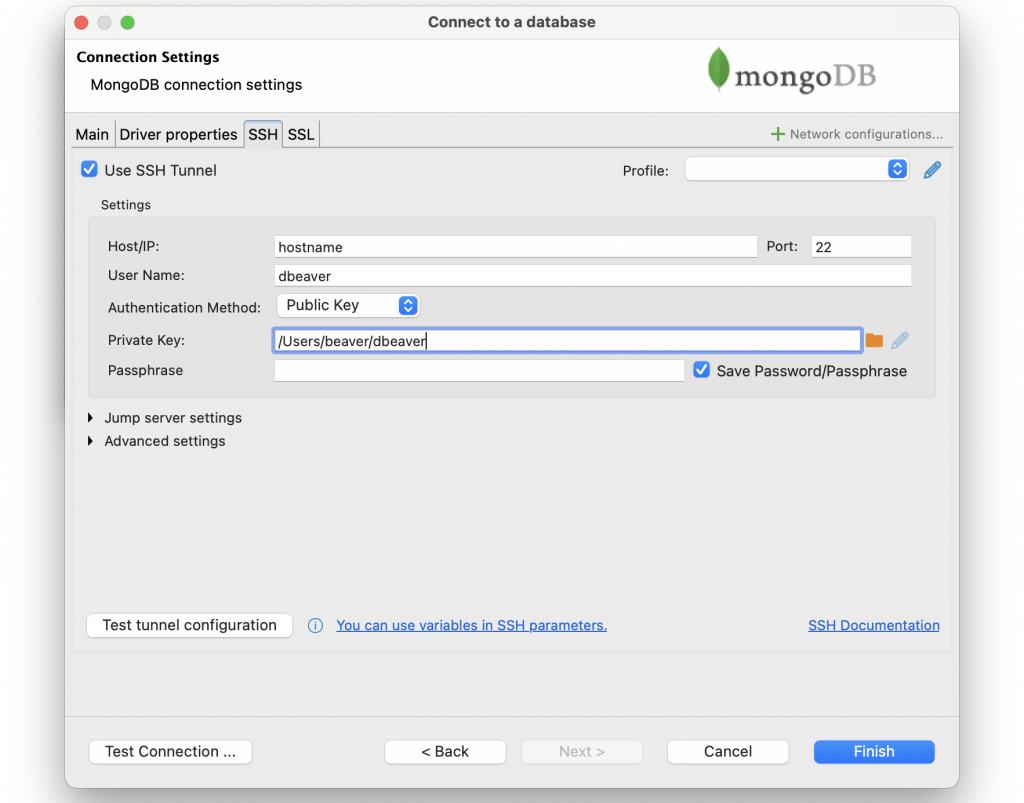
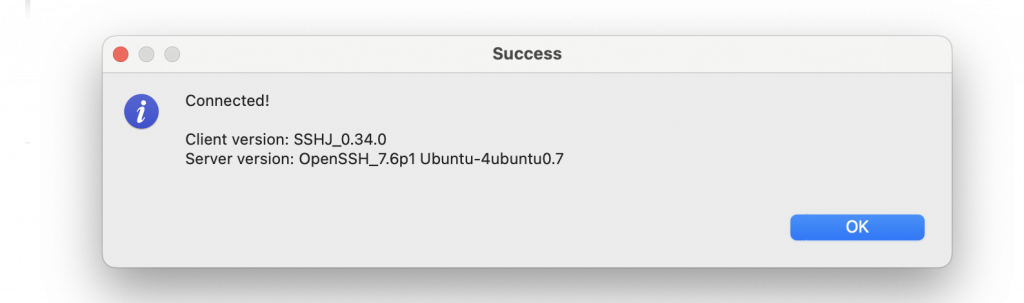
To make sure everything is entered correctly, click the Test tunnel configuration button. You’ll see either a success message or an error message. If you see an error, double‑check the fields you filled in.
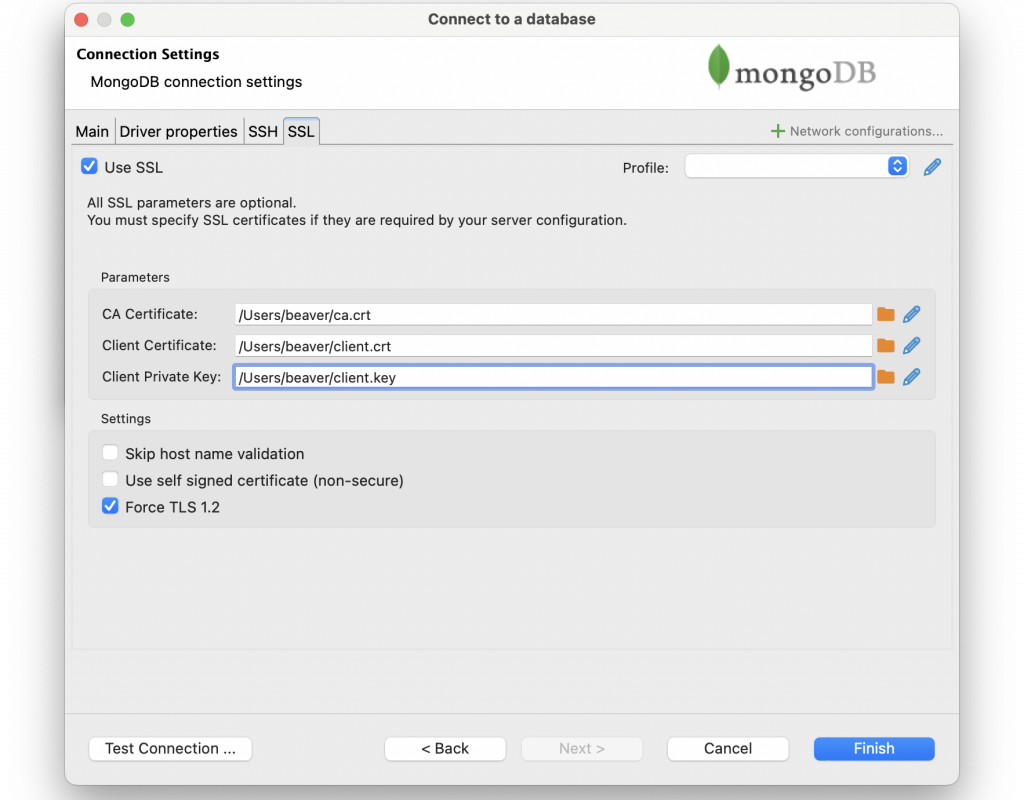
4. If your configuration requires an SSL certificate, go to the SSL tab, select Use SSL, and upload the CA Certificate, Client Certificate, and Client Private Key files.
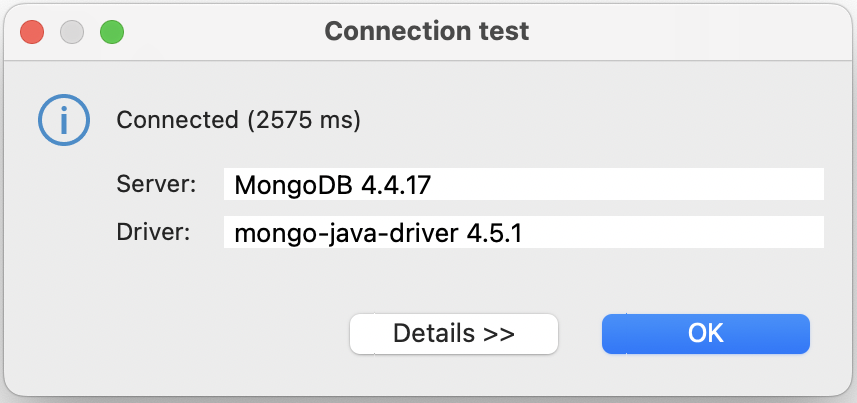
5. After you finish the settings, click the Test Connection button to check that everything is correct. If the connection is successful, you’ll see a window with the result and driver information.
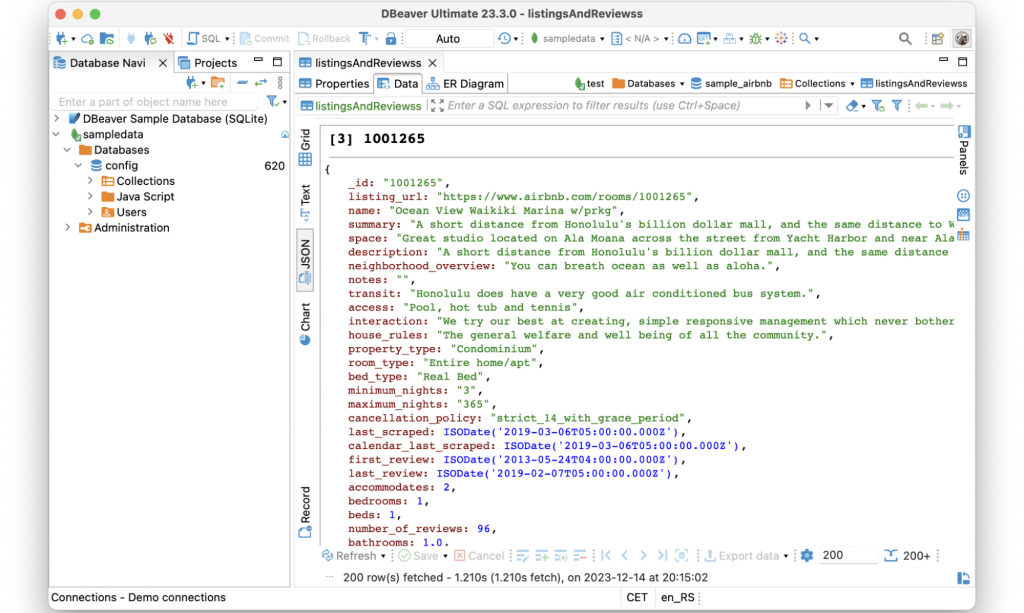
6. Finally, click the Finish button. The new connection appears in the navigation tree. Then click the Expand icon or select your database in the Database Navigator and click the Connect button on the top toolbar.
FAQ
Can I connect to MongoDB in DBeaver if my database is hosted in the cloud?
Yes, you can connect to MongoDB in DBeaver using the connection details from your cloud provider, including host, port, authentication, and SSL settings.
Why would I connect to MongoDB in DBeaver instead of using MongoDB Compass?
When you connect to MongoDB in DBeaver, you can work with MongoDB and other databases in the same interface, browse data, run queries, and manage connections without switching tools.
What should I check if I can’t connect to MongoDB in DBeaver?
If you can’t connect to MongoDB in DBeaver, check that MongoDB is running, your host and port are correct, your credentials and authentication match the server, and your network or firewall allows the connection.