Entity relation diagrams
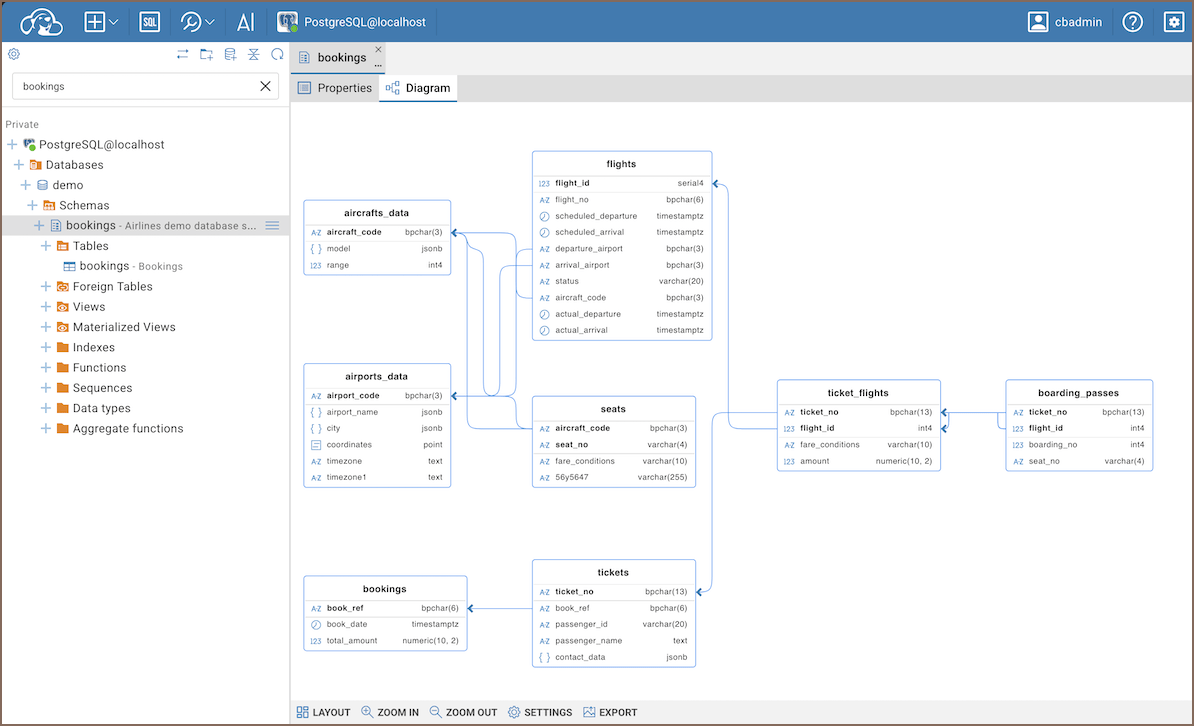
In CloudBeaver, you can use entity relationship diagrams to explore database structure and analyze relationships between tables. Diagrams display entities, attributes, and connections between them.
The diagram editor lets you highlight related objects, rearrange entities, change the display, and export the diagram. The toolbar provides layout, zoom, settings, and export actions.
Open diagram
You can open a diagram for a table or a database schema:
- In Connections, open a table or schema.
- Select the Diagram tab (
 ).
).
Diagram editor
In the diagram editor, you can:
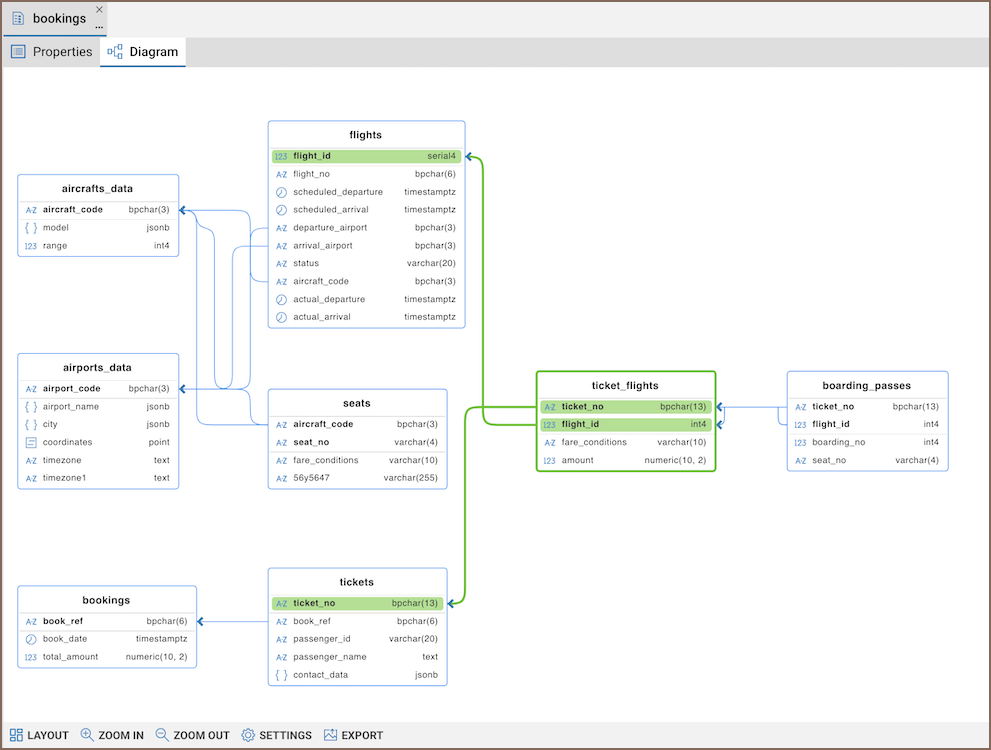
- Select an entity to highlight it and its relationships.
- Select a relationship to highlight it.
- Drag entities to rearrange the diagram.
- Click the table header to open the entity in the Data editor.
Toolbar
Select an action on the toolbar at the bottom of the diagram.
| Action | Description |
|---|---|
| Layout | Automatically arranges entities on the diagram |
| Zoom in | Increases the diagram scale |
| Zoom out | Decreases the diagram scale |
| Settings | Opens the diagram settings |
| Export | Opens the dialog for exporting the diagram as PNG or SVG |
Diagram settings
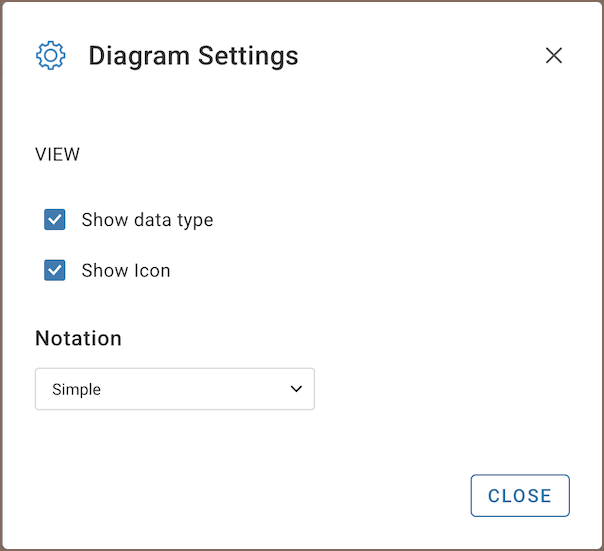
Select Settings on the toolbar to customize how entities and relationships appear.
| Setting | Description |
|---|---|
| Show data type | Shows each attribute's data type |
| Show Icon | Shows an icon that represents each attribute's data type |
| Notation | Sets the relationship notation to IDEF1X or Simple |
Notations
To make complex schemas easier to read, you can control how relationships are drawn and interpreted.
- IDEF1X (default): Highly recommended for designing relational databases. It places a strong emphasis on detailing entity relationships and constraints. For more information, see IDEF1X Notation.
- Simple: Displays relationships as arrows between entities.
Info
For information on setting the maximum number of displayed entities and attributes, see Managing preferences.
Export diagram
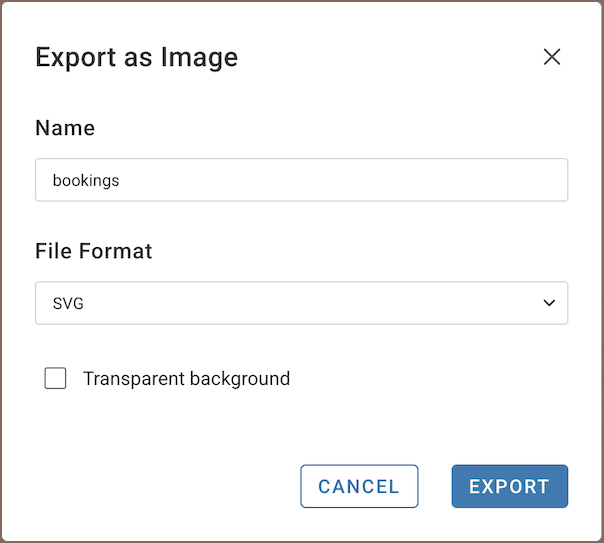
Select Export on the toolbar, choose PNG or SVG, and select whether to use a transparent background. Select Export
to save the diagram.