

AWS Settings
Note: This feature is available in Enterprise, AWS, Team editions only.
Overview
This article guides you through the initial steps to configure AWS integration in CloudBeaver. Once AWS integration is configured, you can access Cloud Explorer, and Cloud Storage.
Steps to configure AWS services
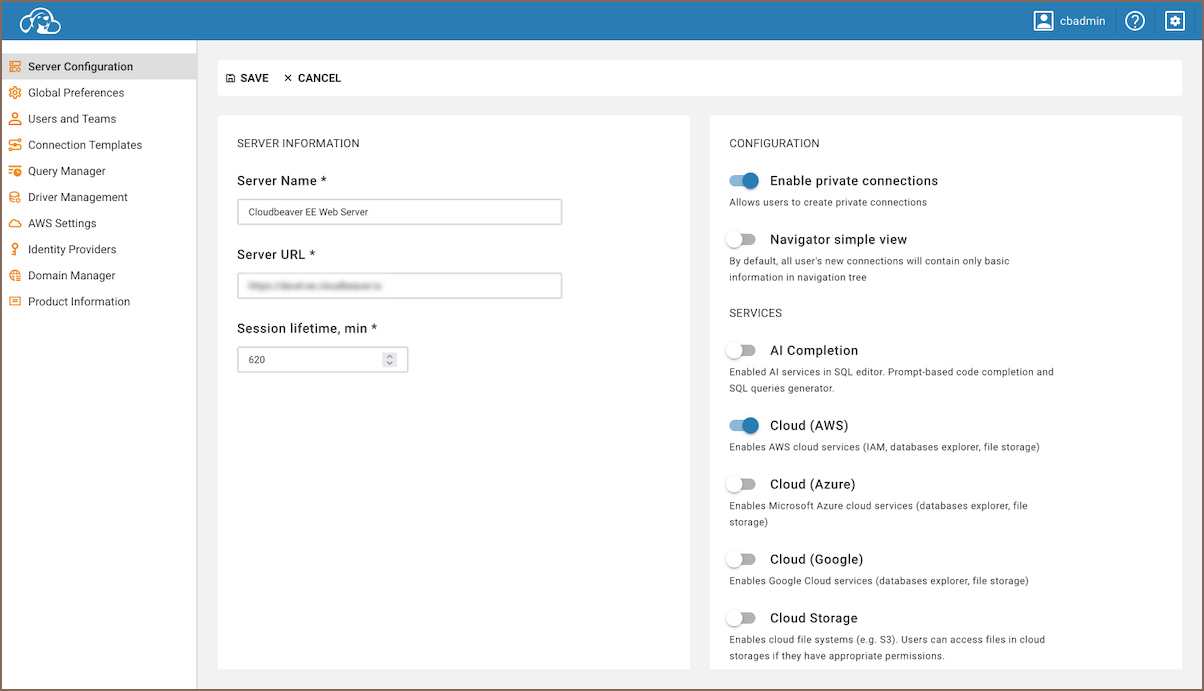
Access server configuration
- As an administrator, go to Settings -> Server Configuration (tab.md) -> Configuration.
- Find the AWS checkbox and activate it.
Tip
For users of the AWS Edition, activating AWS is not required as it comes pre-enabled.
Configure an Identity Provider
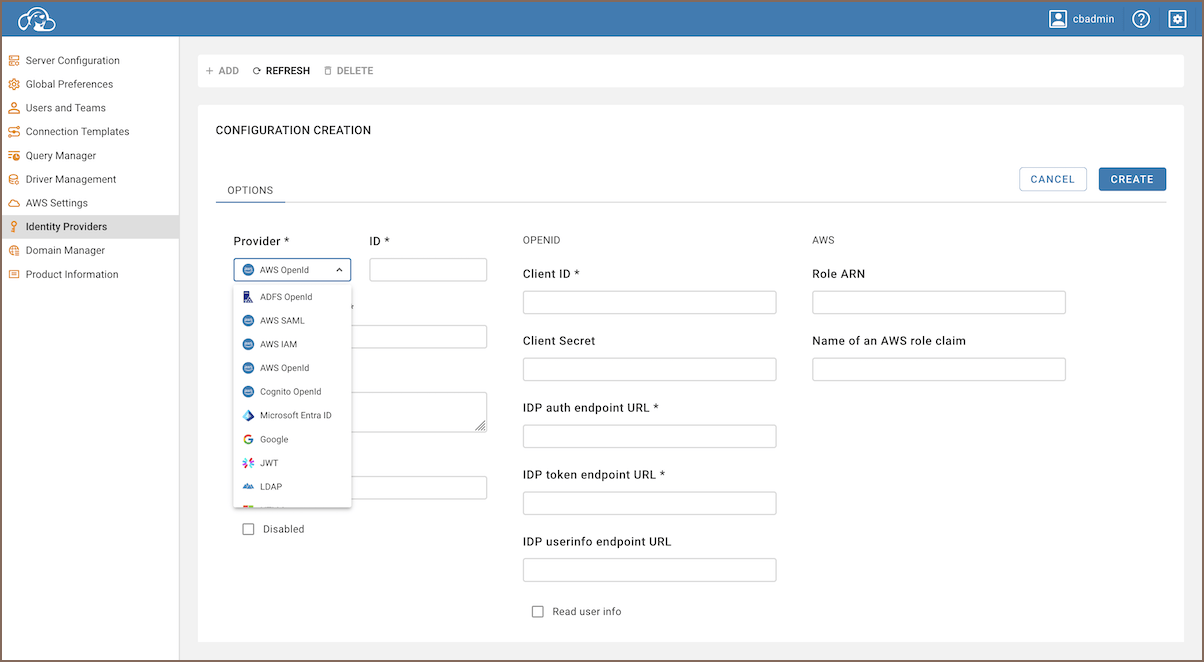
Configuring an Identity Provider is essential for authenticating and authorizing user access to AWS resources.
Info
For a list of available Identity Providers and detailed configuration instructions, see Authentication Methods.
Configure AWS regions
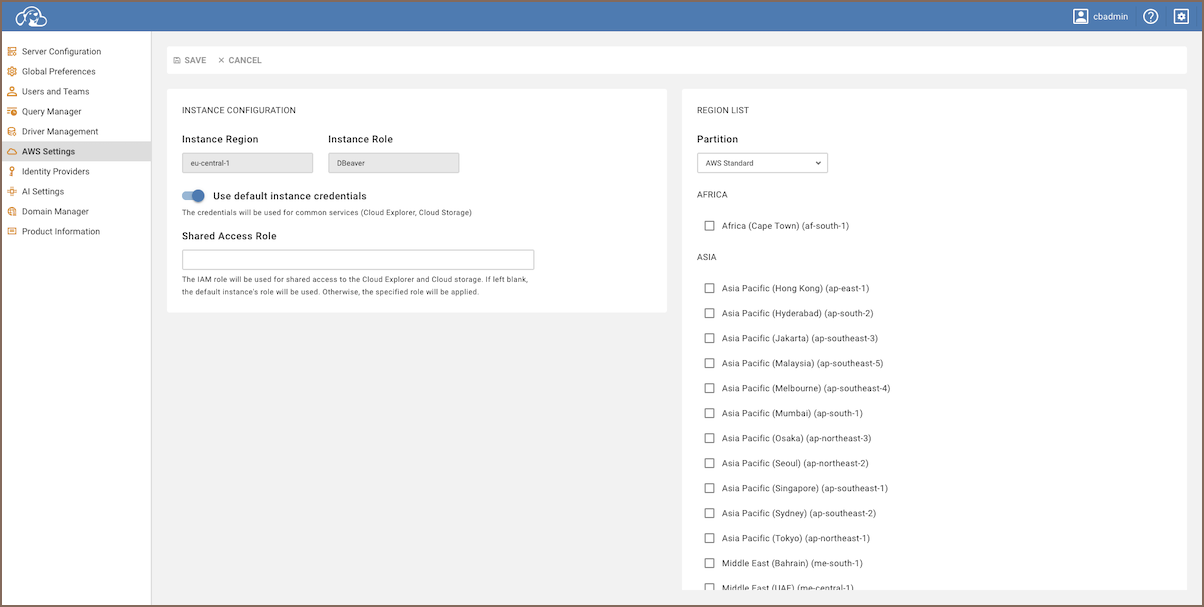
- Go to Settings -> AWS Settings (tab.md).
- Choose the AWS Region or Regions where your resources are located.
- Click Save to confirm and apply your region settings.
Tip
The GovCloud checkbox allows you to access AWS regions that are specifically isolated to host sensitive data and regulated workloads in compliance with U.S. government security and compliance requirements.