

Cloud Storage
Note
This feature is available in Enterprise, AWS, and GCP editions only.
Cloud storage lets you manage files and work with .sql scripts in Amazon S3 and
Google Cloud Storage.
Cloud configuration
- As an administrator, go to Settings -> Administration -> Server Configuration
- In the Configuration section, enable the cloud providers you need: Cloud (AWS) or Cloud (Google)
- Enable Cloud storage to allow file management
- Save the changes.
Tip
Cloud storage supports Pass-Through Authentication - once you log in with your identity provider, no additional credentials are needed to access cloud databases. For more details, see Pass-Through Authentication. In the CloudBeaver AWS Edition, you can use default instance credentials.
Amazon Web Services
To use Cloud storage with AWS, make sure:
- An AWS-compatible Identity Provider is configured. For available options, see Authentication Methods.
- the AWS regions where your databases are located are selected AWS Settings
Google Cloud Platform
To use Cloud storage with GCP, configure Google as an Identity Provider.
Info
For setup instructions, see Google authentication.
Cloud storage
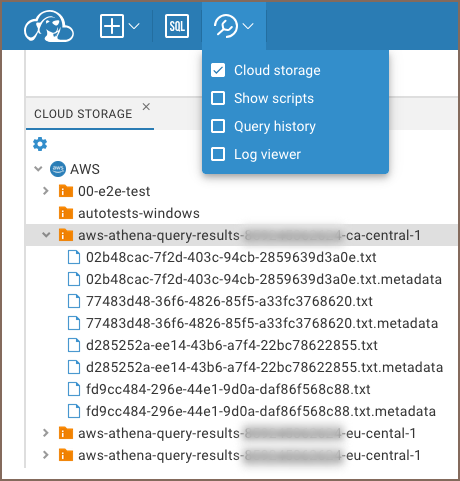
Once you have configured your identity provider, you can work with the data files. Navigate to Tools -> Cloud storage to access it.
In the Cloud storage you can manage files like in a regular file system. Right-click a file or folder to open the context menu and access options such as:
- upload files from your local storage to a bucket
- download files to your local storage
- delete or rename files
- drag and drop files between buckets or file systems
Tip
Use the Settings button  for additional configuration options. For more
details, see the Settings menu.
for additional configuration options. For more
details, see the Settings menu.
Work with SQL scripts
Cloud storage allows you to work with .sql files. Double-click a file to open it in
the SQL editor, where you can:
- view and edit the script
- execute SQL statements
- save changes directly back to Cloud storage
- download the script directly to Cloud storage Learn more
Work with data files
You can also open and query data files stored in your cloud buckets, such as .csv, .json, .xlsx, .xml, and
.parquet. These files can be connected as data sources directly in CloudBeaver.
For details, see:
Tip
Files like .csv, .json, .xlsx, .xml, and .parquet opened from Cloud storage using the Open
button create temporary Multi Format connections. These connections disappear after you log out.
To create a permanent connection:
-
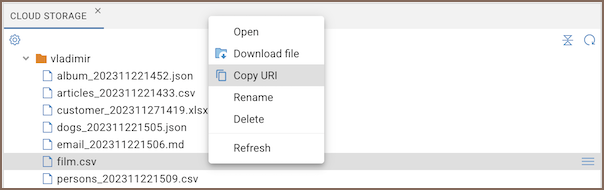
Click Copy URI for the file you need
-
Create a new connection and select the matching file type (for example, CSV or JSON)
- Paste the copied URI into the Database field.