

DB Navigator Settings menu
Overview
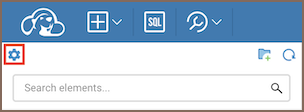
The Database Navigator's Settings menu offers additional tools to customize and enhance your navigation experience. To access this menu, click the Settings button located in the upper left corner of the Database Navigator.
Available tools
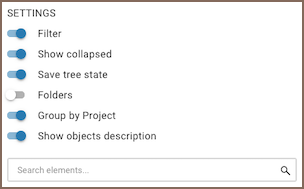
The Settings menu includes several tools designed to refine how you interact with the Database Navigator.
Tool descriptions
The table below provides a description of each tool:
| Tool | Description |
|---|---|
| Filter | Objects’ search in the Database Navigator. Enable the Filter switch to see the filter field and enter the object name to see relevant objects in the Navigator. The search goes among visible objects only. |
| Show collapsed | The additional setting for the Filter. The search will also go through collapsed folders if the user has previously expanded them. |
| Save tree state | Keep the Database Navigator view after refreshing the browser page. It’s enabled by default. |
| Folders | Displays only one level of folders. The full path to the folder is shown as breadcrumbs. When a user double-clicks on an object, the path to it is displayed in the Navigator tree. |
| Group by Project | Removes project names from the Database Navigator view. |