

AWS settings
Note
This feature is available in Enterprise, AWS, and GCP editions only.
After enabling AWS integration, the AWS Settings tab becomes available. Use it to configure:
- AWS partitions and regions
- Access to Cloud Explorer and Cloud Storage
For CloudBeaver AWS Edition, you can also configure:
- Marketplace configuration (Agreement ID)
- Instance configuration (credentials and access roles)
Instance configuration
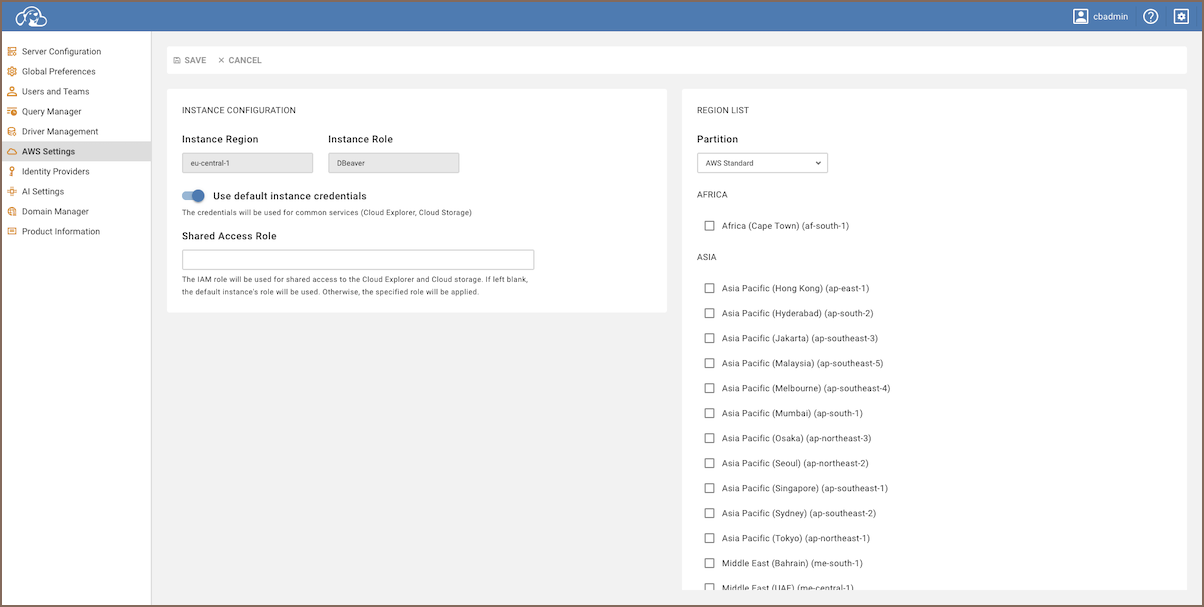
You can control how CloudBeaver obtains and applies AWS credentials when working with AWS services.
| Setting | Description |
|---|---|
| Use default instance credentials | Use AWS credentials associated with the EC2 instance where CloudBeaver AWS is running. |
| Shared Access Role | (Optional) IAM role used for shared access to Cloud Explorer and Cloud Storage. If not specified, the EC2 instance role is used. Requires default instance credentials to be enabled. |
Tips
- Enable Use default instance credentials when CloudBeaver AWS runs on an Amazon EC2 instance with an assigned role. This option allows using AWS-managed credentials instead of defining AWS access keys explicitly.
- Use Shared Access Role to limit access permissions for Cloud Explorer and Cloud Storage independently of the EC2 instance role.
- CloudBeaver AWS supports various cloud-based Secret Providers to retrieve database credentials.
AWS partitions and regions
You can configure the AWS partitions and regions where your resources are located. This ensures the system connects to the correct environment based on your selection.
-
In the Partition dropdown, select the partition where your resources are located:
Partition Description AWS Standard Standard AWS regions. AWS China Regions operated under Chinese regulations. AWS EUSC European Union Sovereign Cloud regions. AWS GovCloud (US) Regions for sensitive or regulated U.S. government workloads. -
After selecting a partition, choose one or more AWS regions from the Region List.
- Click Save to confirm and apply your settings.