

Data import
Note: This feature is available in Enterprise, AWS, Team editions only.
In CloudBeaver, data import is accessible through the Data Editor when a table is open.
Import process steps
-
Click the Import button to open a pop-up window for the import process.

-
Choose the file type for import.
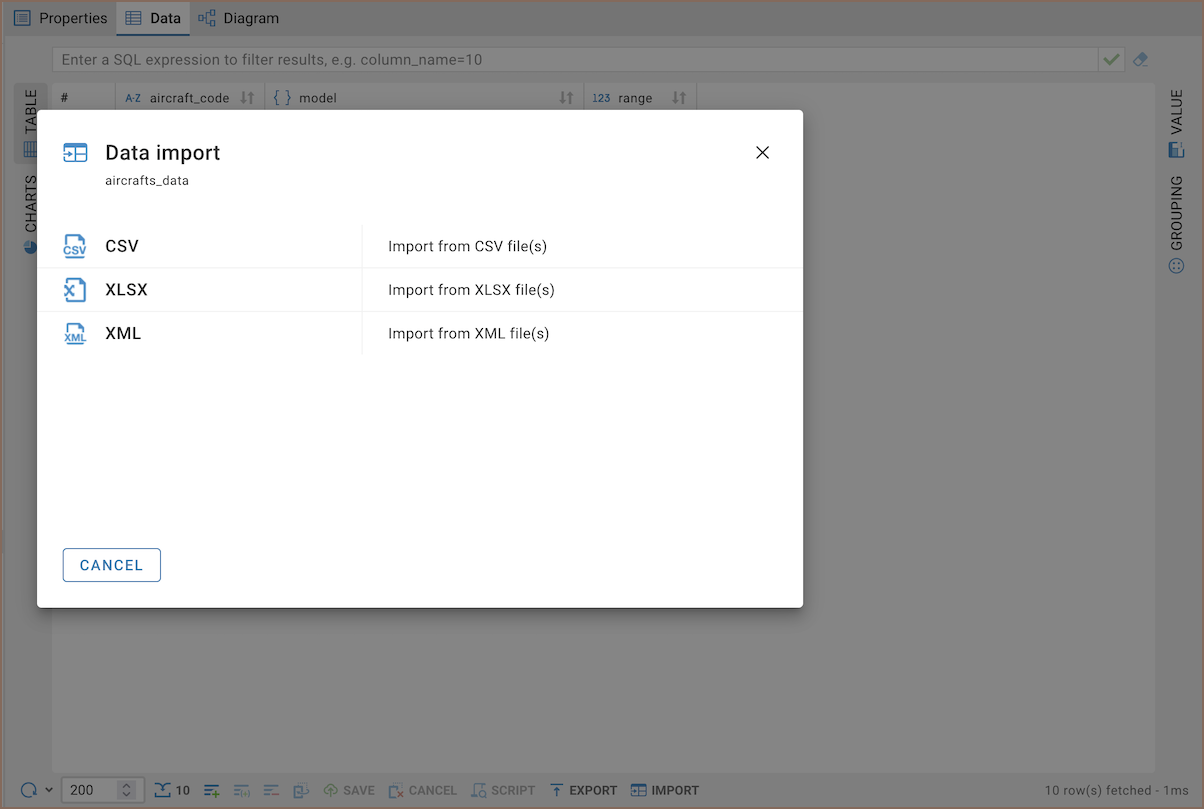
-
Choose the file from local storage and press Import.
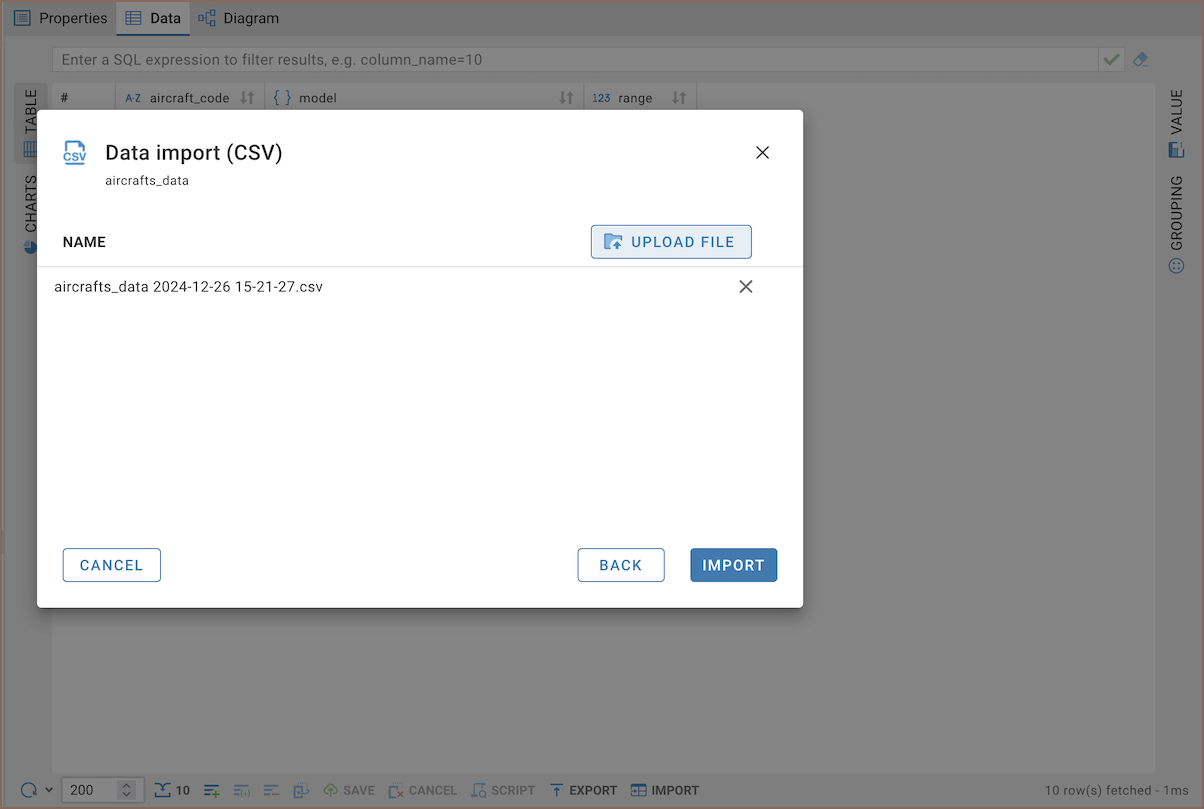
-
Upon successful import, a confirmation message will appear.

Import configuration details
The import process in CloudBeaver includes several key features and limitations:
-
The Community Edition (CE.md) only allows for
CSVfiles. Pro versions includeCSV,XLSX, andXMLfiles. -
In CloudBeaver Team Edition, data import is available to users with the roles of Editor, Manager, Developer, and Administrator.
-
CSVfiles should be comma-delimited. -
The structure (DDL.md) of the uploaded table must match the existing table, specifically in terms of columns.
-
Only unique primary key values are accepted to ensure data integrity and avoid duplicates.
-
The import operation does not block the interface, allowing for continued work while the import is processed.
-
The system currently supports uploading one file at a time.