

Audit logging
 Since 26.0
This feature is available in Enterprise, AWS, and GCP editions only.
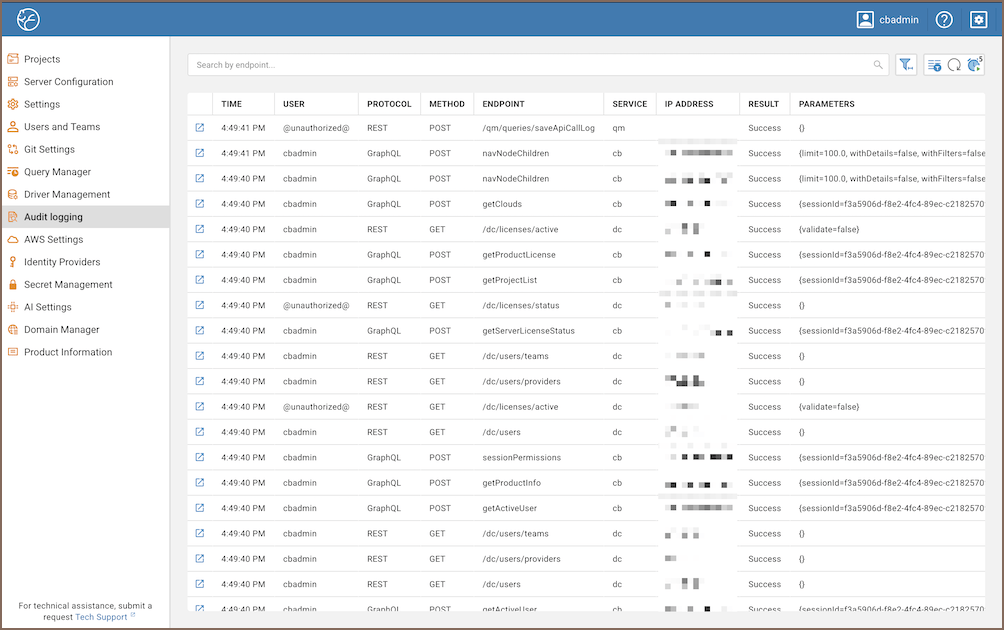
CloudBeaver provides an Audit logging panel for reviewing API activity. Use it to see who performed an action, when it happened, and which endpoint was involved.
When enabled, the panel logs authentication events, project and connection changes, SQL and file operations, cloud storage activity, license and server configuration updates, preference changes, user and team management actions, and other system-level activities.

Enable audit logging
- Open Settings -> Administration -> Settings
- Navigate to Administration -> Logger
- Enable Audit all API requests to the database
- Save changes
After you enable this option, the Audit logging tab appears in the sidebar.
Manage audit logs
The Audit logging panel includes standard table controls. Use them to search records, adjust the table layout, and manage how data is refreshed.
| Action | Icon | Description |
|---|---|---|
| Search | Search records by endpoint using the field above the table. | |
| Options |  |
Configure date range, sorting order, fetch size, auto refresh behavior, delay interval, and filter records by user name or IP address. |
| Column manager |  |
Show or hide columns. |
| Refresh |  |
Manually reload the table data. |
| Auto refresh |  |
Automatically update the table. Click the button to disable automatic refresh. |
| Information |  |
Open the selected record in a readable format. Clicking the icon expands a detailed view of the API request. |
Use audit logs
Administrators can use audit logs in the following ways:
- Audit logging panel - Review requests, search by endpoint, and filter records using the available table controls.
- GraphQL - Query
adminApiCallLogfor integrations and targeted searches. Pass filters such asuserName,dateFrom,dateTo, anderrorOnlyin thefilterargument. For information on authentication, API documentation, and available tools, see GraphQL API. - Export - Retrieve logs outside the panel. For information on available sources, see Export audit logs.
Example
- Review a user's activity during a specific period by filtering the GraphQL
adminApiCallLogquery byuserName,dateFrom, anddateTo. - Identify failed requests by setting the GraphQL
errorOnlyfilter totrue.
Export audit logs
Audit logs can be accessed from the following sources:
- Database - logs are stored in the
QM_API_CALL_LOGtable of the internal query manager database. For details, see Server database. - Browser - open:
http://<your-host>:<your-port>/api/apiCallLog?from=2025-06-26T20:00:00&to=2025-06-26T23:59:59
Tip
Always apply filters (from, to, etc.) to avoid overloading the server. You must be logged in as an
administrator to view logs in the browser.