

Network profiles
 Since 26.2
This feature is available in Enterprise, AWS, and GCP editions only.
Network profiles keep your connection SSH settings in one place, so you can reuse them across connections instead of setting them up on each one.
There are two types of profiles:
- Global - available for both shared and private connections. Managed by administrators in Administration -> Connections.
-
Local - available only in the same connection project (Shared or Private). Learn more about projects.
Note
A local profile created for private connections is available only for private connections. A local profile created for shared connections is available only for shared connections.
Manage local profiles
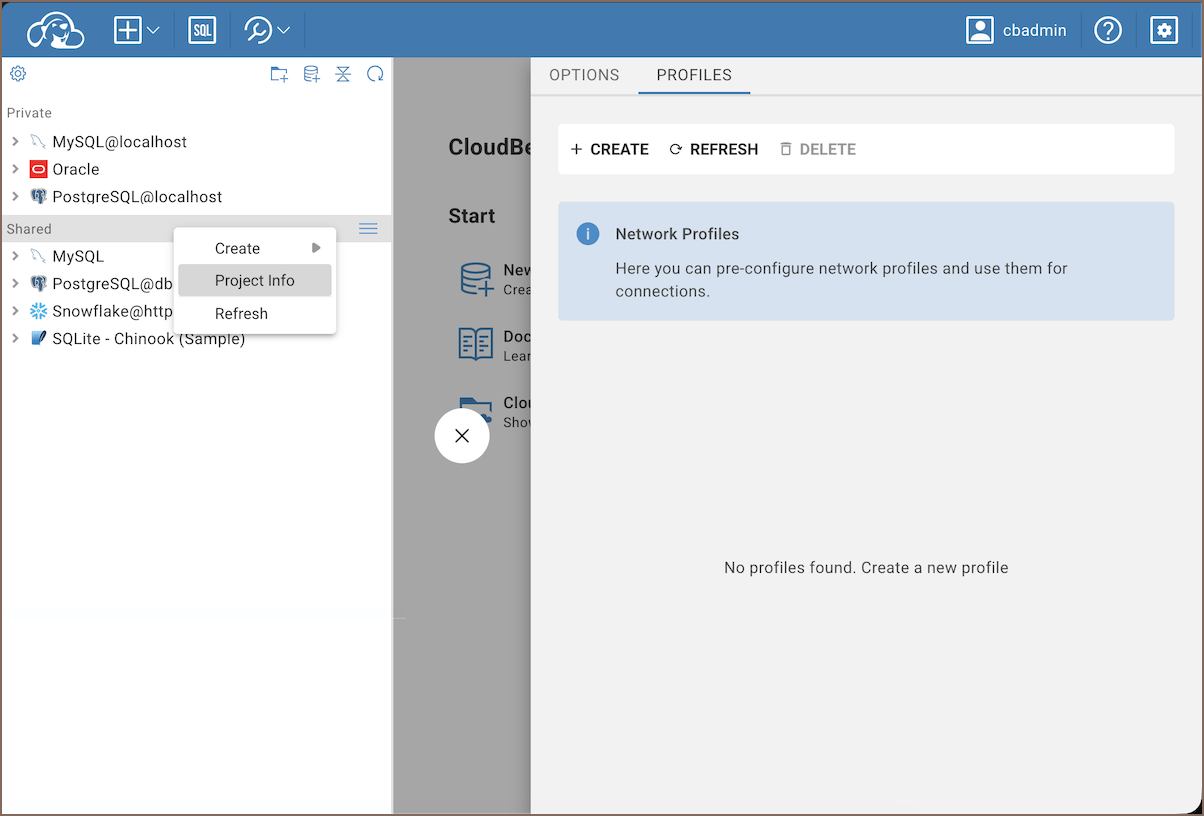
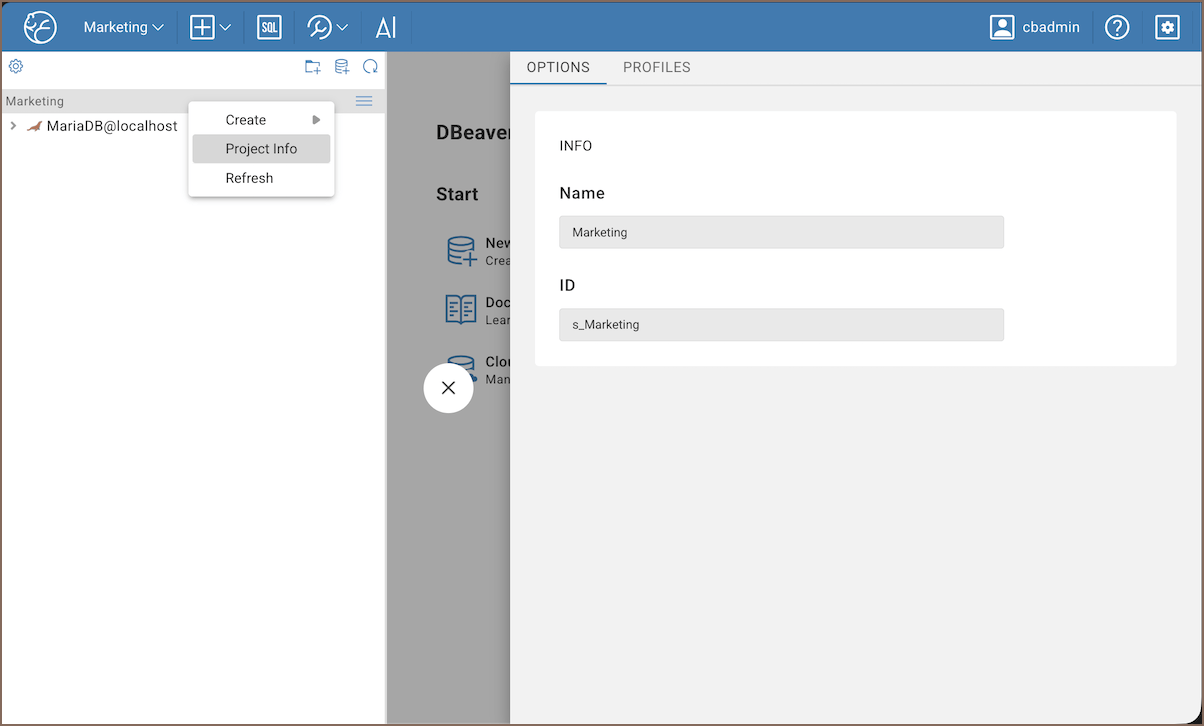
Manage your local profiles on the project's Profiles page:
- In the connections, right-click the project and select Project Info.
- Go to the Profiles tab.
You can also open the profiles list from the connection form. Select Edit profiles. If you select a private project, the private profiles open. If you select a shared project, the shared profiles open.
Create a profile
- On the Profiles page, click Create new profile.
- Enter a name for the profile.
- Configure the SSH settings.
- Save the profile.
Info
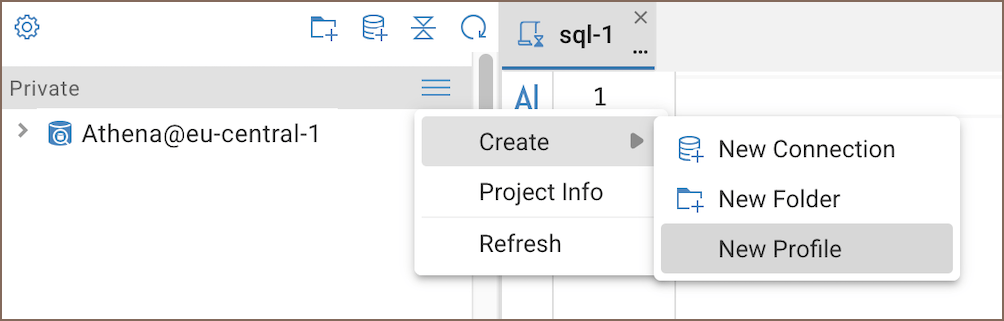
Alternatively, open the project's context menu in Connections tree, then select Create -> New profile. The form opens for the selected project. The profile is private in a private project and shared in a shared project.
Manage existing profiles
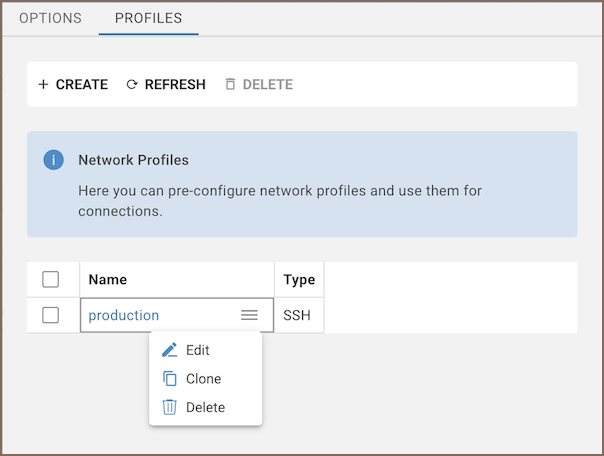
- To edit a profile, select it, update the SSH settings, and save the profile.
- To clone a profile, select it, open the profile actions, select Clone, rename the copy, adjust its SSH settings, and save the profile.
- To delete a profile, select it, click Delete selected profiles, and confirm the deletion.
Important
Connections using a deleted profile may need to be reconfigured to work properly.
Manage global profiles
Global profiles are available in every project and can only be managed by administrators.
- Go to Settings -> Administration -> Connections.
- Open the Global Profiles tab.
From here you can create, clone, and delete global profiles the same way as local ones.
Apply a profile to a connection
- Start creating a connection.
- In the connection form, click No network profile.
- Select a profile from the dropdown list.
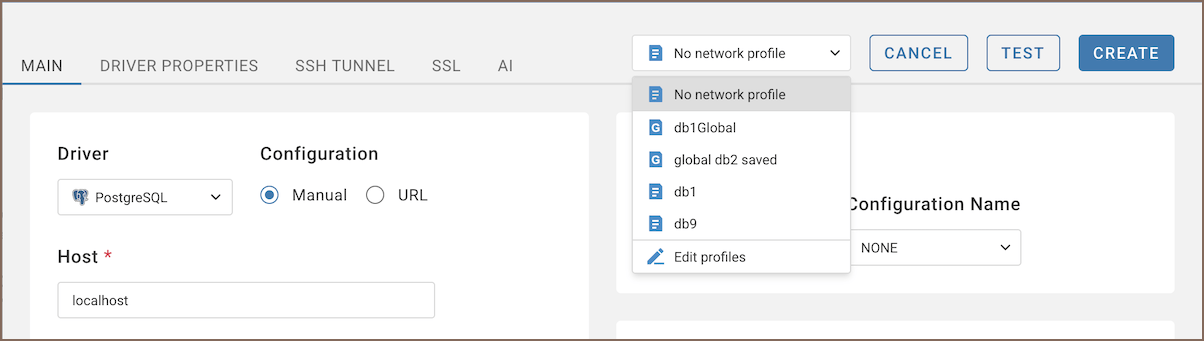
The list shows global and local profiles together. Global profiles are marked with a Global profile icon
( ).
).