

AI tools & MCP
 Available since 26.1
Team Edition ships with a set of AI tools that the AI Assistant can call directly. You get built-in tools for tasks like data transfer, metadata reads, and editor control, and you can connect external MCP servers.
Info
You can find more information about Model Context Protocol (MCP) here.
Enable AI tools
- Navigate to Settings -> Administration -> Server Configuration
- Enable the AI Integration option
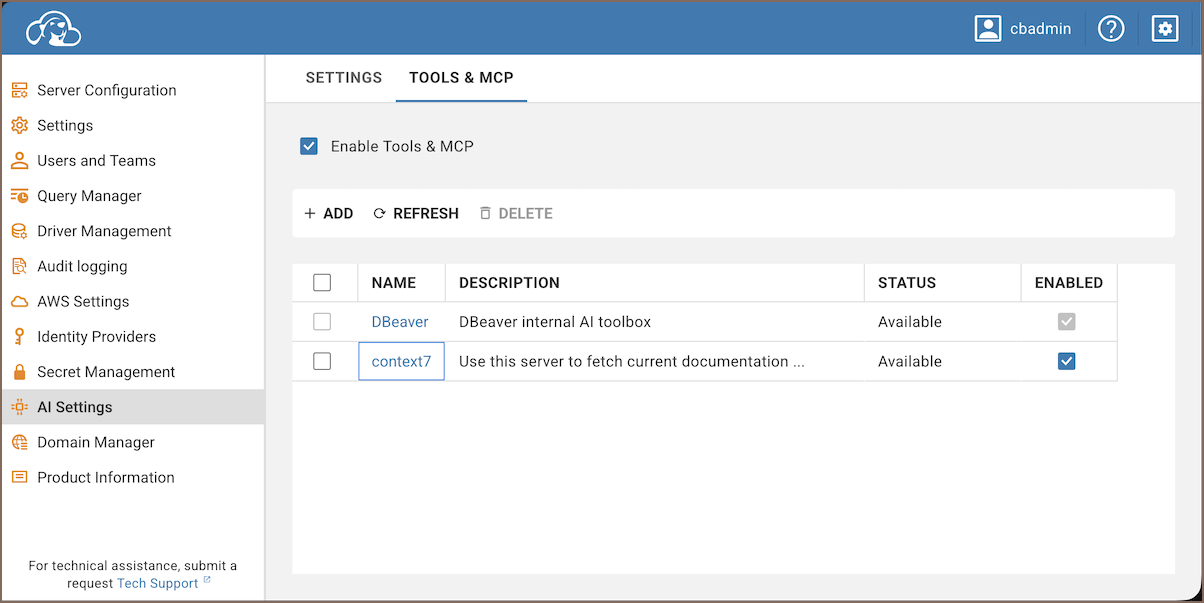
- Navigate to AI Settings -> Tools & MCP
- Select Enable Tools and MCP.
Tools work in AI chat and through the ai command.
Note
If tools are disabled, the assistant falls back to standard text responses.
Supported providers
AI tools are available only with providers that support tool calling:
Info
If your provider doesn’t support tool calling, AI Assistant will continue to respond with text or SQL suggestions as usual. Make sure the model you select supports tool calling.
Internal tools
| Category | Description |
|---|---|
| Data read actions | Read sample data or metadata for improved context and more accurate suggestions. |
| View and editor actions | Open Database object editor and SQL Editor. |
MCP servers
To add an MCP server:
- Open Settings -> Administration -> AI Settings -> Tools & MCP
- Click + Add
-
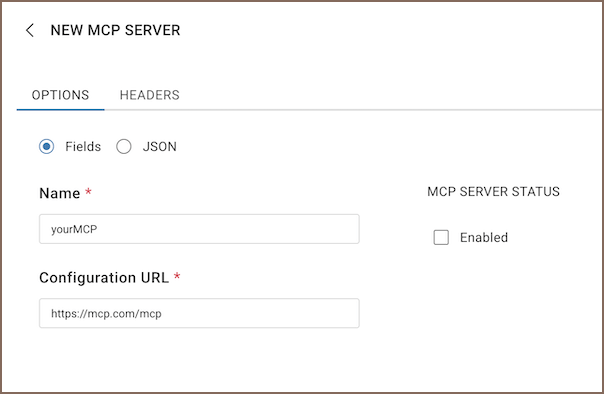
Fill in the connection settings
-
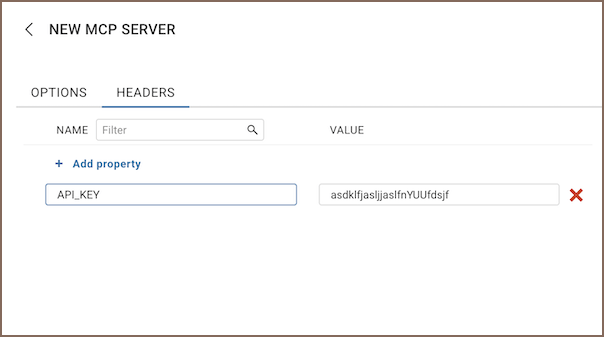
Fill in the headers and click Create
| Setting | Description |
|---|---|
| Mode | Fields - fill in settings using form fields. JSON - paste a raw JSON configuration. |
| Name | A display name for the server. |
| Configuration URL | The server endpoint. |
| Headers | Optional key-value headers to include in requests. |
Each server shows its connection status, enabled state, and the number of available tools.