

Session Manager (Desktop)
The Session Manager in Team Edition lets you view, search, and manage active database sessions - including terminating or disconnecting them.
Supported databases
- Altibase
- AlloyDB
- Db2 for LUW
- Exasol
- Fujitsu Enterprise Postgres
- Greenplum
- MariaDB
- MongoDB
- MySQL
- MySQL on Google Cloud
- Netezza
- Oracle
- PostgreSQL
- PostgreSQL on Google Cloud
- Redshift
- Microsoft SQL Server
- Microsoft SQL Server on Google Cloud
How to use
To open the Session Manager:
- In the Connections, navigate to your desired database.
-
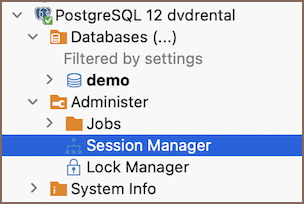
Go to the Administer section.
-
Double-click on Session Manager or right-click and select View Session Manager.
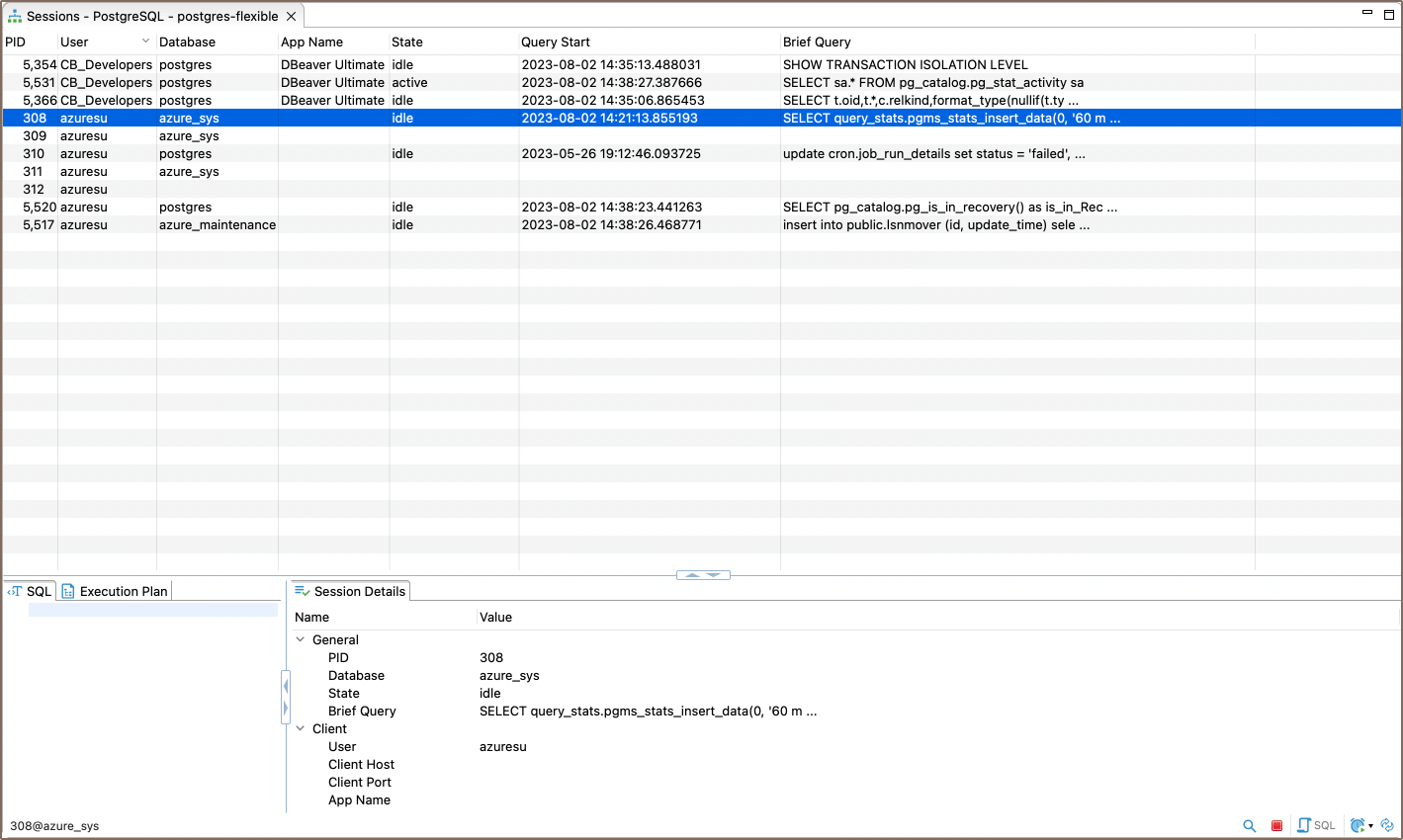
Right-click a session or select it and use the toolbar buttons at the bottom of the editor. Available actions depend on your database type.
| Button | Image | Description |
|---|---|---|
| Kill Session |  |
Terminates the selected session forcefully. |
| Disconnect Session |  |
Disconnects the selected session from the server. |
| Show Active/All Connections |  |
Toggles between active sessions only and all sessions. |
| Show Background |  |
Shows background processes running in the session. |
| Show Inactive |  |
Shows inactive sessions. |
| Refresh |  |
Updates the session list. |
| Configure Auto-Refresh |  |
Sets up automatic session list refresh. |
| SQL Script |  |
Runs a SQL script that displays sessions as a table. |