

PostgreSQL
Connect to PostgreSQL in Team Edition, configure the driver, and manage your database.
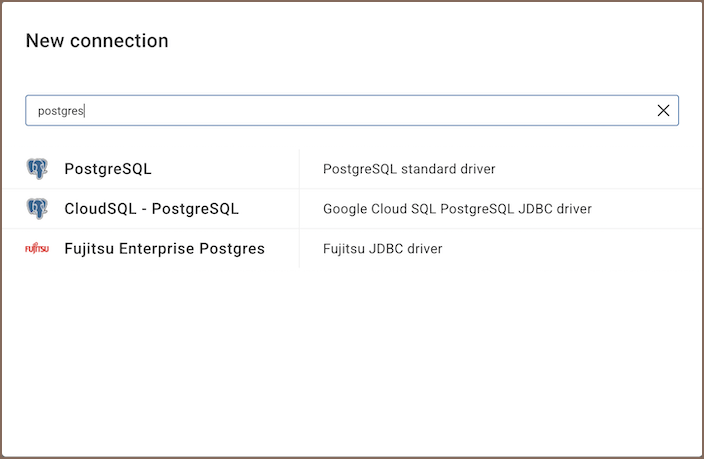
To get started, click Connection in the toolbar, select New Connection, then pick the PostgreSQL driver. For details, see Creating a connection.
Team Edition also supports PostgreSQL extensions such as EDB, Google Cloud SQL for PostgreSQL and Fujitsu Enterprise Postgres. You must select the appropriate driver in the Connect to a database window for these extensions.
Note
The desktop version of Team Edition also supports advanced authentication methods, SSH/SSL/Proxy connections, and driver configuration. See PostgreSQL in Team Edition desktop.
Connection settings
The connection dialog is organized into tabs. Here's what each one covers:
| Tab | Description |
|---|---|
| Main | Core connection settings: host, authentication, database list options, and expert settings. |
| Driver properties | PostgreSQL JDBC driver settings. |
| SSH tunnel | SSH tunnel configuration. |
| SSL | SSL certificate and encryption settings. |
| Access | User and team access control for this connection. |
| AI | AI assistant and MCP server settings. |
Main
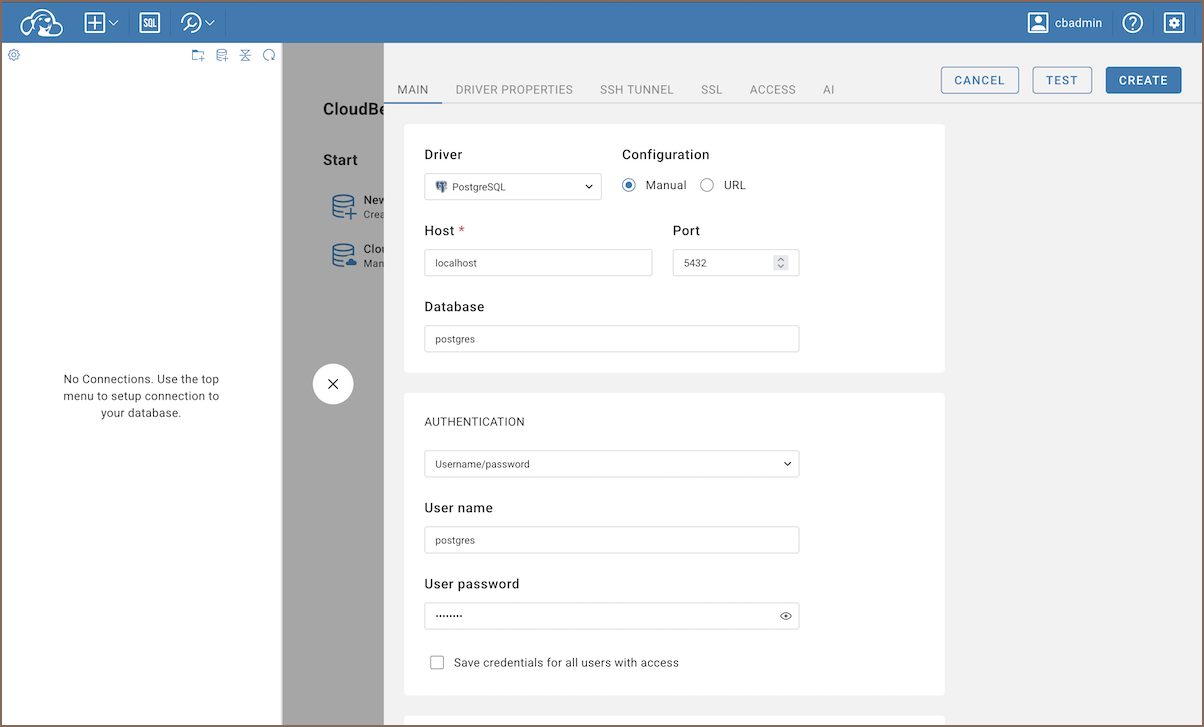
Connection
| Field | Description |
|---|---|
| Driver | Auto-filled based on the selected driver type. |
| Configuration | Choose whether you want to connect using a host or a URL. |
| Host | If you are connecting via host, enter the host address of your PostgreSQL database here. |
| JDBC URL | If you are connecting via URL, enter the URL of your PostgreSQL database here. This field is hidden if you are connecting via the host. |
| Port | Enter the port number for your PostgreSQL database. The default PostgreSQL port is 5432. |
| Database | Enter the name of the PostgreSQL database you want to connect to. |
Authentication
| Field | Description |
|---|---|
| Authentication | Choose the type of authentication you want to use for the connection. For detailed guides on authentication types, please refer to the following articles: - Username/password - PgPass - PostgreSQL Kerberos - AWS RDS IAM - Microsoft Entra ID |
| Save credentials | Saves credentials so all users with access to this connection can use them without entering them manually. Learn more |
Default connection view
Note
This section is available only for shared connections. For details, see Connection name and description.
| Option | Description |
|---|---|
| Simple / Advanced | Sets the default view for this connection in the Connections. |
| Show system objects | Shows system objects in the Connections. |
Info
For more details on connection view, see Simple and Advanced View
Secret parameters
Team Edition supports various cloud-based secret providers to retrieve database credentials.
Note
This tab is only available if Enable Secret Management is enabled in Settings -> Administration -> Server Configuration. Learn more
Role
| Field | Description |
|---|---|
| User role | Sets the role for this connection. All users connect with this role. |
Database list
| Option | Description |
|---|---|
| Show all databases | Displays all databases in the Connections. |
| Show template databases | Displays template databases. This option is available when Show all databases is checked. |
| Show unavailable databases | Show databases not available for connection in database list. This option is available when Show all databases is checked. |
| Read all data types | Reads all data types from the server. |
| Read table keys with columns | Enable reading table constraints during the column reading stage to ensure accurate recognition of keys. Note that this setting may decrease metadata loading performance. |
| Replace legacy timezone | Replaces legacy timezone settings. Enable only if you need to connect with legacy timezones like Europe/Kyiv or Asia/Calcutta. Only these two timezones are affected. |
SQL
| Option | Description |
|---|---|
Show $$ quote as string |
Displays $$ quotes as code blocks or strings. |
Show $tagName$ quote as string |
Displays $tagName$ quotes as code blocks or strings. |
Expert settings
| Field | Description |
|---|---|
| Keep-alive interval (seconds) | Interval (seconds) for sending a signal to maintain the connection open during user inactivity. |
| Auto-commit | Determines if each SQL statement is committed automatically upon execution. |
| Read-only connection | Prevents any write operations on this connection. |
| Default catalog | Specifies the default database to be selected once the connection is established. |
| Default schema | Indicates the default schema to be used within the selected database. |
Connection name and description
| Field | Description |
|---|---|
| Connection name | Assign a specific name to the connection for easier identification. |
| Project | Choose where to store the connection: - Private - only you can access it - Shared - available to other users |
| Description | Add descriptions for your connection for better understanding. |
Driver properties
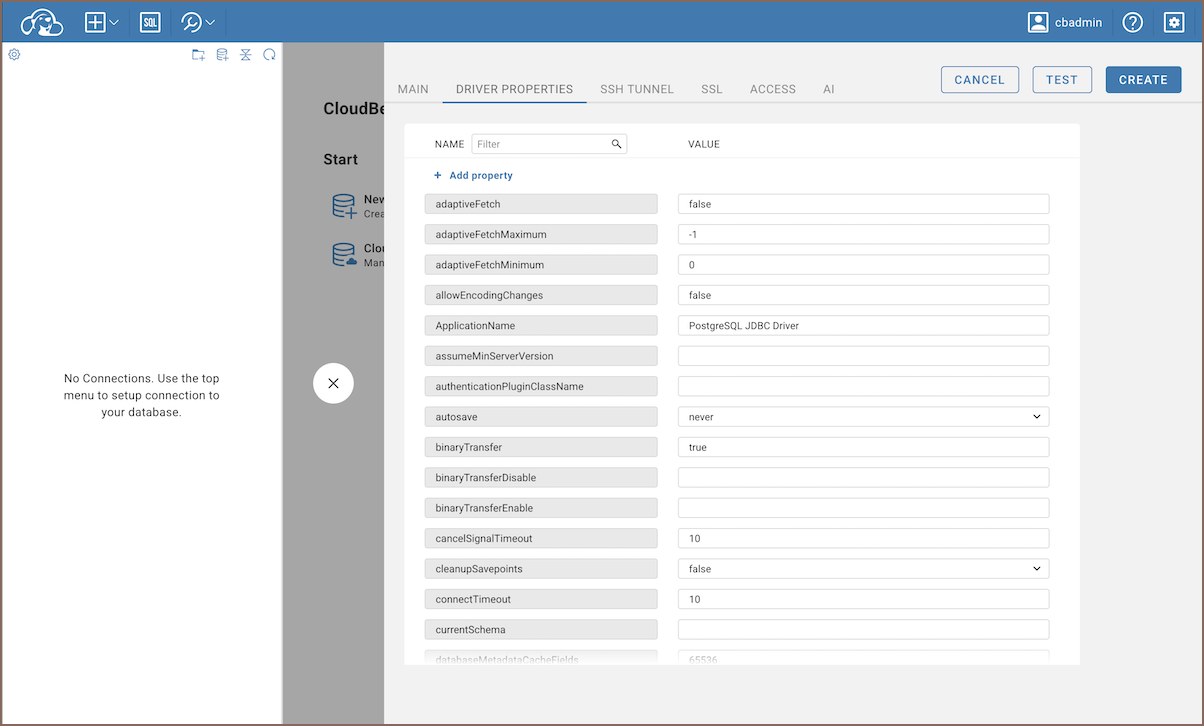
Adjust PostgreSQL JDBC driver settings that affect performance, compatibility, and connection behavior. Edit values directly in the table, or add custom ones with + Add property.
Info
For a full list of available properties, see the PostgreSQL JDBC documentation.
Secure connections
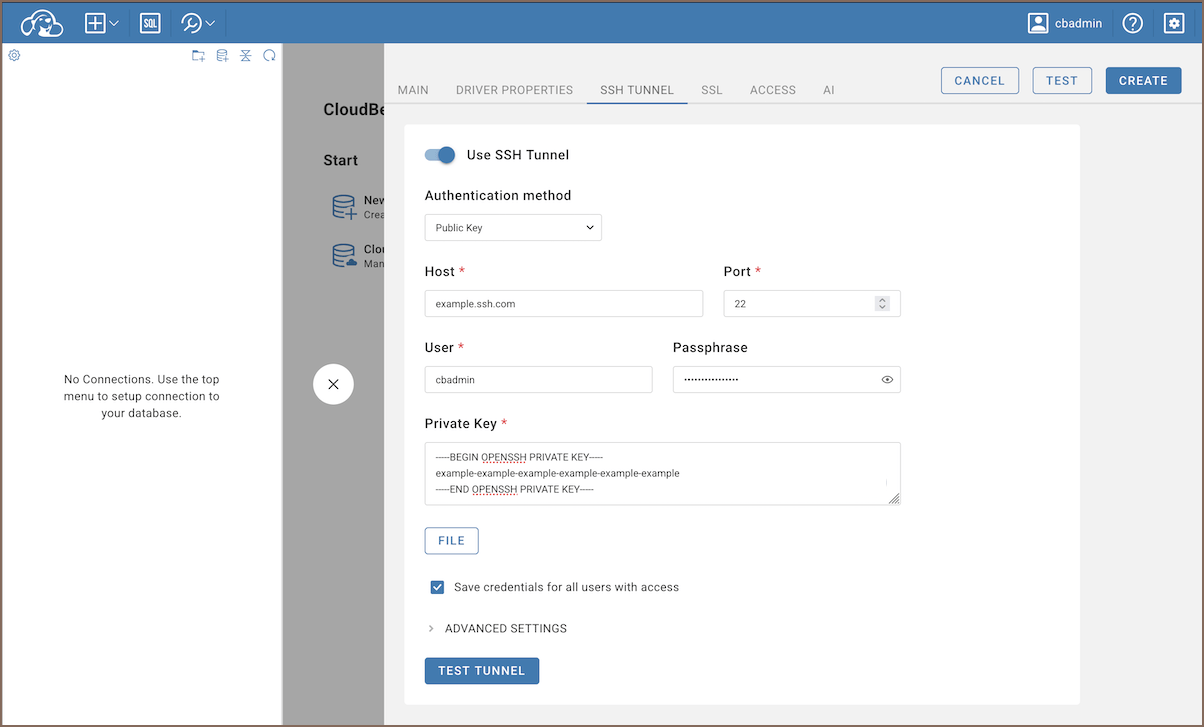
Team Edition supports SSH and SSL connections to PostgreSQL. For setup details, see:
AI
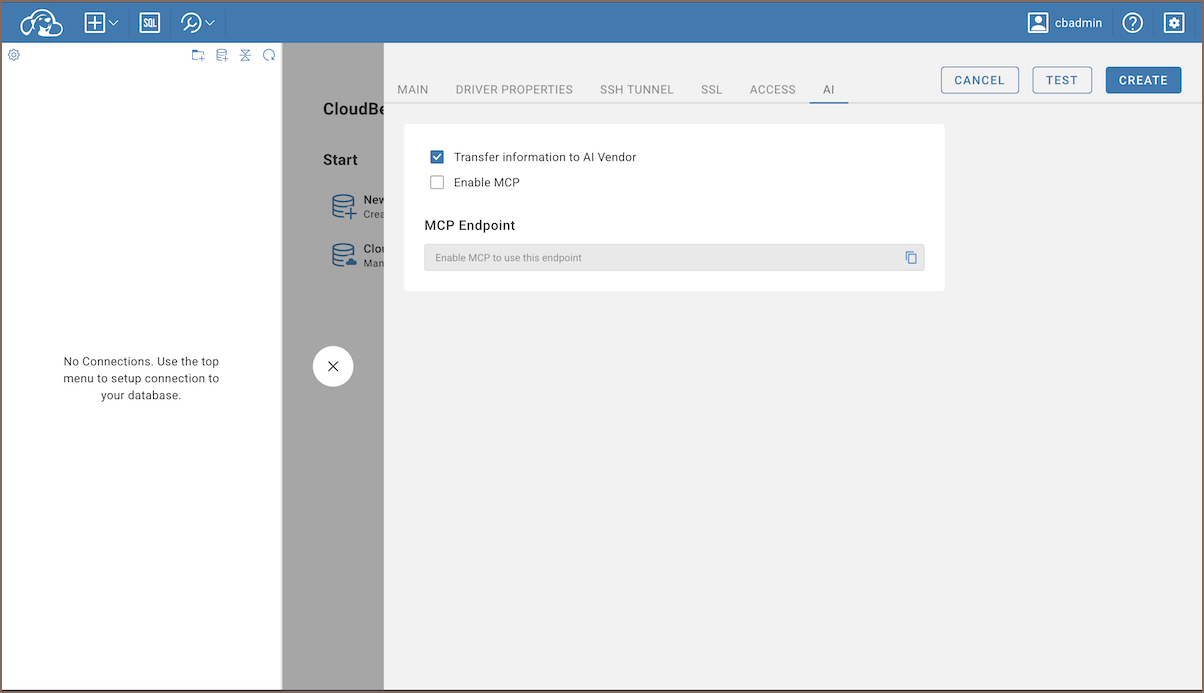
Enable Transfer information to AI vendor to let the AI assistant use this connection's schema and data when generating SQL suggestions.
Note
This tab is only available if AI Integration is enabled in Settings -> Administration -> Server Configuration. For information on setting up AI integration, see AI assistant setup.
You can also expose this connection as an MCP server for external AI clients. For setup details, see MCP server.
Access
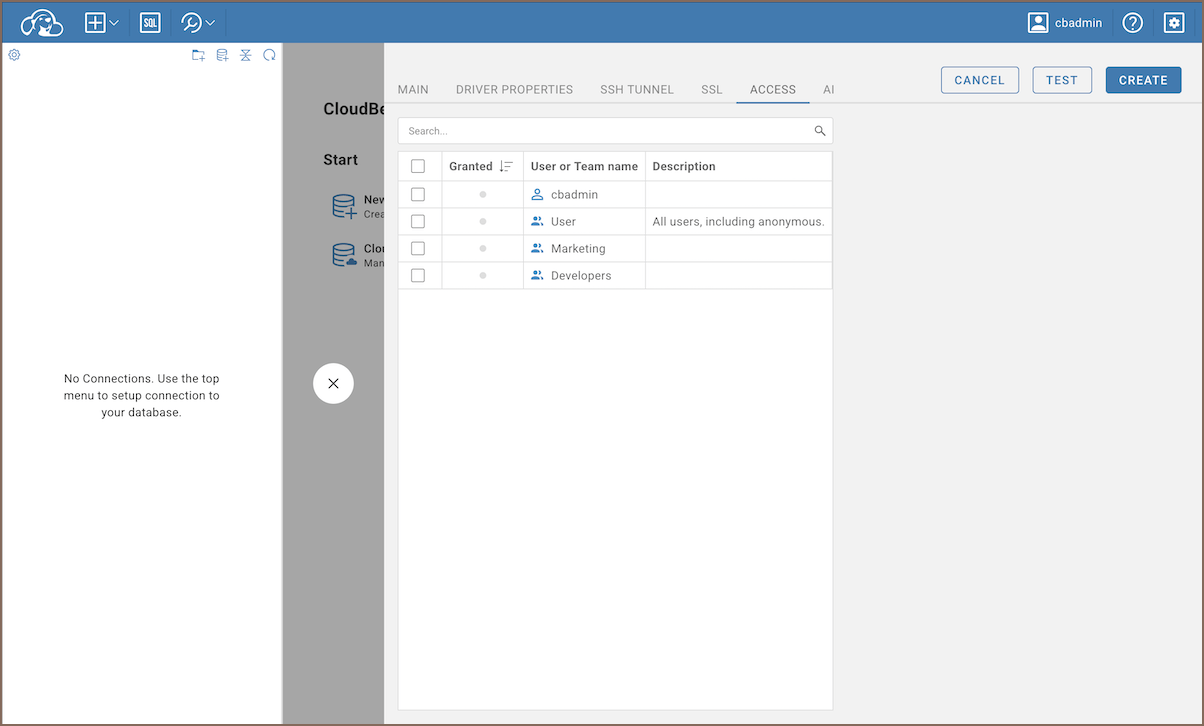
Control which users and teams can use this connection. Grant access by selecting the checkbox next to a user or team name.
Switch to the Shared project to enable the Access tab.
Supported objects
Team Edition lets you view and manage a wide range of PostgreSQL objects:
- Databases
- Schemas
- Tables
- Columns
- Constraints
- Indexes
- Foreign Keys
- Dependencies
- References
- Partitions
- Triggers
- Rules
- Policies
- Foreign Tables
- Views
- Materialized Views
- Functions
- Sequences
- Data types
- Aggregate functions
- Tables
- Event Triggers
- Extensions
- Storage
- Tablespaces
- Roles
- Schemas
- Administer
- Jobs
Note
Table elements like columns, indexes, and constraints appear in the Connections tree only if this option is enabled in Connections settings
Additional features
PostgreSQL specific support
| Category | Objects |
|---|---|
| Security | Roles, policies |
| Extensions | PostgreSQL extensions |
| Data organization | Partitions |
| External data | Foreign tables |
| Database management | Dependencies, references, triggers, rules |
Tools and integrations
| Category | Feature |
|---|---|
| Data transfer | Data import |
| Data export | |
| Session management | Session manager |
| Data visualization | GIS guide |
| ERD guide | |
| Query management | Query manager |
| Query history | |
| SQL tools | Visual query builder |
| Administration | Audit logging |