

Simple and advanced view
In Team Edition, you can control which database objects are displayed in the Connections.
View modes control visibility of objects and available actions across the Connections, Properties editor, and Diagram editor.
View modes
- Simple view: Shows only tables. Learn more about limitations
- Advanced view: Shows all database objects, including system objects, folders, and all supported object types.
- Custom view: Lets you configure which objects and actions are available.
Customize view settings
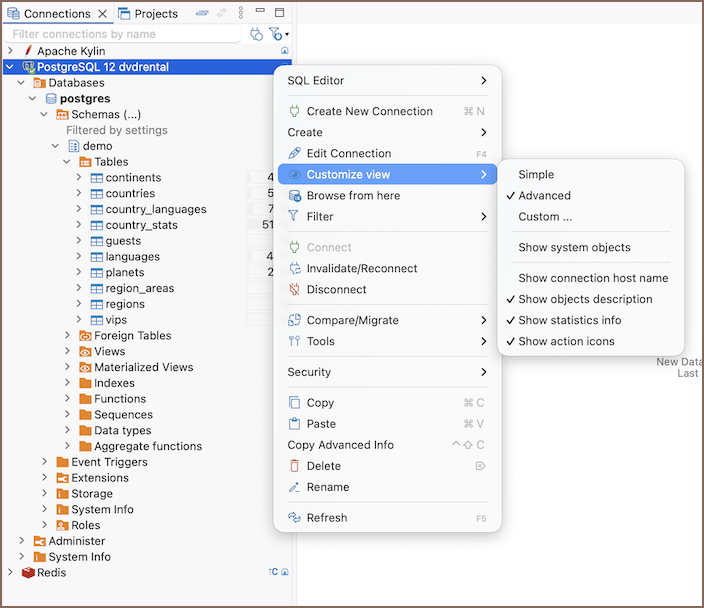
- Right-click on the desired database within the Connections.
- Select Customize view.
- Choose between Simple, Advanced, or Custom to suit your preferences.
Settings
| Setting | Description |
|---|---|
| Simple view | Shows only tables. |
| Advanced view | Shows all database objects. |
| Custom view | Lets you choose which objects to display. Available only in Advanced mode. |
| Show system objects | Displays system objects such as pg_catalog or SYSTEM. |
| Show connection host name | Shows the host or tunnel next to the connection name. |
| Show objects description | Displays object descriptions next to their names. |
| Show statistics info | Shows statistics (for example, table size) on the right side. |
| Show action icons | Displays action icons (for example, read-only indicator). |
Important
Changing the view modes settings affects the currently selected database. To customize the display of objects in each database individually, you must select a specific view mode for each one.
Compare view modes
| Feature | Simple view | Advanced view | Custom view (configurable) | Description |
|---|---|---|---|---|
| Show system objects | No | Yes | Yes/No | Includes or excludes system objects such as pg_catalog or SYSTEM |
| Show utility objects | No | Yes | Yes/No | Includes or excludes utility objects like template databases for new database creation |
| Show only schemas and tables | Yes | No | Yes/No | Displays only schemas and tables, hiding all other objects |
| Show all tables in a single list | No | No | Yes/No | Consolidates all tables into one list, regardless of their schema |
| Hide folders | Yes | No | Yes/No | Hides all intermediate logical folders, displaying objects directly |
Limitations of Simple view
In addition to selecting a view mode, there are other settings accessible via the Customize view context menu. These settings provide additional information about the database objects and enhance your experience:
In Simple view, you can't:
-
create database objects from Connections, Properties editor, or Diagram editor
Tip
You can still create objects using SQL in the SQL Editor.
-
use copy actions (including Copy and Copy advanced info) from Connections