

Query manager
The Query Manager in Team Edition shows only queries executed from Team Edition. It shows query details, including SQL text, execution time, affected rows, connection details, and execution results.
Info
Queries executed through the Team Edition MCP server also appear in Query Manager.
To access the Query Manager, navigate as administrator to Settings -> Administration and select the Query Manager tab.
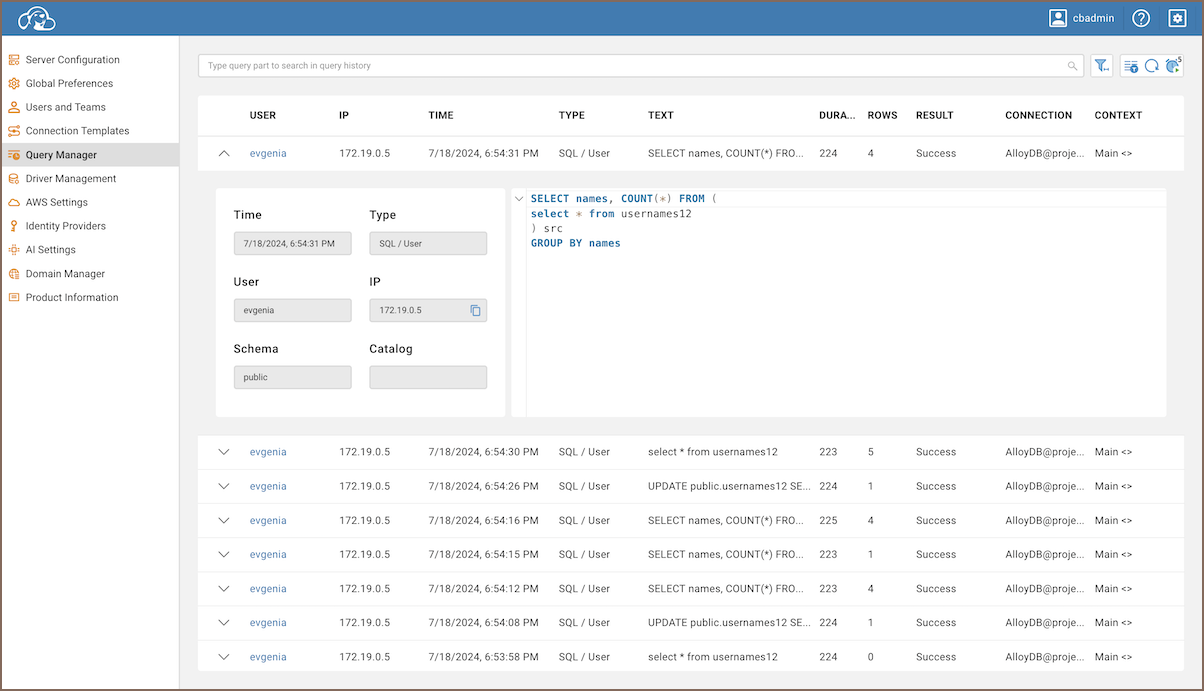
Some columns provide additional context:
| Field | Description |
|---|---|
| IP | Shows the IP address from which the query was executed. |
| Type | Identifies whether the query was initiated by a user or generated by the system. |
| Context | Provides additional information about the environment or session in which the query was executed. |
| Schema | Indicates the database schema used for the query. |
| Catalog | Represents the database catalog being accessed during the query. |
Tip
In the Team Edition, supervisors also have the ability to use the Query Manager to monitor their team’s queries. For more detailed information on the supervisory functions within the Query Manager, refer to the article on Teams in Team Edition.
Search query history
Use the search field above the table to find queries by SQL text.
Customize the view
Configure how Query Manager is displayed:
- Open Query Manager options (
 ) to change behavior and
filtering settings.
) to change behavior and
filtering settings. - Use Column Manager (
 ) to show or hide columns.
Info
For more details, see query Manager options.
Refresh query manager
Update query data manually or automatically:
- Click Refresh (
 ) to reload the query list.
 - Toggle Auto-Refresh (
 ) to enable or disable automatic updates.
Info
For information on configuring refresh behavior, see auto refresh.
Export query history
Save query history to a CSV file for analysis or sharing. Click
Export ( ) and confirm to start the download.
Tip
Exports respect the filters you've applied. Without data filters, you'll get the last 30 days.
Query Manager options
The Query Manager offers a range of customizable settings that allow administrators to tailor the view and behavior
according to their specific needs. To access these settings, click the Query Manager Options
button .
Tip
For more information on how to adjust Query Manager settings through the configuration file, see Query Manager configuration.
Query types
You can filter which types of queries are displayed in the Query Manager by selecting or deselecting the following options:
| Option | Description |
|---|---|
| User queries | Show all queries directly executed by users. |
| Filtered user queries | Show user queries that meet specific criteria. |
| User scripts | Show batches of queries executed as scripts. |
| Utility functions | Show system-level utility function calls. |
| Metadata read | Show queries that read database metadata. |
| Metadata write (DDL) | Show queries that modify database structure. |
| Query status | Allows to filter queries based on their execution status. The available options are: |
| All: Displays all queries regardless of their execution outcome. | |
| Fail: Shows only the queries that have failed. | |
| Success: Displays only the queries that have executed successfully. |
Object types
Control visibility of different system object types involved in the queries:
| Option | Description |
|---|---|
| Sessions | Include queries related to user sessions. |
| Queries | Include individual query executions. |
Filter by date
Specify the date range to view queries:
- From: Start date and time for the filter.
- To: End date and time for the filter.
Filter by users
You can filter the displayed queries by specific users. Use the search field to find and select the desired users to tailor the display of queries according to your needs.
Filter by drivers
This feature enables you to filter queries based on the database drivers. Search for and select the drivers that you are interested in to narrow down the results of displayed queries.
Filter by Projects
You can filter the displayed queries by projects. This option allows you to search for and select the projects that are relevant to the queries you are interested in.
Sorting and Settings
Adjust how query results are sorted and displayed:
| Option | Description |
|---|---|
| Sorting by | Choose the attribute to sort the queries by (available options: User, Date, Driver, Query text). |
| Desc | Check this to sort in descending order. |
| Row Count | Set the number of queries to display per page. |
Auto Refresh
Configure automatic refresh of query information:
| Option | Description |
|---|---|
| Enabled | Check this to enable auto refresh every few seconds. |
| Interval (seconds) | Set how often the Query Manager updates. |
| Stop on error | Check this to halt auto refresh if an error occurs. |
Restore defaults
To restore the default settings, press the Restore Defaults button at the bottom of the Query Manager Options window.
Cleanup old records
CloudBeaver can automatically remove old query history records. This helps keep your query history clean and manageable by deleting outdated entries based on a set number of days.
Info
For more details, see the Preferences.