

Create connection
Team Edition provides multiple methods to set up a connection. To create a connection, do one of the following:
Create a new connection
-
Initiate new connection:
- Click the
+button in the top menu. - Select New Connection from the dropdown options.
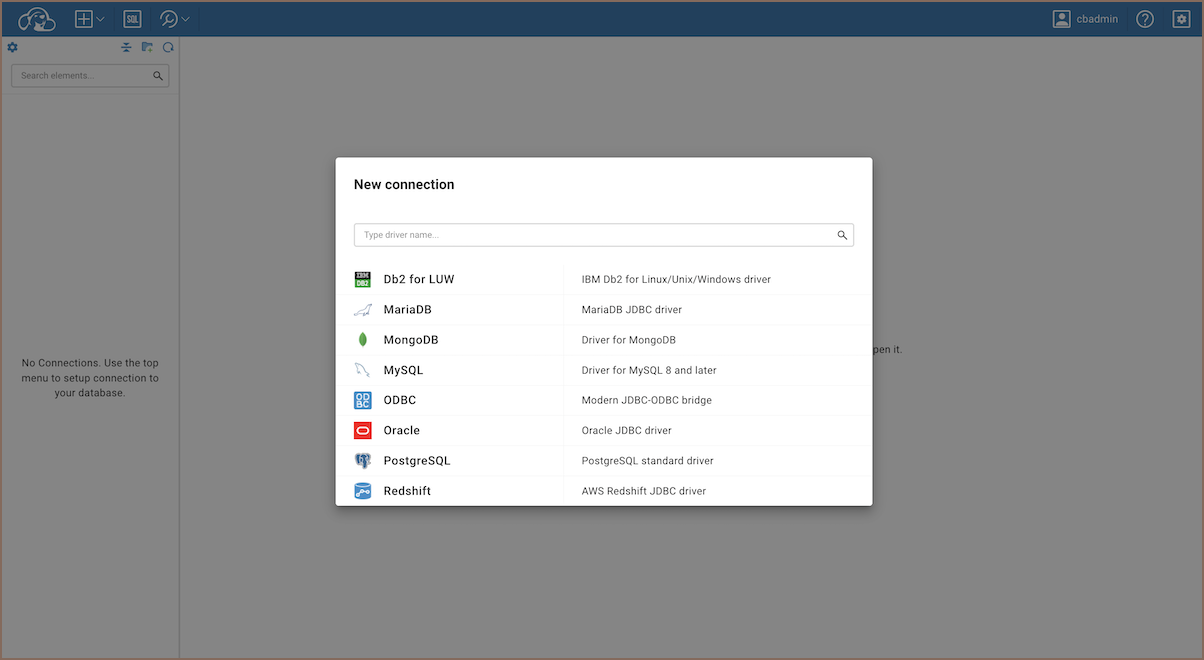
- Click the
-
Select the appropriate driver from the available options.
Note
If no driver is available for your database, you may need to create a custom driver. By default, some drivers require downloading. If a driver is missing, you’ll see a warning message.
-
Enter all necessary details in the form fields provided. For detailed steps on filling out these fields, refer to the section below.
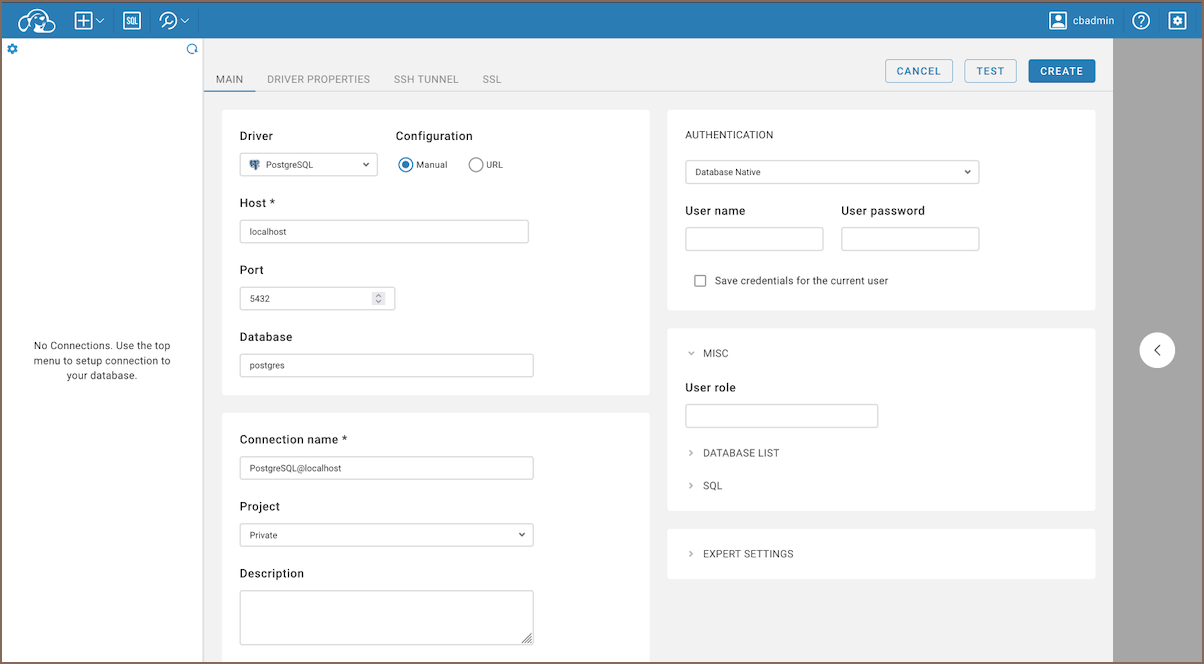
-
Test the connection (optional):
- Click the Test button to ensure the connection parameters are correct.
-
After confirming all details, click the Create button.
Access and modify connection
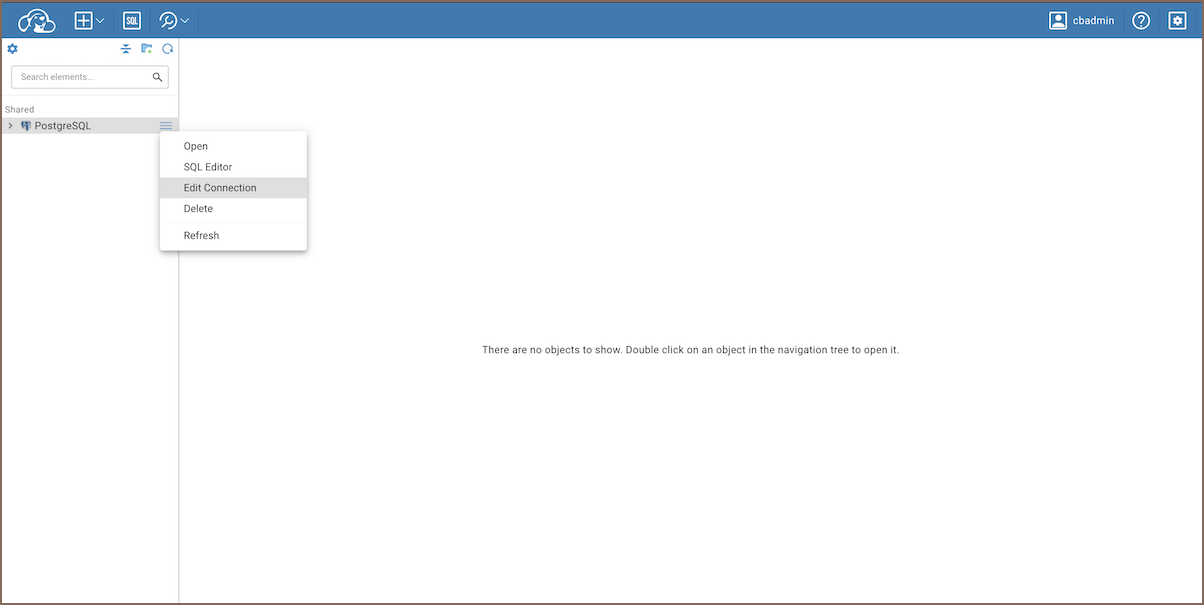
To edit the connection details, click the context button next to the connection name and choose Manage -> Edit Connection.
Info
For information on changing the password for the database account used by an active connection, see Change database account password.
Use the Cloud Explorer
Cloud connections are set up through your cloud service provider and automatically populated in your Connections tree, based on configurations managed by the server administrator.
Info
For details on configuring and managing cloud connections, see the Cloud Explorer.
Configure connection settings
In the New connection wizard, on the Main tab, you need to set all primary connection settings.
Here's what you typically need to configure:
| Setting | Description |
|---|---|
| Host | The address of your database server. |
| Port | The port number used to connect. |
| Database | The name of the database you want to connect to. |
| Connection name | A name you choose for this connection. It shows up in the Connections. |
| Project | Links the connection to a specific Project. You can choose between "Shared" and "Private". |
| Description | A short description of the connection. |
| Connection type | Assigns environment-specific behavior and a color to the connection. For details, see Connection types. |
| Authentication | Choose the type of authentication the database requires. |
Private and shared connections
Each connection belongs to a project - either Private or Shared. Private connections are only visible to you. Shared connections are managed by the administrator and accessible to multiple users or teams.
Share credentials with teammates
To share a connection with your team, switch to a shared project in the toolbar:
- Start creating a new database connection.
- In the Authentication section, check the Share credentials with teammates checkbox.
- Select the required type of credentials.
-
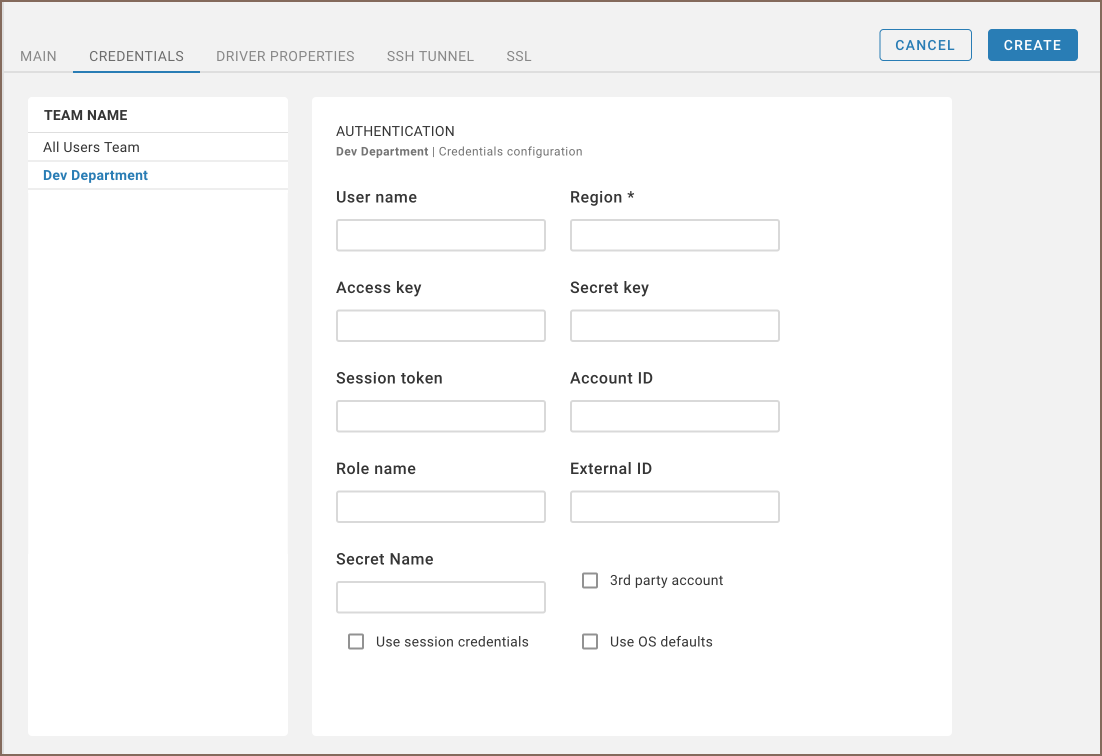
Navigate to the Credentials tab.
-
In the Credentials tab, select the team with which you want to share the credentials.
- Fill in the necessary fields based on the selected type of credentials.
Note
Share credentials checkbox ignored when using Secret Providers.
Expert settings
| Setting | Description |
|---|---|
| Keep alive (in seconds) | Sets the interval in seconds for sending signals to keep the connection active. Set to 0 to disable. |
| Auto commit | Automatically commits changes during a transaction if enabled. For more information, see Auto and Manual commit |
Note
The number and type of connection properties depend on the driver.
Additional settings
When setting up a new connection, you may need to configure additional options:
| Additional tab | Description |
|---|---|
| Driver Properties | Each driver has its own set of additional properties. |
| SSH Tunnel | Configure an SSH tunnel if your database requires a secure connection. |
| SSL | Enable and configure SSL if your connection requires encryption. |
Secure Storage with Secret Providers
Team Edition supports various cloud-based secret providers to retrieve database credentials securely.
Info
For detailed setup instructions, see Secret Providers.
Manage access permissions
In Team Edition, access to connections is managed at the shared project level. When you grant project access to users or teams, they can access its connections and resources according to their role and project permissions.
- As an Administrator, go to Settings -> Administration -> Projects.
- Select the project that contains the connections you want to share.
- Go to the Access tab and select the users or teams that need access.
- Select Grant, and then select Save.
Info
For information on managing project access, see Projects.
Use pre-configured connections
You can pre-configure database connections (datasources) in data-sources.json before the server starts - useful when
you deploy the server repeatedly and don't want to create connections manually in the UI each time.
Info
For details, see Configuring server datasources.