

CSV
This guide provides instructions on how to set up and use CSV files with Team Edition. The CSV Pro driver allows you to work with CSV data as if it were in a database. You can retrieve data and apply filters, sorting, and other operations, even combining data from multiple CSV files.
Important
When using the CSV Pro driver, all connected CSV files are read-only. To make changes, you need to update the original files outside Team Edition.
CSV Files driver connection
This section describes two ways to set up a connection: opening a file from Cloud Storage or creating a connection using the wizard.
Note
The connection from Cloud Storage is temporary and will be removed when the session ends.
Open a file from Cloud Storage
You can open files directly from your Cloud Storage. Open Cloud Storage, find the file you need, and double-click it to create a connection. The connection will appear in the File databases folder in Connections.
Info
You'll need to be logged in using the Identity Provider associated with your Cloud Storage.
Create a connection
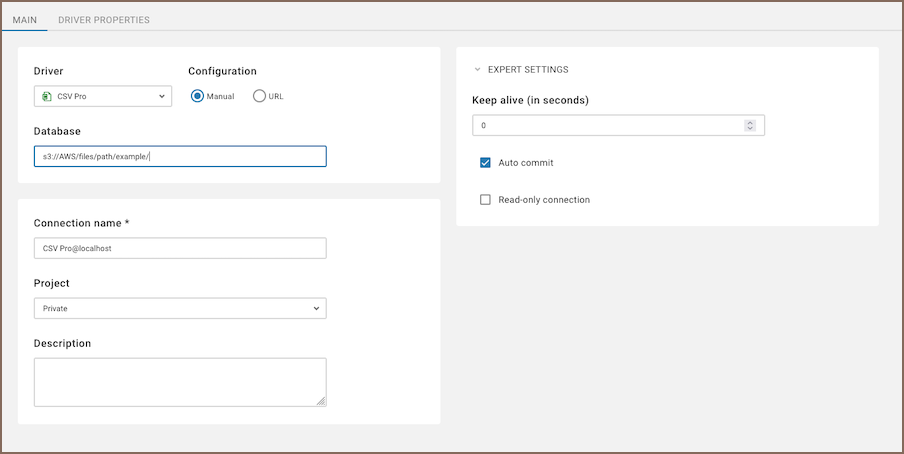
To create a connection in Team Edition, use the new connection wizard, select the CSV driver, and fill the following fields:
| Field | Description | Options |
|---|---|---|
| Configuration | Choose how to specify the connection details. | - Manual: Enter the database path manually. - URL: Provide a connection URL. |
| Database | Enter the file/folder path. | Use the appropriate format for your cloud provider. For instance: s3://AWS/files/path/example/ |
| Connection name | Enter a custom name for your connection. | Defaults to CSV Pro@localhost. |
| Description | (Optional) Add details about this connection. | |
| Keep alive (in seconds) | Set how long the connection stays active. | Default: 0 (no timeout). |
| Auto commit | Enable automatic transaction commits. See more details on Auto and Manual commit modes. | Enabled by default. |
| Read-only connection | Restrict the connection to read-only mode. | Optional checkbox. |
For details on driver properties, see File-based driver properties.
Tip
When using the folder path in the Database field, Team Edition scans the directory up to two levels deep for supported files. If the folder contains multiple files, Team Edition organizes them into schemas based on their directory structure. For more information, see folder structure.
Features and capabilities
Advanced SQL query capabilities
The CSV Pro driver supports the full range of SQL queries:
- Simple queries (e.g.,
SELECT * FROM table): Data is read directly from the CSV file. - Complex queries (e.g., using
WHERE,JOIN,ORDER BY,GROUP BY): When a complex query is executed for the first time, the driver imports the entire CSV file into an internal database to enable advanced SQL functions. Subsequent queries run faster because the data is already imported into internal database.
Note
If you want to join data from different files, they must be opened in the same connection. To do this, use a folder path instead of a single file when creating the connection.
Structuring CSV files with a schema
CSV files don't include metadata about their structure, such as column names or data types. To enhance how Team Edition interprets these files, you can define a schema using a DDL (Data Definition Language) file.
Why use a DDL file
A DDL file helps Team Edition interpret your data more accurately by defining:
- Column names
- Data types
- Optional indexes for better performance
How to create a DDL file
- Create a
.ddlfile with the same name as your CSV file, placing it in the same directory (e.g.,employees.csvandemployees.csv.ddl). - Write a schema using the
CREATE TABLEstatement:
You can also use the WITH clause to set a data range - add firstRow and rowCount to your CREATE TABLE statement:
firstRow- row number to start reading from (default: 1)rowCount- maximum number of rows to read
Tip
You can also set firstRow and rowCount in the connection properties.
DDL file settings take priority.
Important
If the DDL file contains errors, Team Edition will ignore it.
Folder structure
When working with a folder containing multiple CSV files, Team Edition organizes them as follows:
| Folder structure | Schema in Team Edition |
|---|---|
| Root files | Default schema |
| Subfolder files | Schema named after the subfolder |
| Files in deeper folders | Ignored |
If your folder looks like this:
Team Edition will create:
Defaultschema:employees,salesReportsschema:monthly,yearly
Tip
To focus on specific files, consider selecting individual files or folders when configuring the connection.
Internal database
When you execute a complex query (such as WHERE, JOIN, GROUP BY, or ORDER BY.), on an CSV file for the first
time, the CSV Pro driver processes the data by importing it into a temporary internal SQLite database.
This internal database stores data temporarily on the server during your session and is cleared when session ends.
Additional features
Team Edition provides additional features compatible with CSV Pro driver, but not exclusive to it:
| Category | Feature |
|---|---|
| Data Export | Data Export |
| Data Visualization | Visual Query Builder |
| Charts |
Info
For more details on driver properties, see File-based driver properties.