

Connections folders
You can group and store connections using folders in the Connections. Any logged-in user can create folders in the Private project. Administrators can create them in the Shared project.
Add folder
-
Click New folder (
 ) on
the Navigator toolbar, or right-click in the Connections and select Create ->
Folder.
) on
the Navigator toolbar, or right-click in the Connections and select Create ->
Folder.Tip
If the option to enable private connections is activated in the settings, you can select whether folders are shared or private during creation. To create a folder in the Shared project, select the Shared project in the Connections first, then click New folder.
-
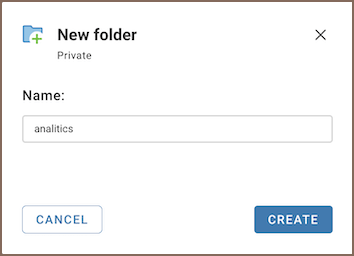
Enter a folder name and click Create.
Add connection to folders
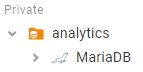
Drag and drop a connection into a folder.
Move connection
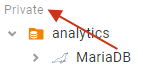
Drag and drop a connection above the list of objects in Connections to move it out of a folder.
Rename a folder
Select Manage -> Rename from the folder's context menu and enter the new name in the dialog.
Delete a folder
Select Manage -> Delete from the folder's context menu and confirm in the dialog.
Info
Deleting a folder removes only the folder and its subfolders. Connections stay in the Connections tree.