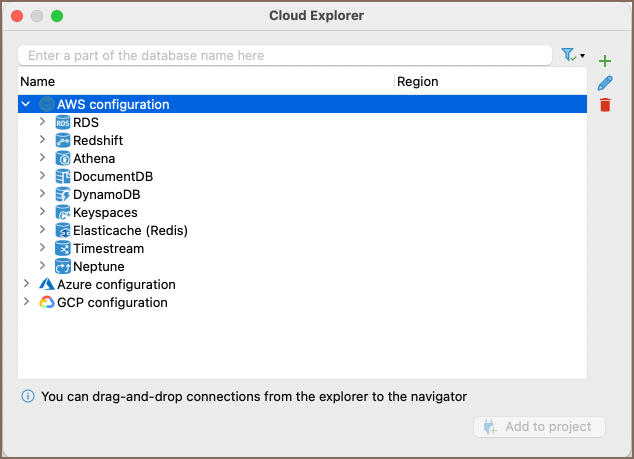
AWS cloud explorer
Team Edition facilitates advanced functionalities for efficiently managing and connecting to Amazon Web Services (AWS) databases through its user interface. The process for setting up and altering connections is detailed in the Cloud Explorer article. This article outlines the key steps and prerequisites for connecting to an AWS database using Team Edition.
Requirements for AWS connection
Before initiating a connection to an AWS database using Cloud Explorer, ensure that you meet the following pre-requisites:
-
Existing AWS account: An active AWS account is required. Ensure it is properly configured following the setup guide provided by AWS.
-
Security credentials: Ensure you have at least one of the following security credentials for your AWS account:
- AWS Access/Secret keys
- Default credentials
- AWS profile
Setting up AWS permissions
Before you initiate a connection, ensure your AWS account is configured with the correct roles and permissions. For details on required permissions, see AWS Permissions.
- IAM User Permissions: Your IAM (Identity and Access Management) user needs to have policies attached that grant the necessary permissions for accessing the database.
- Role Assignment: In case you are assuming a role for database access, ensure that the role has the required permissions.
- Security Group Configuration: The security group associated with your database instance should be configured to allow inbound traffic from your IP address on the database port.
Info
For detailed instructions on roles and permissions setup, consult the official AWS roles guide.
Connection setup
-
Click on the Cloud Explorer button
 or
navigate to Database -> Cloud Explorer in the menu.
or
navigate to Database -> Cloud Explorer in the menu. -
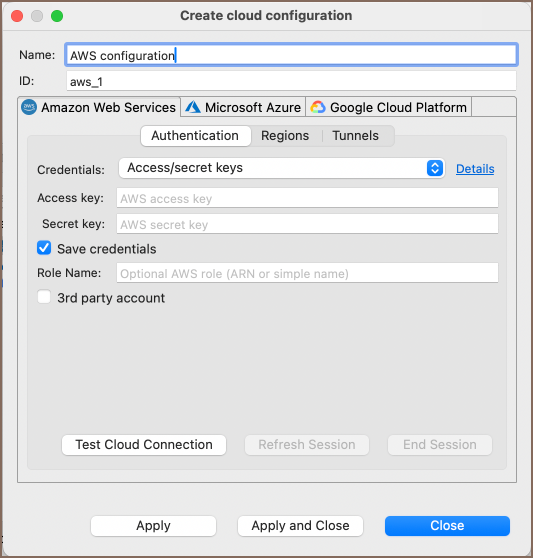
Navigate to the Amazon Web Services section.
-
Select one of the available authentication methods in Team Edition.
-
Enter your credentials.
Info
If your setup requires additional configuration:
- For SSH-based connections, enter the required credentials in the Tunnels tab.
- For custom S3-compatible storage used with Cloud Storage, open the S3 tab:
- Custom S3 Endpoint: Enter the endpoint URL. Leave it empty to use the default AWS S3 endpoint for the selected region.
- Use Path-Style Access: After entering a custom endpoint, select this option if the storage uses
endpoint/bucket/keyinstead ofbucket.endpoint/key.
-
Verify the correctness of your credentials by clicking on the Test Connection button. Then click on Apply and Close to save your settings and close the settings window.
- After completing the steps, the AWS configuration will appear in your configuration list.
-
Select the desired database from the drop-down menu to connect via Team Edition.