

Data import
You can import data into Team Edition from various file formats. Start the import process from the Data Editor.
Info
Only users with the roles Editor, Manager, Developer, or Administrator can import data. For more details, see Roles.
Supported formats
Team Edition supports the following formats for data import:
- CSV
- XML
- XLSX
Steps to import data
To import data to the Team Edition, follow these steps:
- Select the table where you want to import data and click Import (
 ) in the bottom toolbar.
 -
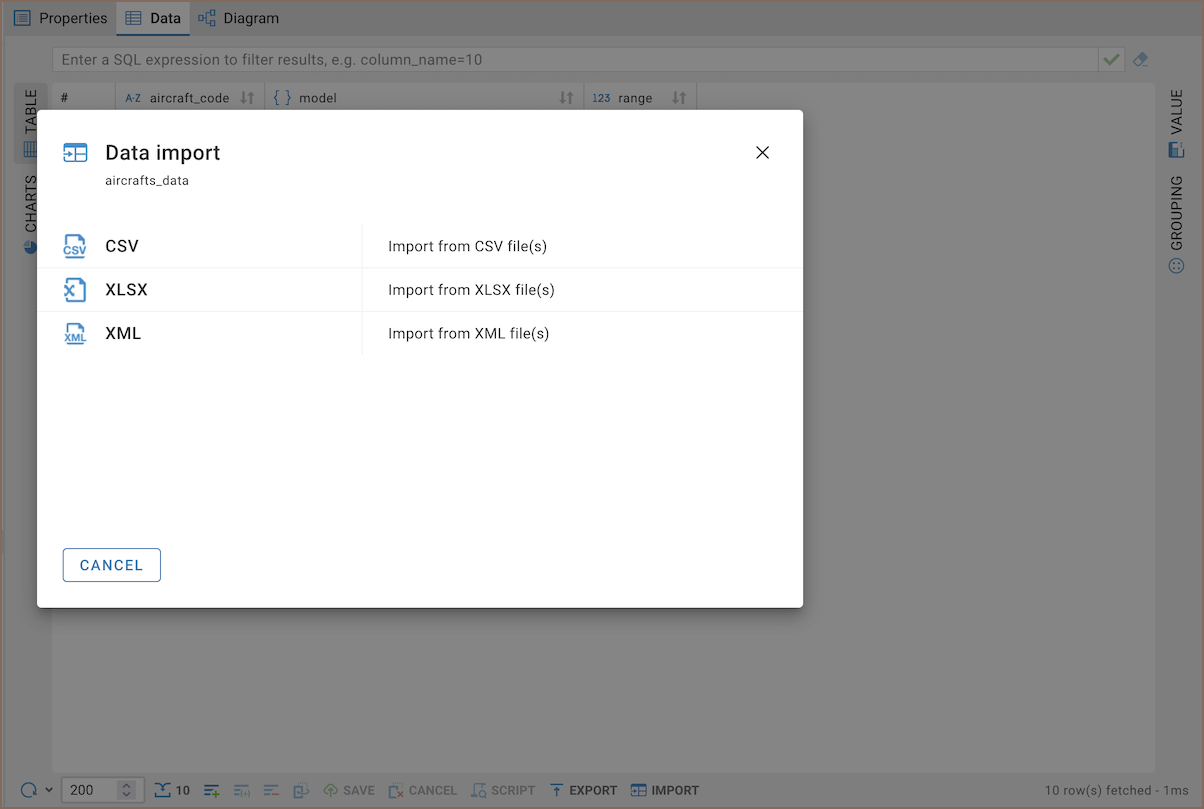
Pick the format you need from the list of available options.
-
Upload the file from your local storage.

Note
The import runs in the background, so you can keep working without interruptions.
-
On the settings step, configure the import:
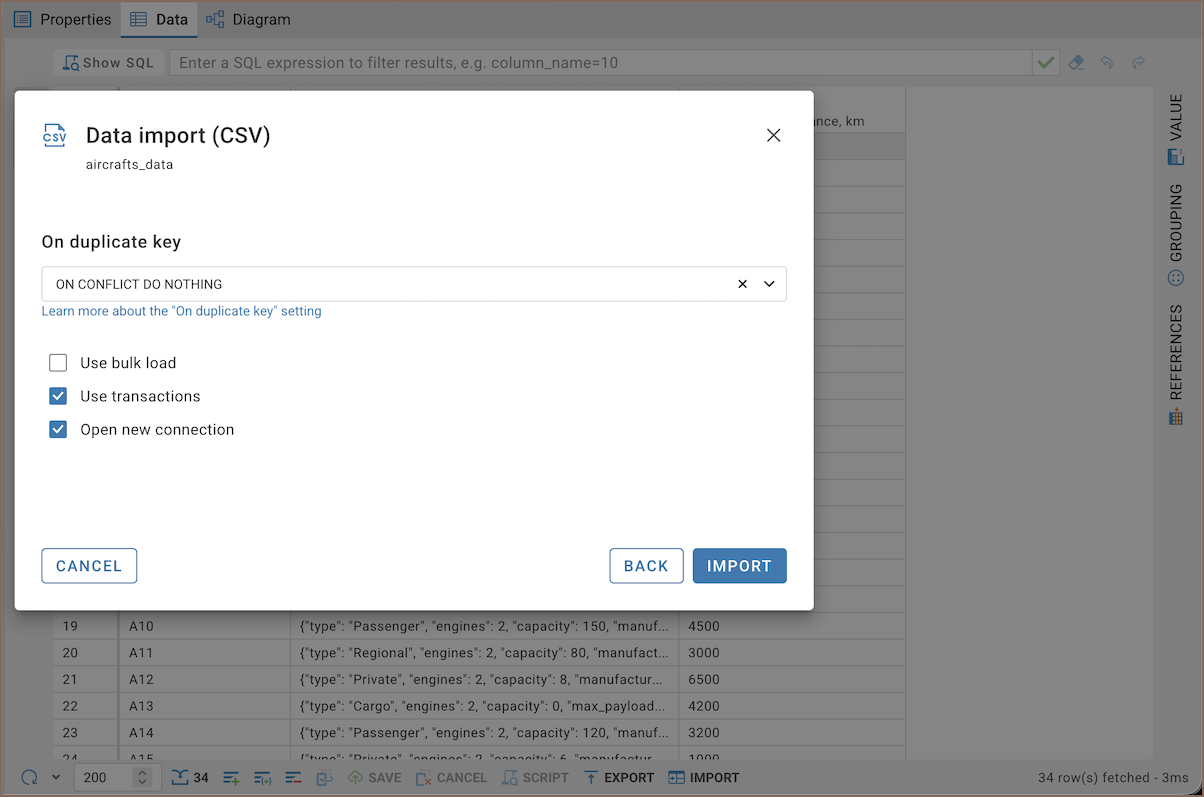
Setting Description On duplicate key Select how to handle rows that contain a primary key or unique key value already present in the target table. For details, see Data import and replace Use bulk load Use bulk loading for faster import. This setting disables On duplicate key Use transactions Execute the import within a database transaction. If the import fails, all changes can be rolled back Open new connection Open a separate connection for the import so it doesn't interfere with other calls to the target database Note
On duplicate key, Use bulk load, and Use transactions appear only when the target database or driver supports them.
-
Check for a confirmation message indicating the import was successful.
Troubleshoot import issues
If the import fails, check the following:
- Use a supported file format. For
CSVfiles, use comma delimiters. - Make sure the table structure (columns) in your file matches the target table.
- Ensure primary key values are unique. To handle duplicate values, select a method in the On duplicate key list.