

License management in the user portal
Manage your Team Edition license in the user portal after purchase. You can assign managers, add users to group licenses, monitor usage, and reassign it.
License manager
A license manager is a user who can manage a license. Managers have the same permissions as the license owner, except order information and transferring the license to a new owner.
Managers can:
- add or remove other managers
- manage users
- view license usage data
- renew, expand, or reassign the license
Manager assignment
If a reseller specifies an end user during checkout, that user becomes a license manager automatically. The assigned user gets access immediately after purchase.
If you purchase directly:
- the buyer becomes the license owner
- no managers are added automatically
- you can add managers manually in the user portal, or contact our support team
Add managers
- Open the Licenses tab.
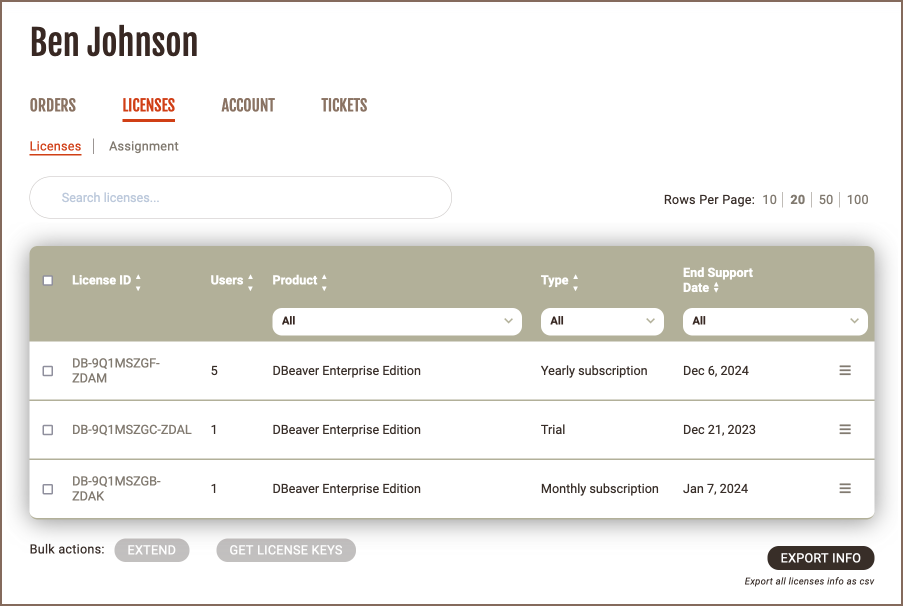
- Select a license from the list.
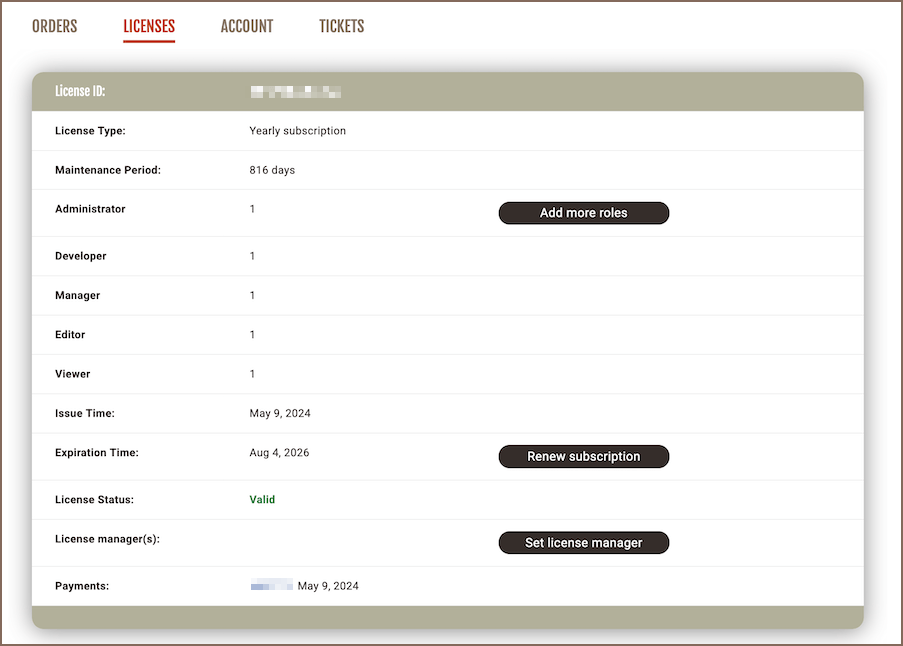
- In the license details, go to License manager(s).
-
Click Set license manager.
-
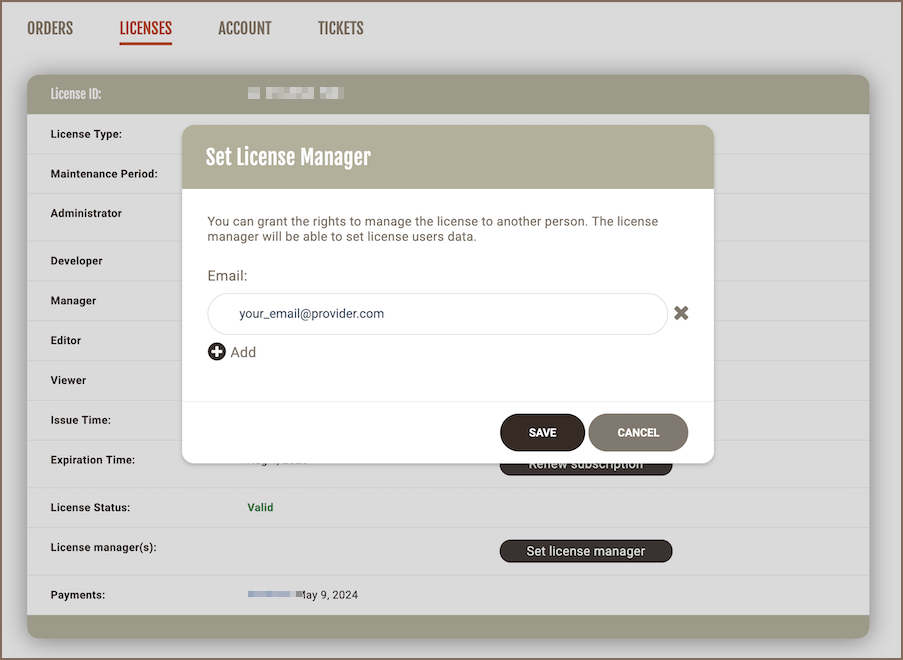
In the dialog, enter the user's email.
-
Click Add to include more users if needed.
- You can add any number of managers.
- You can add multiple emails before saving.
- If the user doesn't have an account, DBeaver creates one automatically.
- The user receives an email with access details.
-
Click Save.
Remove a manager
- Open the Licenses tab.
- Select a license from the list.
- In the license details, go to License manager(s).
-
Click Set license manager.
-
Click the remove icon next to the user.
-
Click Save.
- The user loses access to the license.
- The user receives a notification email.
Tip
A license manager can't remove themselves from the license.
License usage data
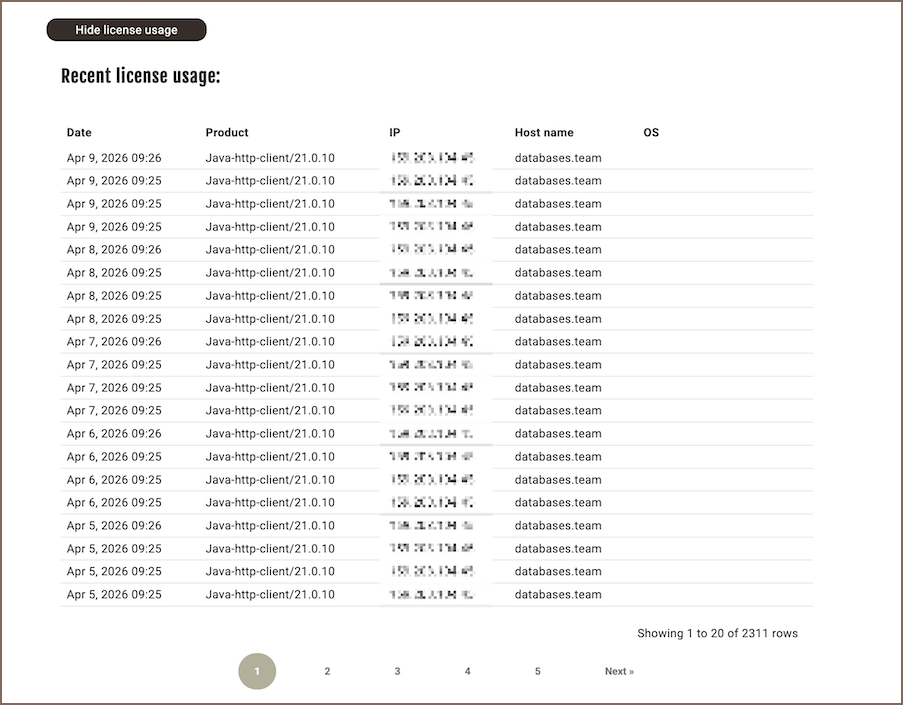
License managers and license owners can check how a license is used - who uses Team Edition, when, and from which environment.
-
Open the Licenses tab.
-
Select a license.
- Click Show license usage.
-
The Recent license usage table opens.
Warning
Usage data is collected only when Team Edition has network access. If Team Edition can't connect to the network (for example, blocked by a firewall), no data is sent. The table will be empty.
Tip
Only license owners and license managers can access license usage data. Regular group license users can't view it.
Manage users
Add users to a license and manage access for your team.
Tip
You can assign multiple license managers for the same group license. Each of them can manage the list of users independently.
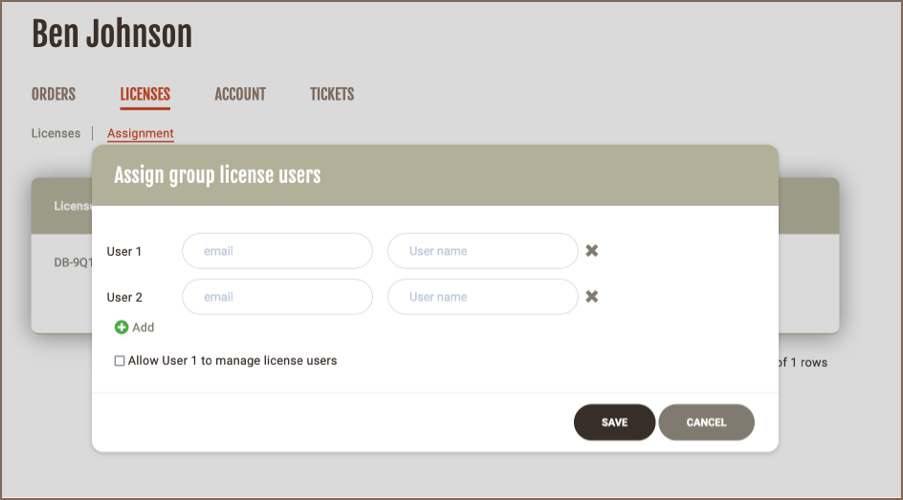
Assign users manually
-
Open the Licenses tab.
-
Select a group license.
-
In the license details, go to Group license users.
-
Enter user details:
- Email or username
- First and last name
-
Click Add to include more users if needed.
- (Optional) Keep Inform license user by email enabled to notify users.
- Click Save.
Users get access to the license in their account and can import it. They can't change license settings.
If a user doesn't have an account, the portal creates one automatically. They receive an email to set a password.
Import users from CSV
If you have many users to add, upload them from a CSV file instead of adding them one by one.
-
Open the Licenses tab.
-
Select a group license.
- In the license details, go to Group license users.
- Click Import from CSV.
-
Upload your CSV file containing the user details.
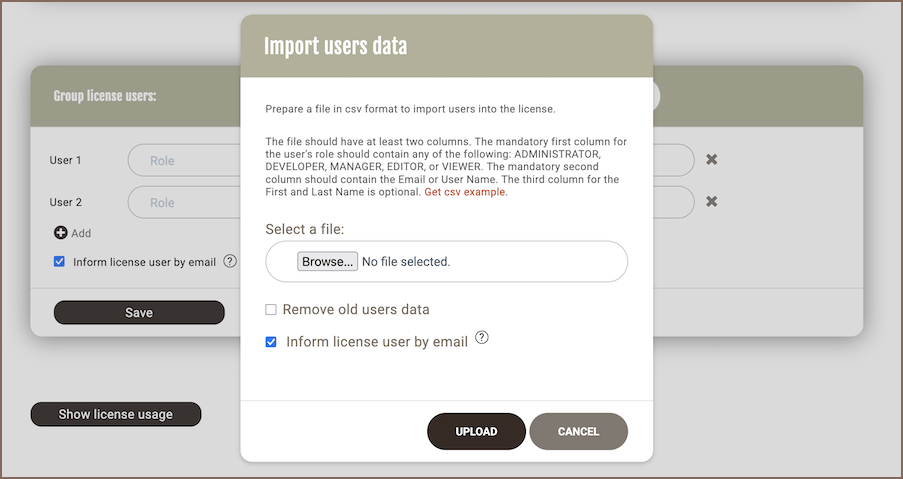
Each line is one user.
Remove users
-
Open the Licenses tab.
-
Select a group license.
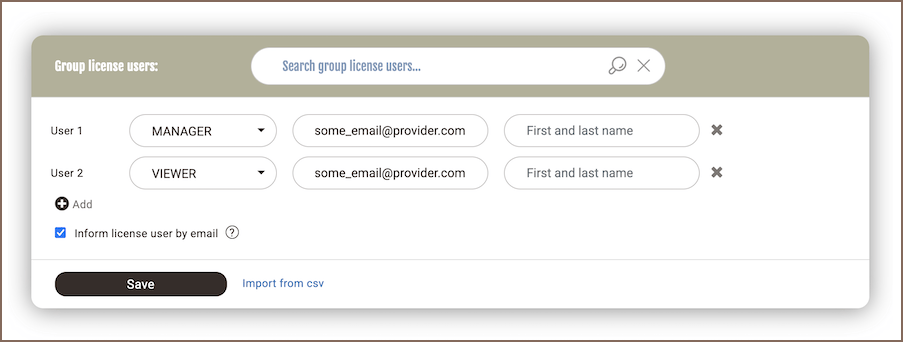
- In the license details, go to Group license users.
-
Click the remove icon next to the user.
-
Click Save.
When a user is removed, they receive a notification email.
Reassign license
Reassign a license when you need to transfer it to another user, for example if the current user no longer needs access.
- Open the Licenses tab.
- Click the Assignment subtab.
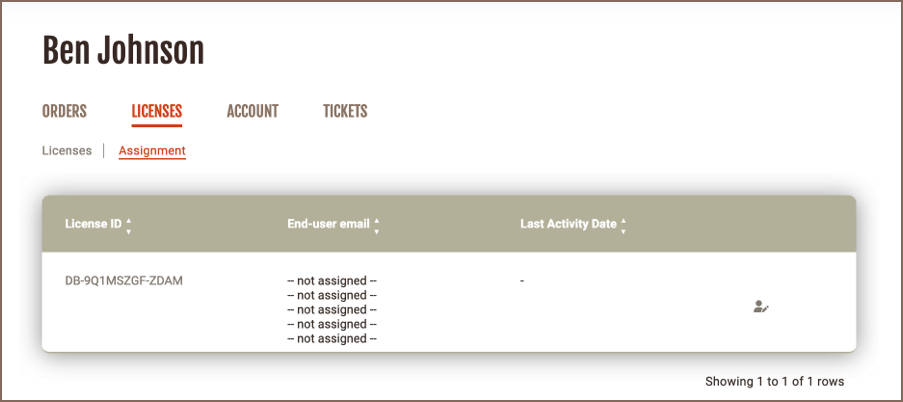
- Click the action icon in the row of the license you want to reassign.
- In the pop-up window, enter the new license end user's details.
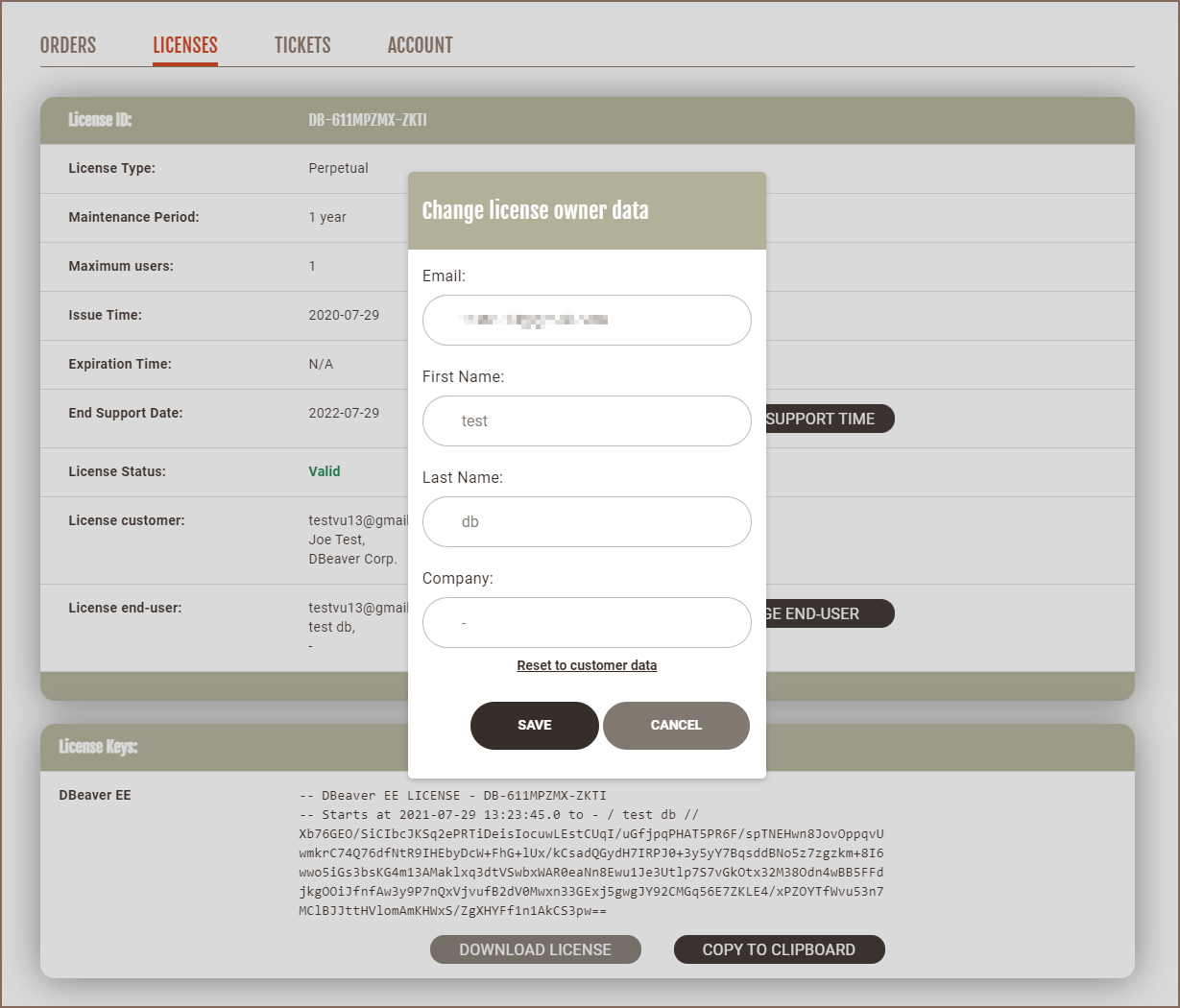
- Click Save.
Tip
If you have many users to add, upload them from a CSV file instead of adding them one by one.