

Data format preferences
Use data format settings to control how Team Edition displays locale-specific values, dates, times, timestamps, and numbers. You can apply these settings globally or to a specific connection.
Info
For information on configuring Data Editor preferences through preference files, see Data Editor settings.
Open data format settings
Change global settings
-
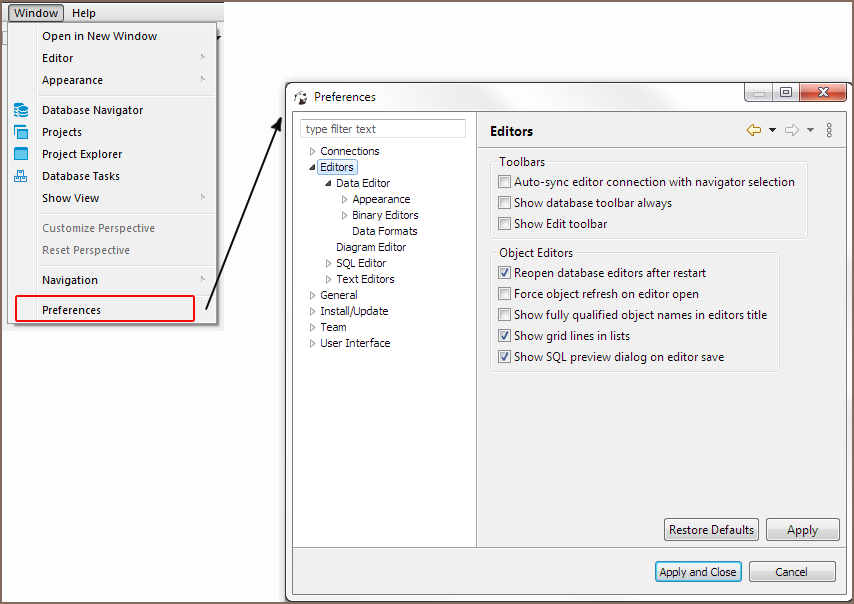
Go to Window -> Preferences -> Editors -> Data Editor -> Data Formats.
-
Change the settings, then select Apply.
Manage data format profiles
Select Manage Profiles in the global data format settings to create or delete custom profiles. Select New Profile and enter a unique name to create a profile. New profiles use formatter defaults instead of copying the Global settings. Select the new profile from Profile, configure its settings, then select Apply. To delete a custom profile, select it, then select Delete Profile.
Change settings for a connection
- In Connections, right-click a connection and select Edit Connection.
- Open Data editor -> Data Formats.
-
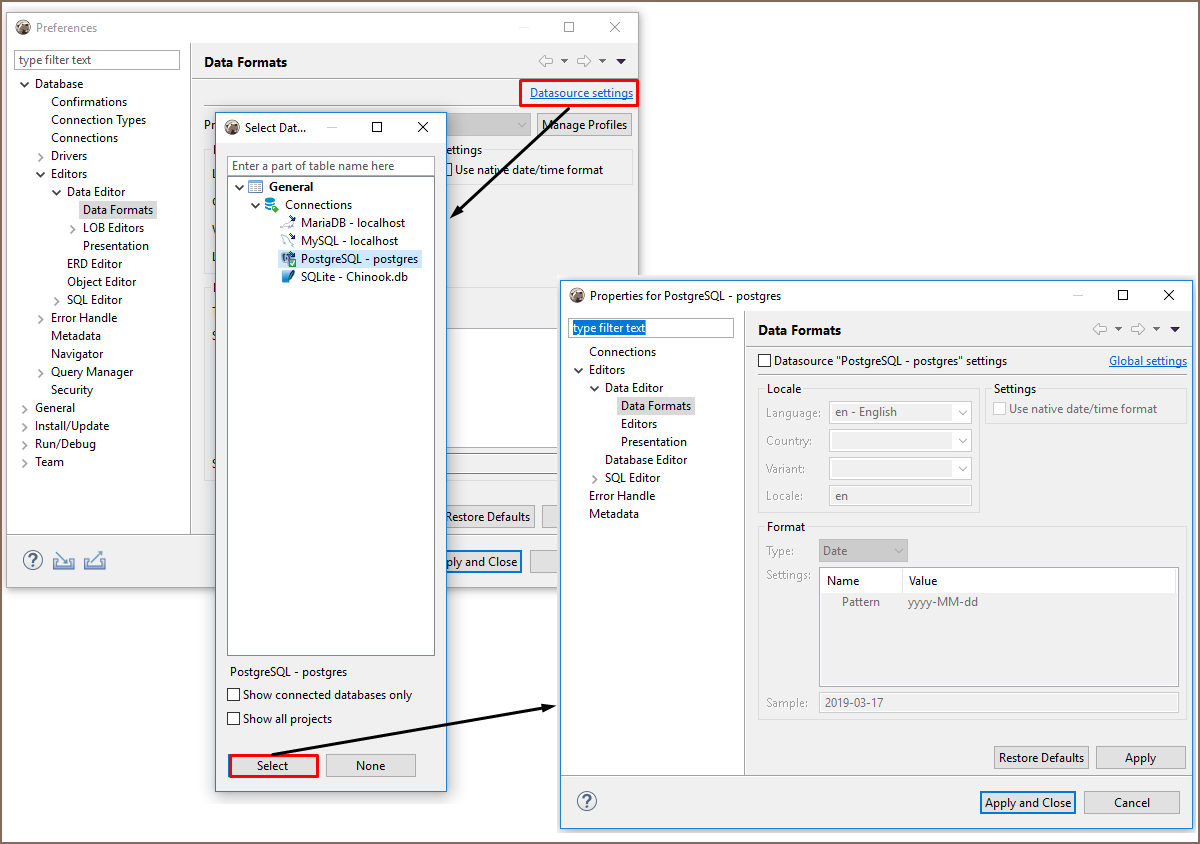
Select Datasource "[Connection name]" settings.
Tip
Select Global settings to open the global data format settings.
-
Change the settings, then select Apply.
Open settings from the data grid
- Right-click a cell and select View/Format -> Data formats.
-
Select Datasource "[Connection name]" settings.
Tip
Select Global settings to open the global data format settings.
-
Change the settings, then select Apply.
Info
For information on other display options in the data grid, see Data view and format.
Configure data formats
Locale settings
| Preference | Description |
|---|---|
| Language | Selects the locale language |
| Country | Selects the locale country or region |
| Variant | Selects an optional locale variant |
| Locale | Displays the read-only value assembled from Language, Country, and Variant |
General settings
| Preference | Description |
|---|---|
| Disable date/time formatting | Bypasses DBeaver client-side date and time formatting and uses native database or driver formatting |
| Disable numeric formatting | Bypasses DBeaver client-side numeric formatting and uses native database or driver formatting |
| Use scientific notation | Enables scientific notation for numeric formatting; available when Disable numeric formatting is selected |
| Type | Selects Numbers, Timestamp, Timestamp With Timezone, Date, Time, or Time With Timezone |
| Settings | Provides an editable Name and Value property table for the selected Type |
| Sample | Previews the result using the current locale, Type, and property values |
| Manage Profiles | Creates or deletes data format profiles; requires the configuration-manager permission |
| Restore Defaults | Restores default settings |
| Apply | Saves the changes |
Numbers settings
| Preference | Description |
|---|---|
| Use grouping | Enables digit grouping |
| Grouping size | Sets the number of digits in each group and is meaningful when grouping is enabled |
| Maximum integer digits | Limits the number of digits before the decimal separator |
| Minimum integer digits | Sets the minimum number of digits before the decimal separator and adds leading zeroes when needed |
| Maximum fraction digits | Limits the number of digits after the decimal separator; for typed values, the data type scale sets the upper limit |
| Minimum fraction digits | Sets the minimum number of digits after the decimal separator |
| Use data type scale for fraction digits | Uses the value's data type scale as the minimum fraction-digit count, capped by DBeaver's formatter limit |
| Rounding mode | Selects how values are rounded when fraction digits are discarded |
| Use native formatting for special values | Uses the native string representation for NaN and infinity instead of decimal-format output |
| Use scientific notation for small numbers | Uses scientific notation for sufficiently small nonzero decimal values |
| Scientific exponent separator | Sets the exponent separator, which cannot contain the locale decimal or grouping separator |
| Scientific notation pattern | Defines the scientific number pattern; it must contain E, and an empty value uses DBeaver's default scientific pattern |
| Do not format ID columns | Prevents numeric formatting for identifier columns |
Date and time settings
| Type | Preference | Description |
|---|---|---|
| Timestamp | Pattern | Defines the formatting pattern for timestamps; DBeaver checks the pattern when it creates the formatter |
| Timestamp With Timezone | Pattern | Defines the formatting pattern for timestamps with time zones; DBeaver checks the pattern when it creates the formatter |
| Date | Pattern | Defines the formatting pattern for dates; DBeaver checks the pattern when it creates the formatter |
| Time | Pattern | Defines the formatting pattern for times; DBeaver checks the pattern when it creates the formatter |
| Time With Timezone | Pattern | Defines the formatting pattern for times with time zones; DBeaver checks the pattern when it creates the formatter |
Example
Use XXX to separate the time zone offset with a colon. For example,
yyyy-MM-dd HH:mm:ssXXX formats a timestamp as 2026-10-05 14:30:00+02:00, while XX formats the offset as
+0200.