

Teams
The Team Edition provides a comprehensive team management feature for both web and desktop environments. Administrators can create and manage Teams to group users, assign project-based permissions, and share credentials.
Teams can be linked to external identity providers, allowing automatic user assignment based on group information received at login.
In the Team Edition, the process of managing team memberships differs slightly between the web and desktop interfaces, primarily in the user interface layout.
Team creation
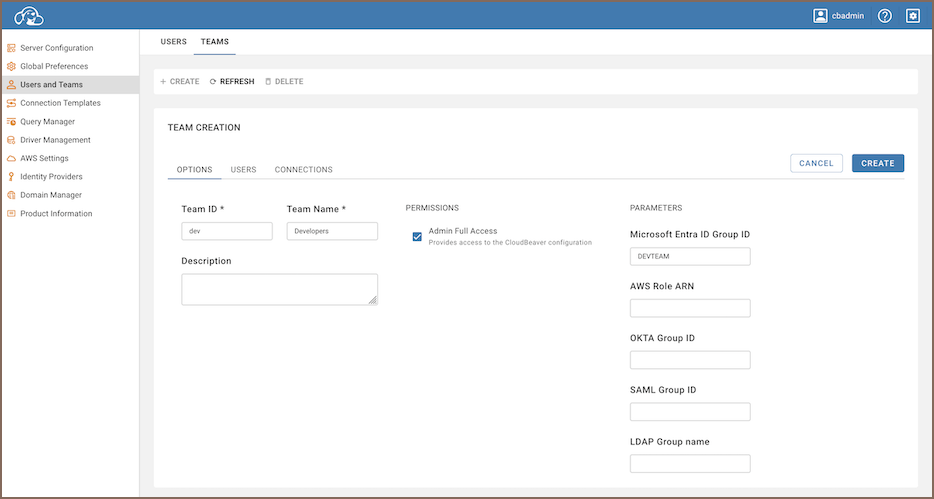
To create a new Team, follow these steps:
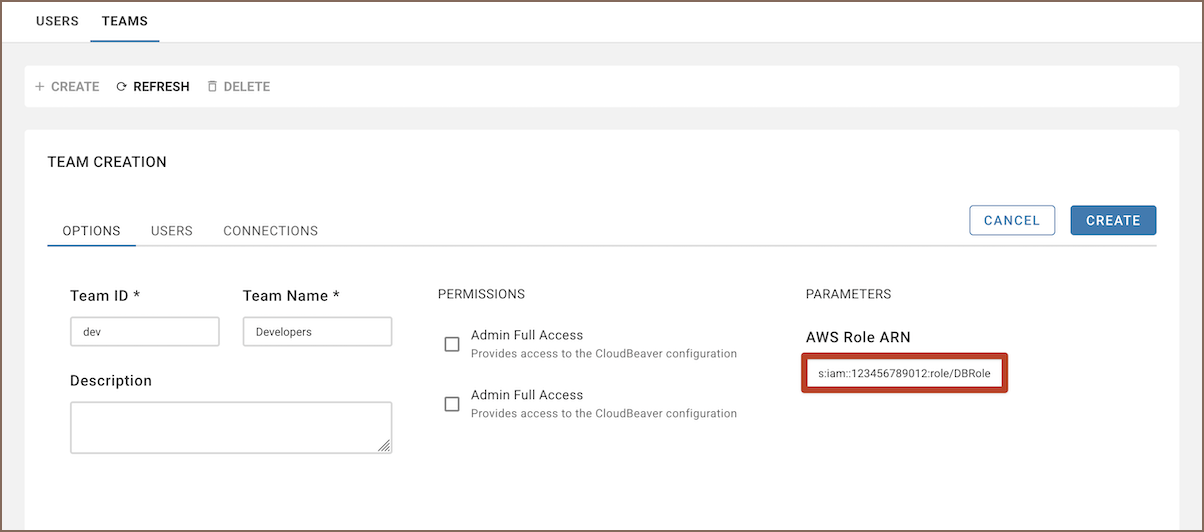
- As an Administrator, go to Settings -> Administration -> Users and Teams -> Teams.
- Select Create.
- On the Options tab, enter the Team details.
- Select Create.
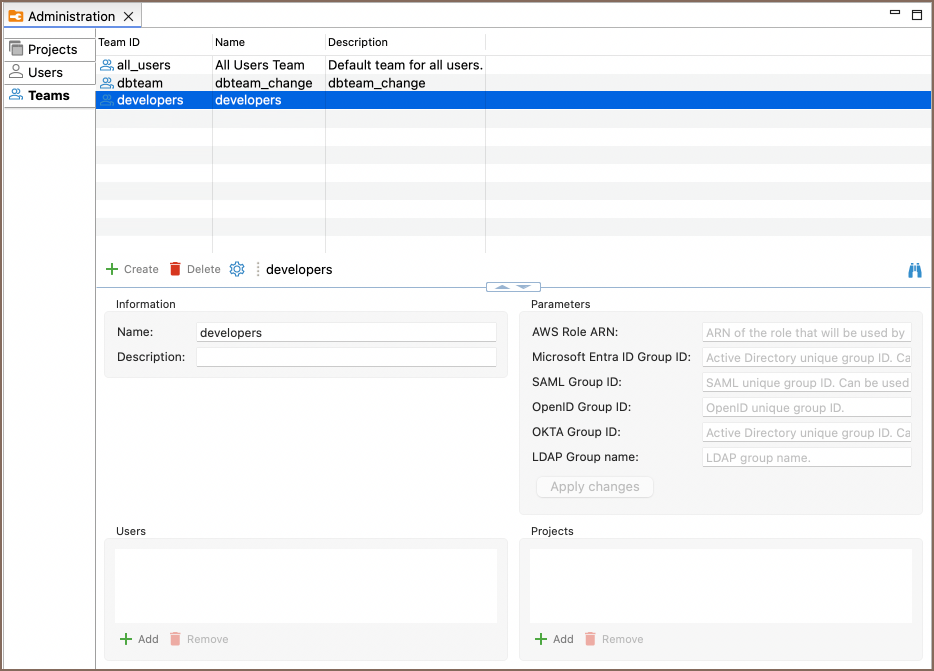
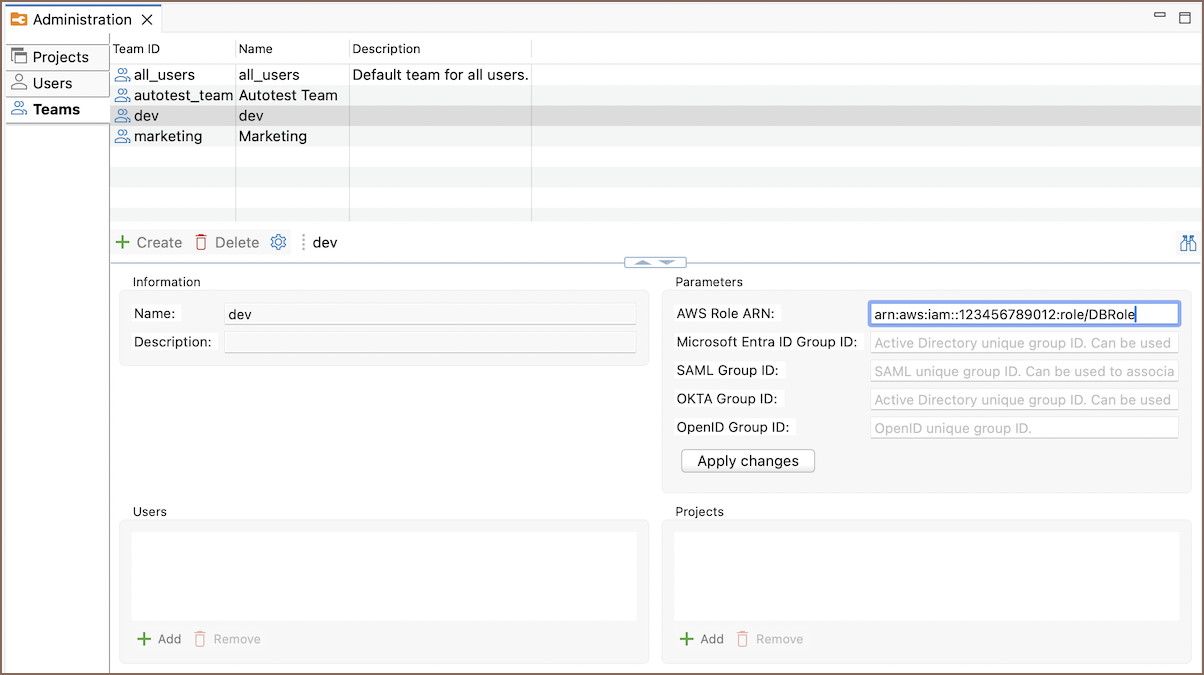
- As an Administrator, go to Window -> Show View -> Administration.
- Select the Teams tab.
- Select Create.
- Enter the Team name and select OK.
- Configure the identity provider parameters if needed and select Apply changes.
| Field Name | Description | Additional Info |
|---|---|---|
| Team ID (only in the web interface) | A unique identifier for the Team. | |
| Team Name | The name of the Team. | |
| Description (only in the web interface) | A brief description of the Team and its purpose. | |
| Parameters | Additional parameters based on the authentication provider. | Read more about Integration with identity providers |
Predefined Team types
Team Edition includes the predefined All users Team with the all_users ID. This Team includes all users by default.
User management
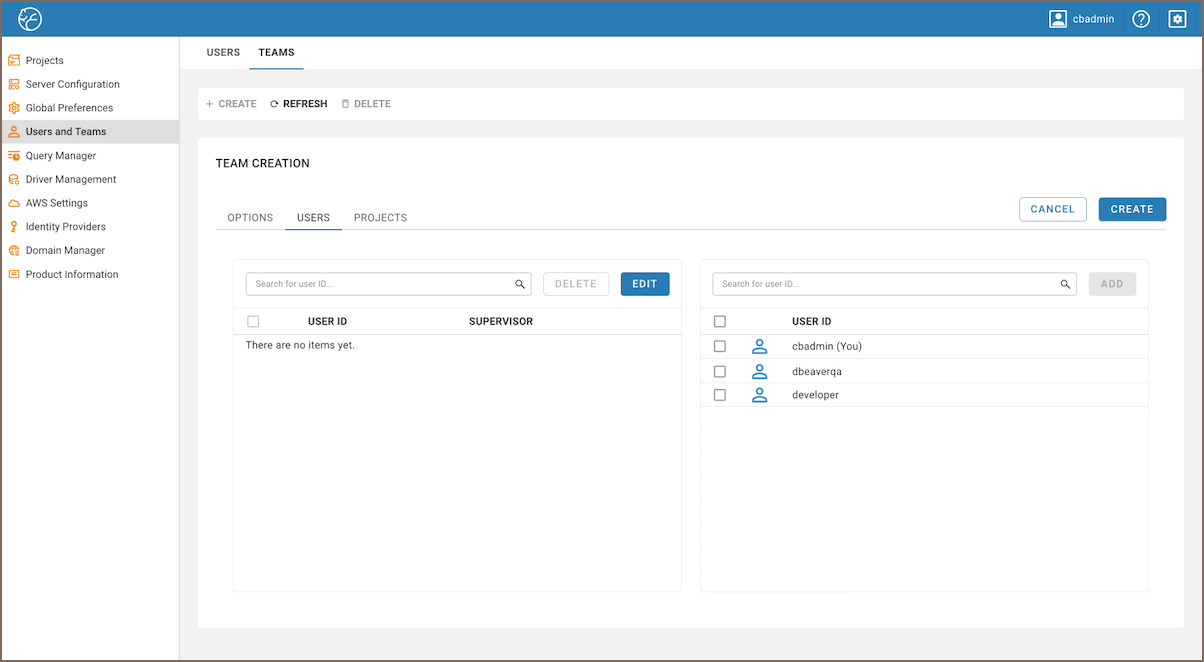
In the Users tab, administrators can manage Team memberships:
- Select the users whose membership you want to change.
- Select Grant to add them to the Team or Revoke to remove them.
- Select Save.
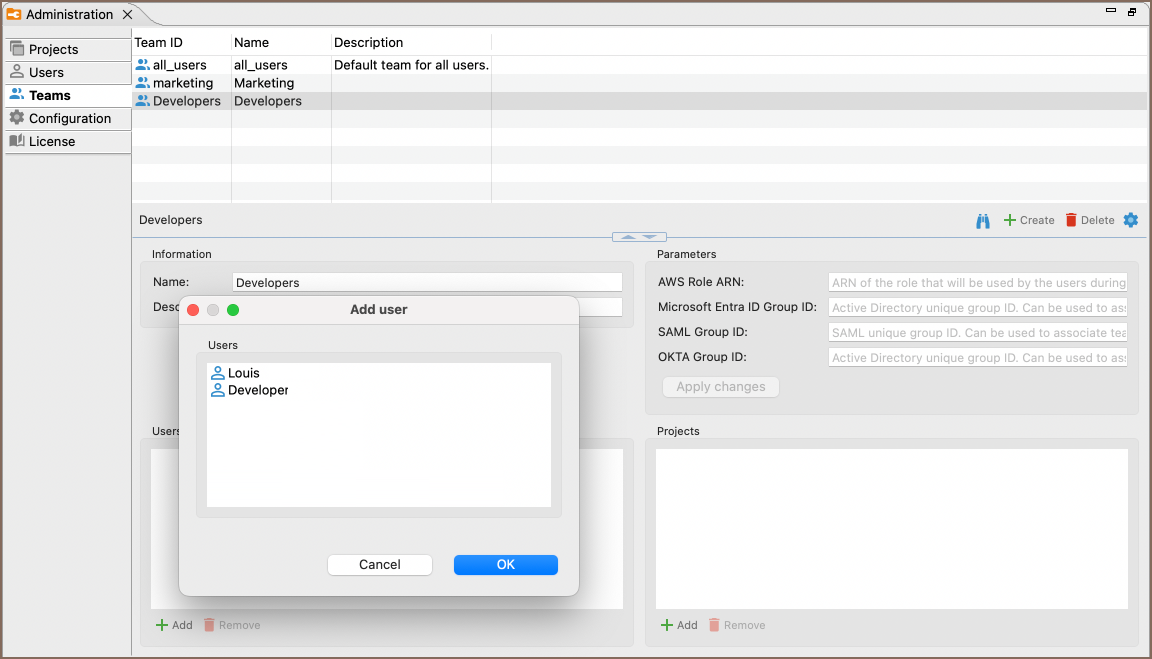
In the Administration window, administrators can manage Team memberships:
- To add a user to the Team, select + Add, select the required users, and then select OK.
- To remove a user from the Team, select the user and select Remove.
Tip
One user can be a member of multiple teams.
Supervisor
In the web client, open the Users tab of a Team, select the Supervisor checkbox for an added user, and then select Save. Supervisors with the Administrator, Developer, or Manager role can view their team's queries in the web client's Query History.
Note
Assign Supervisor access in the web interface. Query History isn't available to Editors or Viewers.
After you have been assigned as a supervisor, you can view your team's queries by following these steps:
- Select Tools in the toolbar.
- Select Query History.
- In the Query History window, select Turn on supervisor view
 .
Select Turn off supervisor view to return to your query history.
.
Select Turn off supervisor view to return to your query history.
Project management
In the Projects tab, administrators can manage which projects are available to the Team:
- Select the projects whose access you want to change.
- Select Grant to provide access or Revoke to remove it.
- Select Save.
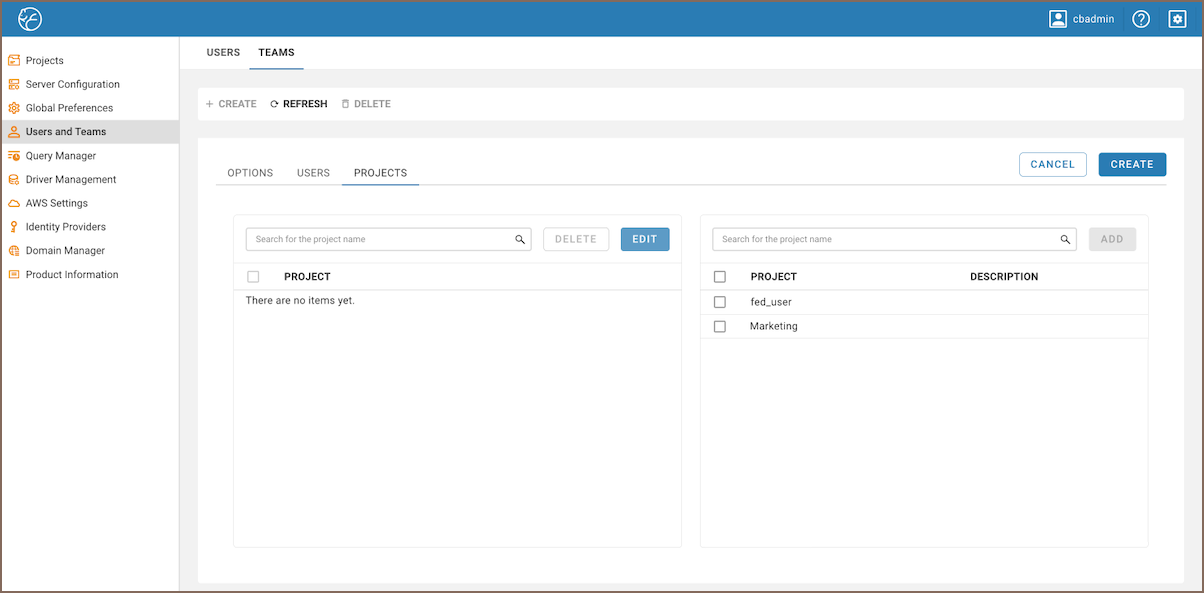
In the Administration window, administrators can manage which projects are available to the Team:
- To add a project to the Team, select + Add, select the required project, and then select OK.
- To remove a project from the Team, select the project and select Remove.
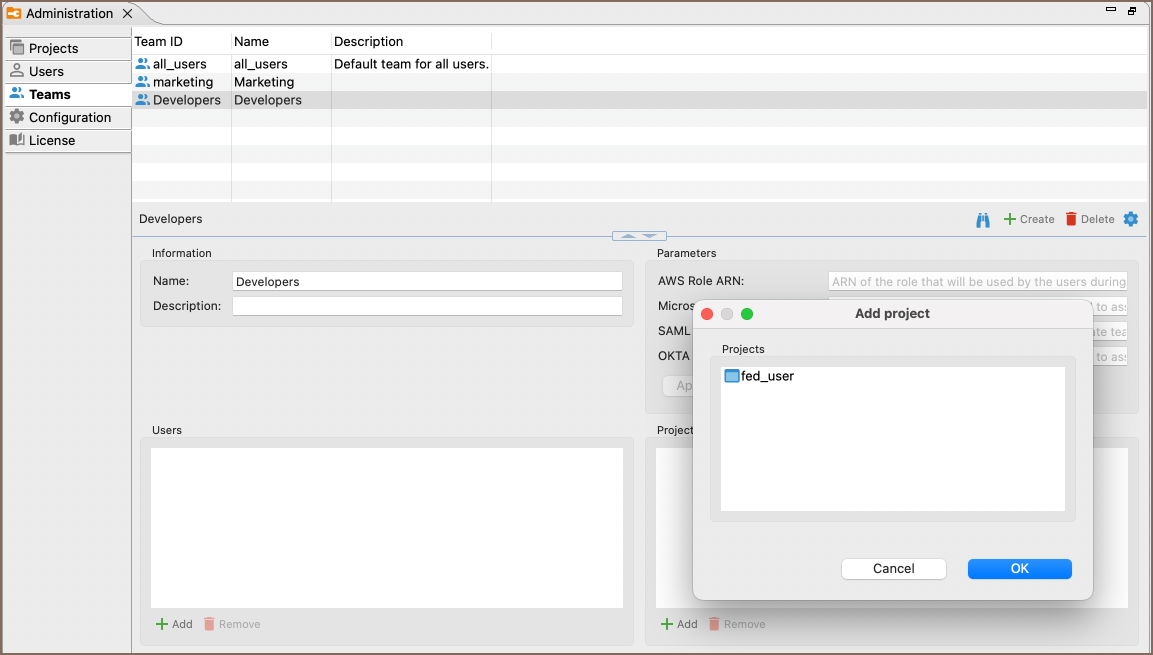
Tip
One project can be a part of multiple teams.
Permission management
In the Permissions tab (available only in the Web client), administrators can control what actions Team members are allowed to perform in the Data Editor and SQL Editor.
There are two levels of permissions:
- Global permissions - define the default rights for all teams and users, except administrators.
- Team permissions - allow you to customize rights for each team individually. Team permissions override the global defaults.
In the Permissions tab of a team, administrators can configure what actions team members are allowed to perform:
| Permission | Description | Related articles |
|---|---|---|
| Data copy | Allows users to copy data from the Data Editor | Data Editor |
| Data edit | Allows users to edit data in the Data Editor | Data Editor |
| Data export | Allows users to export data from the Data Editor | Data export |
| Data import | Allows users to import data using the Data Editor | Data import |
| SQL script execution | Allows users to execute custom SQL scripts | SQL Editor |
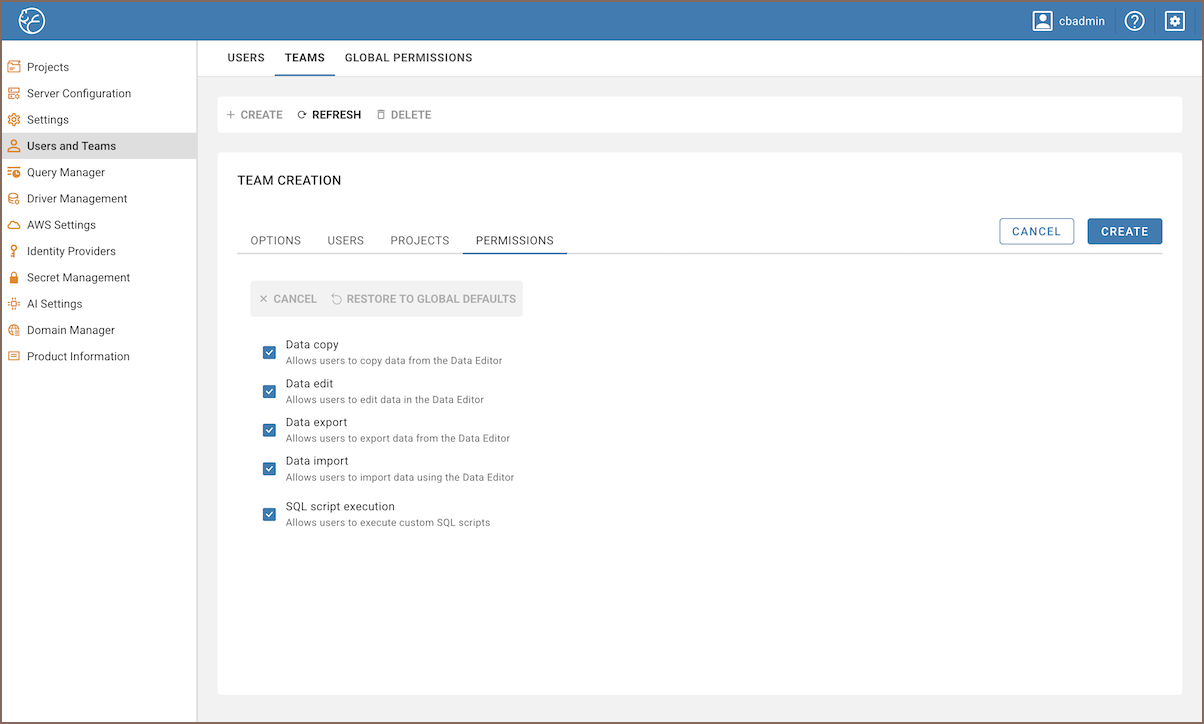
Team permissions have priority over global permissions. Each team can have its own set of permissions, managed independently.
When you change the global defaults, these updates are applied automatically to all teams that are still using the defaults. Teams with custom permissions set by an administrator are not affected.
Auto mapping of users from identity providers
You can link Teams to external identity providers. This allows Team Edition to assign users to Teams automatically based on group or role information provided at login.
For Teams linked to external groups, Team Edition reads group claims from the authentication token and updates Team membership based on matching parameters.
Configuration steps
-
In the Identity Providers settings, specify the attribute or value used to identify user groups or roles.
Important
Team Edition reads this exact attribute during login. If it’s missing or misconfigured, Team assignment won’t work.
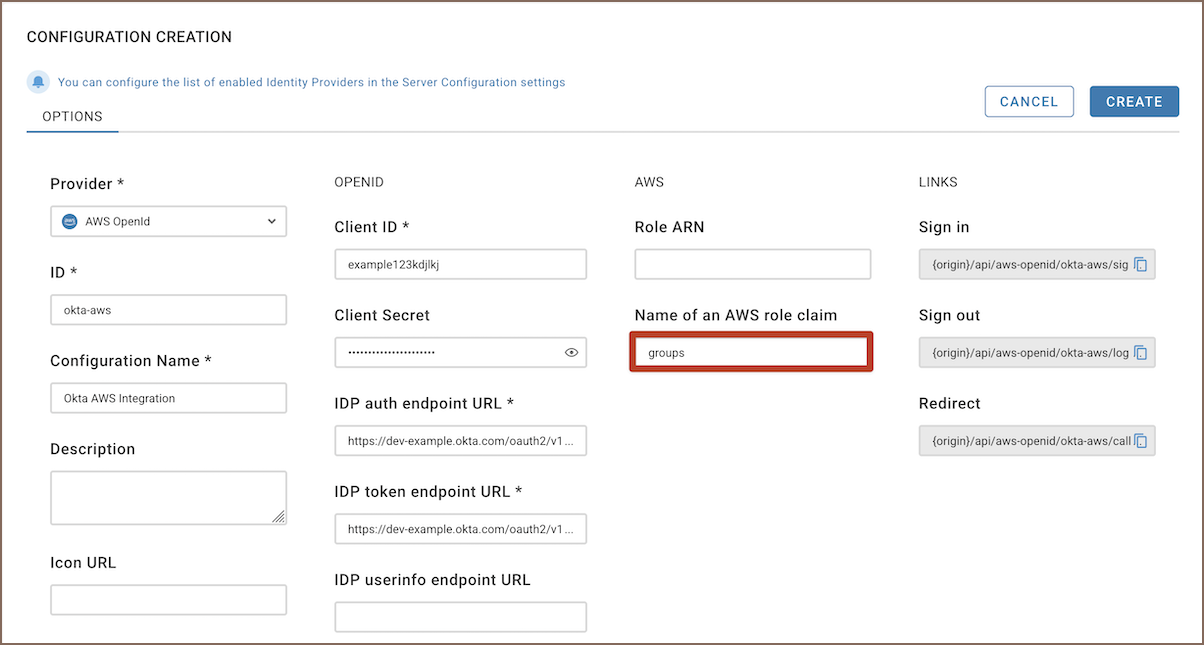
-
In the Team's Parameters settings, enter the exact group ID you expect from the provider. Use your provider's tools to inspect the token and find the actual group IDs being sent. Some providers return non-human-readable IDs ( e.g., UUIDs).
Provider parameter Expected value Example value Related articles Microsoft Entra ID UUID of group 73ab4df0-b4b4-4449-a2cd-1874923871049278Microsoft Entra ID AWS Role ARN ARN of assumed role arn:aws:iam::123456789012:role/DBRoleAWS OpenID, via Okta SAML Group ID External group name or ID Adminsorb274cd83-331a-4e4e-9b8f-92f123456789SAML configuration Okta Group ID Group name or internal ID 00g63lwgl1qHdgDfZ0x7Okta OpenID LDAP Group name Distinguished name (DN) of the group GroupsLDAP OpenID Group ID Group name or internal group ID dev-teamor8e4b9ff4-11f3-4f17-902e-e9e5c1c2043aOpenID configuration -
When a user logs in through the identity provider (e.g., Okta, Entra ID), Team Edition receives an authentication token. This token includes user details, such as group or role claims. If any value in the configured attribute (like
groups) matches a Team Parameter, the user is automatically added to that Team and inherits its permissions.Important
- Attribute name (e.g.,
groups) must be configured in the identity provider settings - The value in the Team must match the token value exactly
- Group IDs may not be human-readable - avoid using display names
- Any string format is accepted
- Some providers (e.g., Azure) may limit the number of groups sent in the token
- Attribute name (e.g.,
Updating Team memberships
For the changes to take effect, especially in cases where group memberships are updated:
- Users may need to log off and log back in through the Single Sign-On (SSO).
- Alternatively, users can wait for the session to timeout.
These actions ensure that the updated claims from the identity provider are received by Team Edition, thereby refreshing the Team memberships.
Troubleshooting mismatches
If users aren't assigned to a Team after login, check the following:
- Incorrect group ID: The value in Team parameters must exactly match the one sent in the token. Display names usually won’t work—use raw IDs (e.g., UUID, ARN).
- Wrong attribute name: Make sure the identity provider is configured to include the correct attribute (e.g.,
groups,roles) in the token. - Missing group claim: Some providers don’t send group claims by default. You may need to explicitly add them in the provider settings.
- Group limit: Azure AD and some other providers may limit the number of groups included in the token (e.g., 150). Users beyond the limit won’t be mapped.
- Session not refreshed: Changes in group membership take effect only after the user logs out and logs in again (or after session timeout).