

Network profiles
Network profiles keep your connection network settings - SSH, proxy, Kubernetes, and AWS SSM - in one place, so you can reuse them across connections instead of setting them up on each one.
There are two types of profiles:
- Global - available in every project.
- Local - available in one project only.
Info
Learn more about projects
Manage profiles
You manage profiles on the Network profiles page. Open it for the scope you need:
-
Global profiles
- Go to Window -> Preferences -> Connections -> Network profiles.
-
Pick
<Global>in the Project dropdown.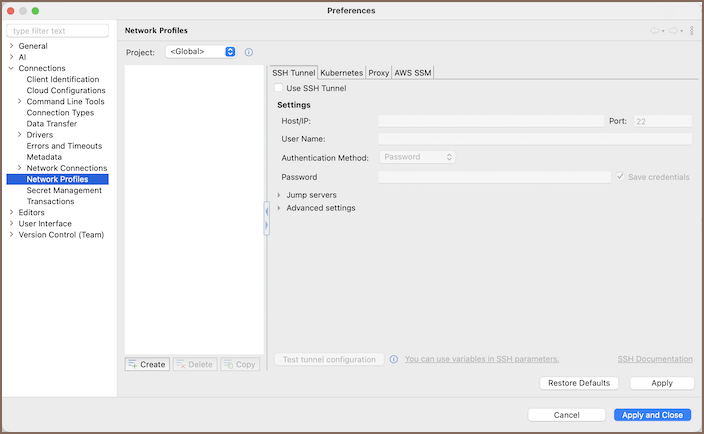
-
Local profiles
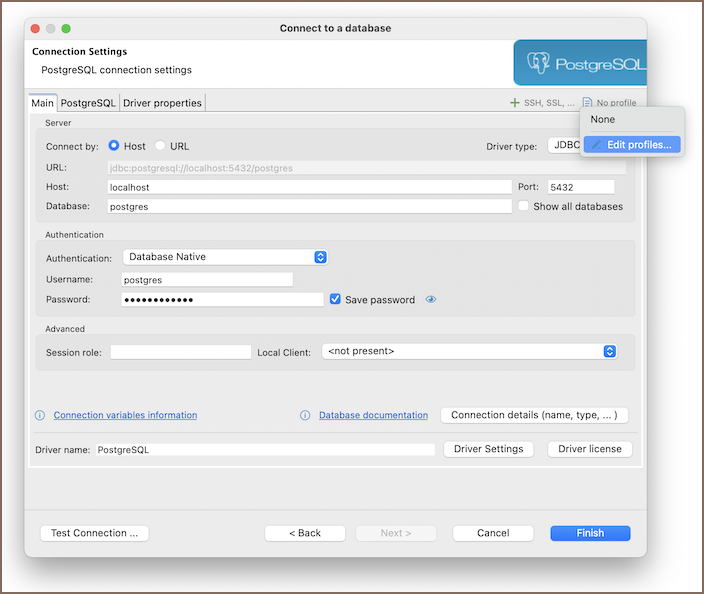
- Start creating a connection.
-
Click No profiles in the toolbar, then select Edit profiles.
Info
Alternatively, open Window -> Preferences -> Connections -> Network profiles and pick the project in the Project dropdown.
Create a profile
- In the left panel, click Create (
 ).
). -
Enter a name for the profile and click OK.
Important
A local profile overrides a global one with the same name. If a project has a local profile named
prod, the connection uses the localprodand ignores the global one. -
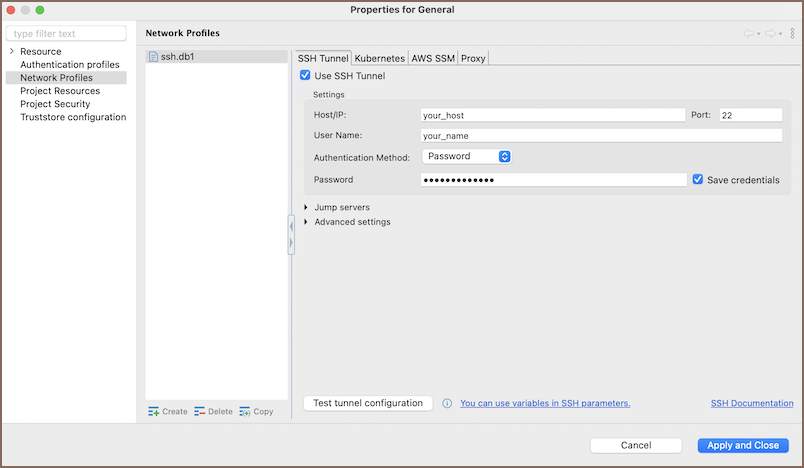
Configure the profile's network options:
-
Click Apply and close.
Copy a profile
Copy a profile to reuse its settings as a starting point.
- Select the profile you want to copy.
- Click Copy (
 ).
). - Rename the copy and adjust its network options.
- Click Apply and close.
Delete a profile
- Select the profile you want to remove.
- Click Delete (
 ).
). - Confirm the deletion.
Important
You can't delete a local profile that's still used by a connection. Team Edition lists the connections that use it, so you can reassign them first. You can delete a global profile even when a connection uses it. When you delete it, the corresponding network configuration is removed from the connection.
Manage global profiles in Team Edition
In Team Edition, global network profiles are shared across the whole workspace.
- Workspace administrators can create and edit global profiles for everyone.
- A Developer can manage profiles inside their own private project.
Apply a profile to a connection
- Start creating a connection.
- In the toolbar, click No profiles.
-
Select a profile from the dropdown.
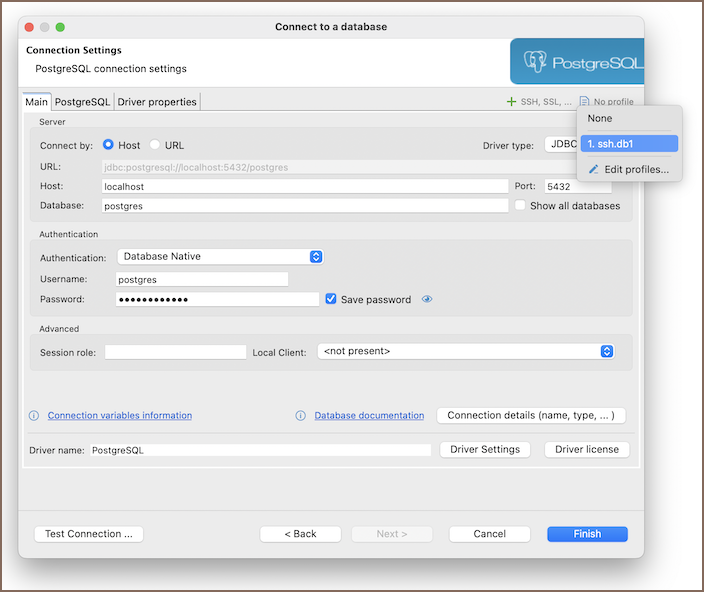
The dropdown lists global and local profiles together. An icon marks each one's scope:
 global profile
 local profile
Info
The connection uses every network setting from the profile.