

Script management
Saving Scripts
You can save scripts to a predefined space in the currently active project or somewhere in the file system.
To save a script to the current project space, just press Ctrl+S or right-click the script and click Save on the context menu:
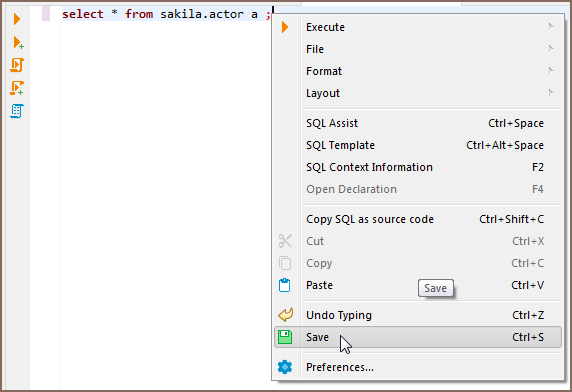
You can find the script saved this way in the Project Explorer view in the Scripts folder.
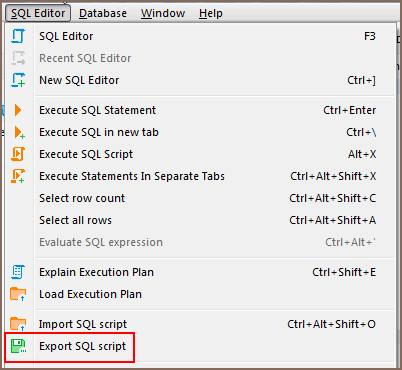
To save a script to the file system, right-click the script, click File -> Export SQL script on the context menu and then select the folder in the file system. You can also click SQL Editor -> Export SQL script on the main menu:
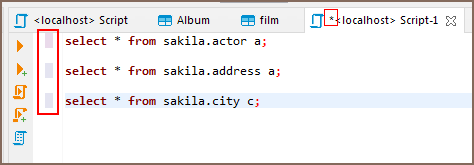
Unsaved data is highlighted in color on the left side of the editor, in addition to having an asterisk in the name of the script.
Loading Scripts
To load a script stored in the file system to the SQL Editor, press CTRL+SHIFT+O, or click SQL Editor -> Import SQL script on the main menu, or right-click the script panel and click File -> Import SQL script on the context menu:

Renaming Scripts
To rename a script, right-click anywhere in the script panel, click File -> Rename SQL Script on the context menu or press CTRL+F2:

Then enter the new name in the Rename SQL script dialog box and click OK:

Reverting Changes
If you want to revert all changes made to the current SQL script and return it to its initial state (reload from disk), right-click anywhere in the script panel and click File -> Revert on the context menu.
Changing default scripts directory
By default all of the scripts are saved to a "Scripts" folder located in your project inside the workspace directory. This can be changed by clicking the Configure button in Project Explorer view. There you can click on a folder's name an pick any other folder inside the Project.


Adding external directory
You can also link an external directory to your project to either save your scripts into it, or to access scripts that were created outside of Team Edition. To link an External directory right-click anywhere in the Project Explorer and pick Create -> Link Folder. There you can link any directory on your drive to a project. This will allow you to open any externally created scripts through Project explorer and to set this folder as default to save new scripts into.
SQL Console
SQL console lets you run queries without creating a script. It has no associated .sql file, so closing the console
discards its contents.
Read data in SQL console
To open a SQL console, use Read data in SQL console in the Connections. It generates
and runs a SELECT statement for the selected object automatically.
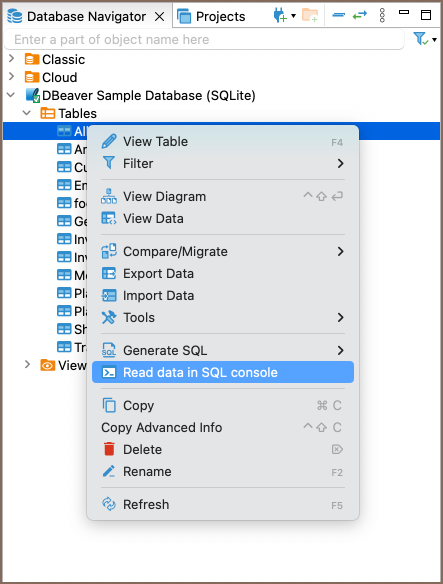
- In the Connections, right-click the database object you want to query.
- Select Read data in SQL console.
- A SQL console opens and runs the query.
Save your scripts
- Right-click the editor and select Save.
- Use the toolbar: File -> Save / File -> Save As.
- Press Ctrl+S.
Info
Saving converts the SQL console into a SQL editor.