

AI Assistant settings
Use this page to configure the general behavior of AI in Team Edition.
AI Assistant setup
To activate the AI features in Team Edition:
- Navigate to Settings -> Administration -> Server Configuration
- Enable the AI Integration option
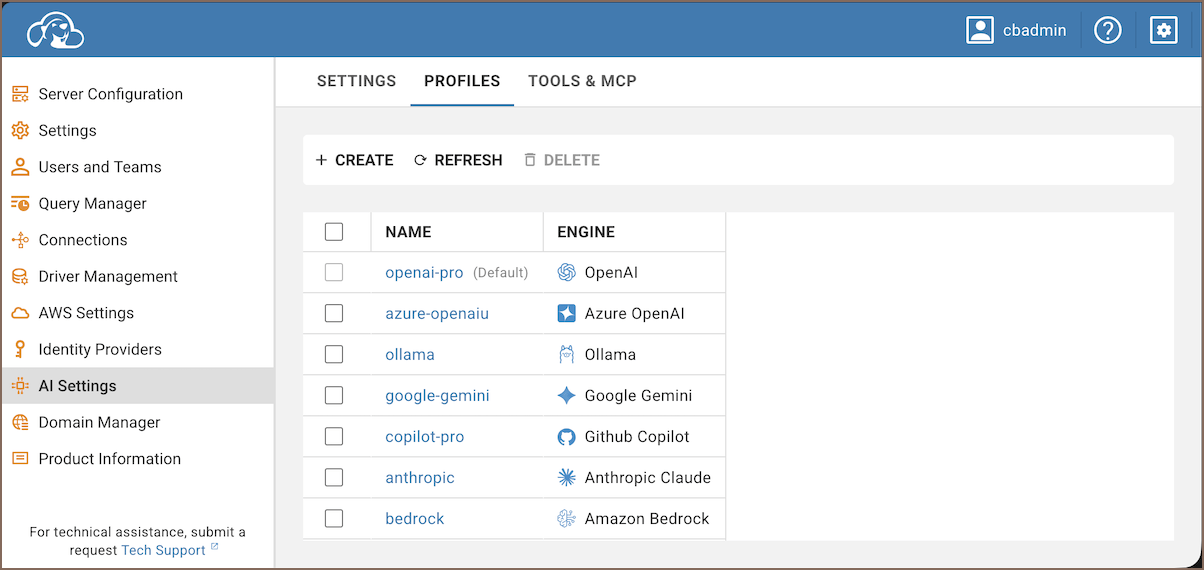
- Navigate to AI Settings -> Profiles tab
-
Create a profile for one of the supported providers - see AI profiles:

-
Open the context menu for the connection where you want to use AI and select Edit Connection.
-
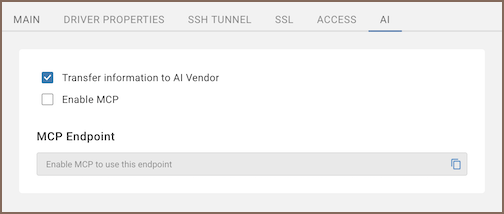
Open the AI tab, enable Transfer information to AI Vendor and click Save.
AI profiles
 Available since 26.2
The AI Settings -> Profiles tab manages AI configurations as profiles. Each profile pairs a name with one provider and its own settings.
Note
Only administrators can create, edit, or delete profiles. Users can select a profile and manage their own API token for user profiles.
-
Select Create new profile to add one. Select an Engine, enter a Profile name, and choose a Profile scope:
- Global is the default. Enter the administrator-managed API token and select a model. All users share the profile credentials.
- User. The administrator defines the engine, model, and shared settings but doesn't add the API token. Each user adds their own.
Manage credentials for a user profile
Available since 26.3
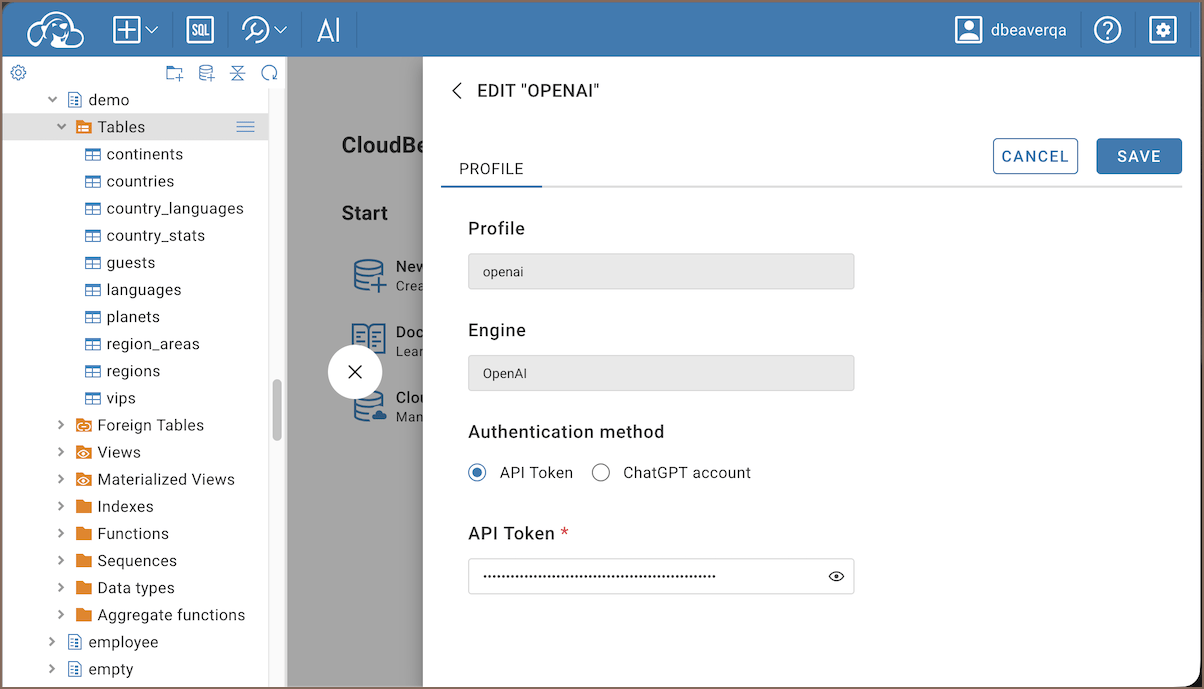
Saved credentials are accessible only to the current user. Users can add, replace, or reset their API token from either location:
-
Open User Profile -> AI profiles, select a user profile, and enter or reset the token.
-
In AI Chat, open Configure AI context
 , then select a user profile or its edit action. For information on
selecting profiles in AI Chat, see Active configuration.
, then select a user profile or its edit action. For information on
selecting profiles in AI Chat, see Active configuration.
Note
The model is set by the administrator and can't be changed by users.
Info
The default profile is marked with a badge in the list. To change it, see Default profile.
Default profile
Choose which profile AI features use by default.
- Open the AI Settings -> Default profile dropdown
- Select a profile
The default profile appears with a badge in the profiles list. AI Chat uses it for new conversations unless you switch it for a specific conversation.
Language
Choose the language for AI responses. This affects the language used in answers, explanations, and code comments.
To configure the language:
- Open the AI Settings -> Language dropdown
- Select the language you want the AI to respond in.
Note
The selected language applies to all AI interactions unless the provider or prompt explicitly overrides it.
Disable AI Assistant
To disable AI Assistant features:
- Navigate to Settings -> Administration -> Server Configuration -> Services section
- Deselect AI Integration option
- Save changes