

Query Execution Plan
View query execution plans to understand how a database executes SQL statements and identify expensive operations.
The execution plan view helps you:
- Identify expensive operations: Pinpoint which parts of your query consume the most resources.
- Analyze execution flow: Trace the sequence of database operations from start to finish.
- Find bottlenecks: Locate performance issues in joins, scans, and sorting operations.
- Understand relationships: Visualize how data moves between different query steps.
Supported databases
- MySQL
- PostgreSQL
- Greenplum
- Microsoft SQL Server
- Oracle
- DB2 LUW
- SAP HANA
- Google Cloud SQL for PostgreSQL
- Google Cloud SQL for SQL Server
- Google Cloud SQL for MySQL
- Couchbase
- Firebird
- Exasol
- HSQLDB
- Vertica
- ClickHouse
- AlloyDB
- Netezza
- OceanBase
- Ocient
Generate an execution plan
- Open the SQL Editor.
- Write a query.
- Click Explain Execution Plan (
 ) in the editor toolbar.
Diagram plan view
The Diagram plan view displays the execution plan as a graph of connected nodes.
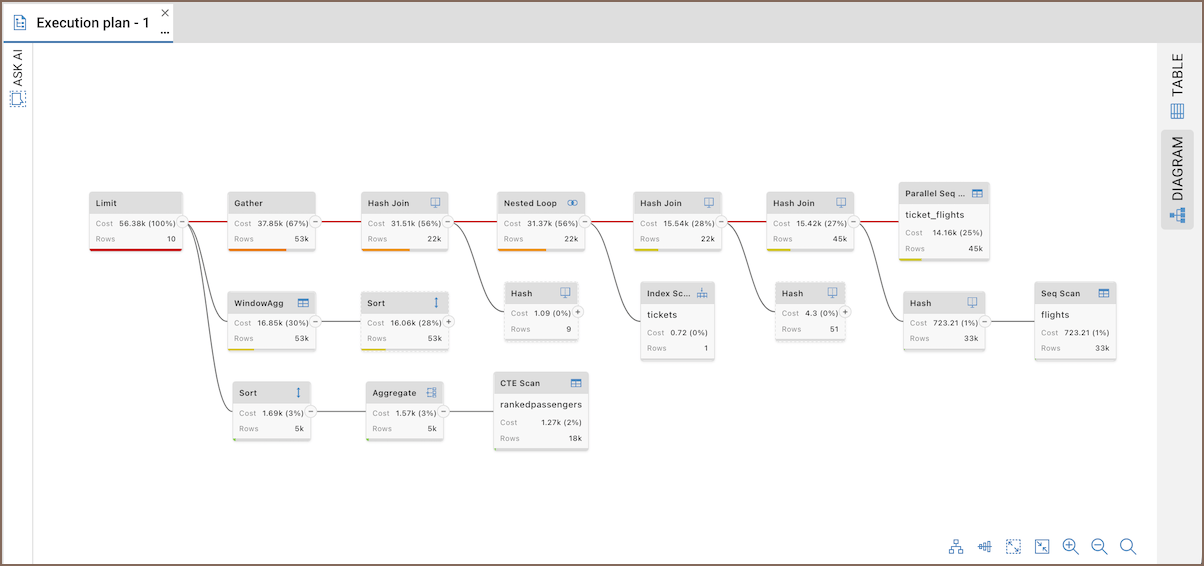
Each node represents a database operation. Connections between nodes show the execution flow and relationships between query steps. Learn more on how to analyze the graph.
Select a node to view detailed execution information.
Diagram toolbar
| Button | Action | Description |
|---|---|---|
 |
Ask AI | Explains the execution plan and provides optimization tips using AI. For more information, see AI Assistant. |
 |
Toggle direction | Switches the diagram layout between horizontal and vertical modes. |
 |
Toggle layout | Switches between compact and tree diagram layouts. |
 |
Expand all | Expands all nodes in the diagram. |
 |
Collapse all except heavy route | Collapse nodes except the heaviest execution path. |
  |
Zoom In / Zoom Out | Zooms in or out of the diagram. |
 |
Fit to screen | Fits the entire diagram into the available space. |
Analyze the graph
The diagram highlights performance issues using the following visual cues:
- Status bars: Colored bars at the bottom of nodes provide a quick visual reference for the relative cost of individual operations. Nodes with high execution costs are highlighted in brighter colors, such as red or orange.
- The heavy route: Team Edition automatically identifies and colors the most expensive execution path in red to show the primary bottleneck.
- Node metrics: Each node displays key estimated values, including Cost, Rows, and percentage of total plan cost.
Understanding the heavy route
The heavy route is the slowest part of your query. If a query is slow, start your optimization here.
Nodes usually turn red for three reasons:
-
The database scans the entire table because a suitable index is missing or cannot be used.
Tip
If you see a Full Table Scan, Seq Scan, or Table Access (Full) on a large table, try adding an index to the columns used in your
WHEREclause. -
You are processing or sorting millions of rows at once.
- Tables are linked inefficiently because of missing keys.
Table plan view
The table plan view displays the execution plan as a table.
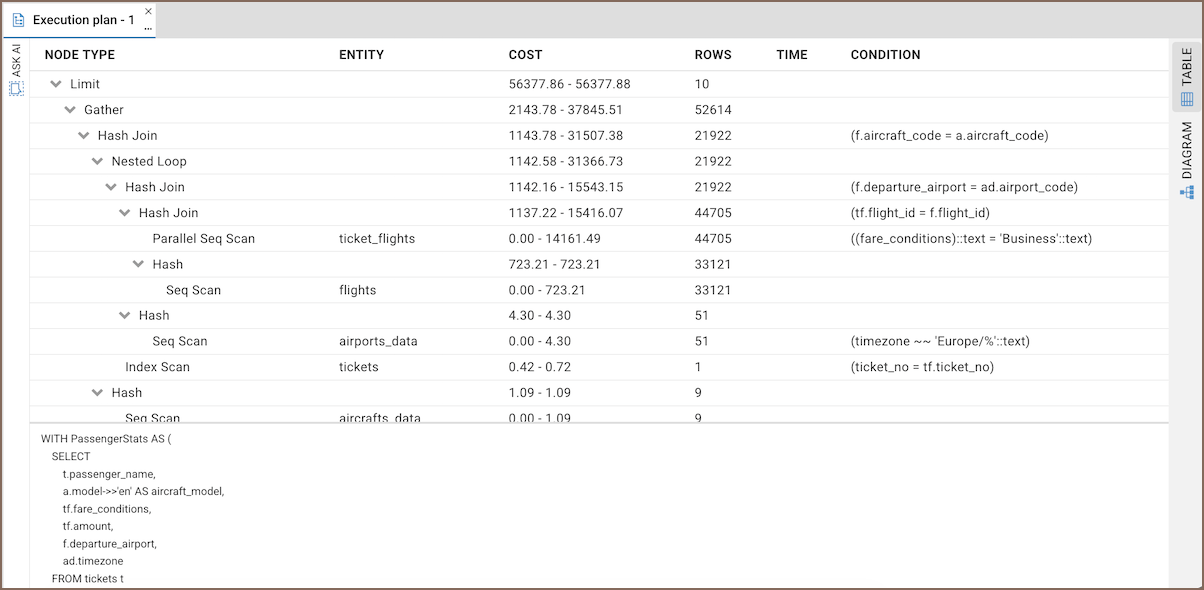
Select a row to view detailed execution information.
Detailed execution information
Select a node to view detailed execution information.
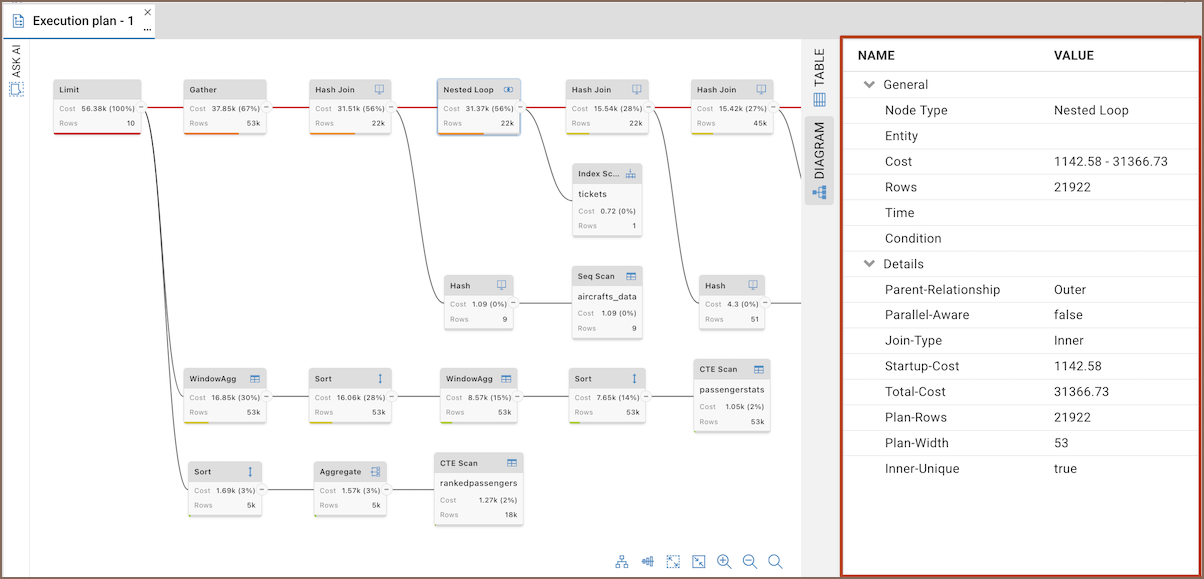
Execution plan data is provided directly by the database engine. The meaning of specific operations, metrics, and attributes depends on the database system you are using. For detailed information about execution plan operations and metrics, see the documentation for your database system.