

Create connection
Create a database connection from the Connections view.
A database connection in Team Edition is a saved configuration that links the application to a database. It includes a driver, main connection fields such as the host, port, and database name, authentication settings, and optional network configuration.
Info
For information on configuring and managing an existing connection, see Configure connection.
Create a connection
-
Select the New Connection Wizard button
 in the toolbar or the Connections view toolbar.
Alternatively, on Windows/Linux or macOS, press Ctrl+Shift+N.
-
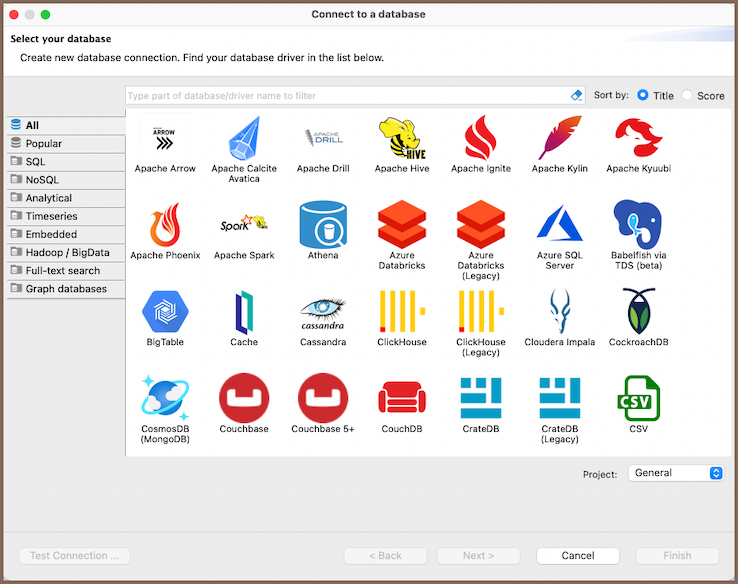
Select a driver.
Browse the database sections or use Search to find a database or driver. Search also finds specific drivers nested under a database entry. You can also sort the list by Title or Score. Select Next.
Info
For information on managing drivers, see Driver manager.
-
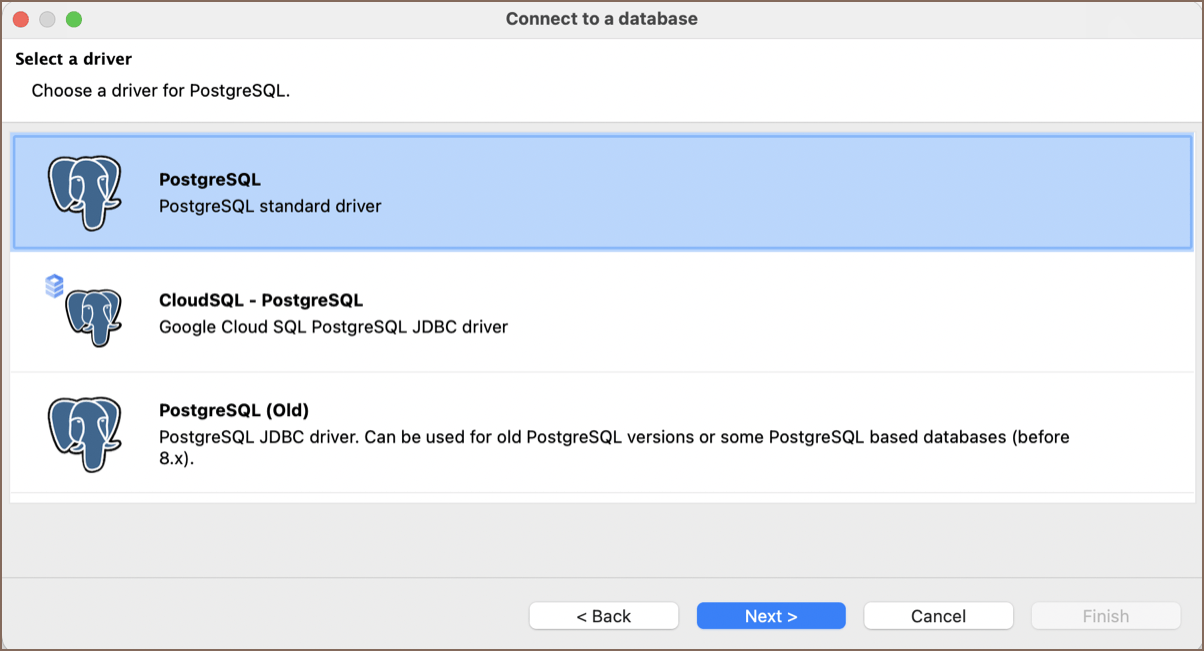
(Optional) If an additional driver-selection page opens, select the appropriate driver, and then select Next.
-
On the connection configuration page, enter the main connection and authentication settings.
- Optionally configure advanced settings.
- If needed, select the target project for the connection.
- Select Test Connection, and then select Finish.
After you save the connection, it appears in the Connections tree.
Create a connection with AI
- Enable Tools and MCP
- Open AI Chat.
- Enter a request in natural language, such as
connect to a PostgreSQL database at host 1213, database name stage. The AI assistant opens the New Connection wizard and pre-fills the driver, host, port, and database settings. - Review the pre-filled settings, test the connection and save it.
Preconfigure connections
Define connection settings in data-sources.json to preconfigure connections instead of creating each one manually.
Info
For information on configuring connections in data-sources.json, see Data sources JSON reference.
Connection settings reference
Use the connection dialog to configure the fields and options for new and saved connections. The available settings depend on the selected driver.
Main settings
The Main tab contains the primary connection and authentication fields.
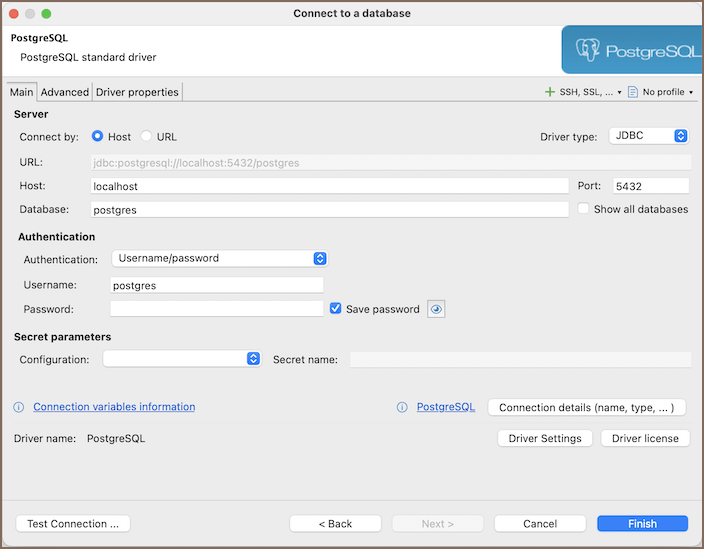
| Field | Description |
|---|---|
| Host | Address of the database server |
| Port | Port used by the connection |
| Database name | Database to connect to |
| Username and password | Credentials used for authentication |
Info
Embedded drivers can use a database path instead of host and port fields. Authentication options depend on the driver.
Info
For information on authentication methods, see:
Network settings
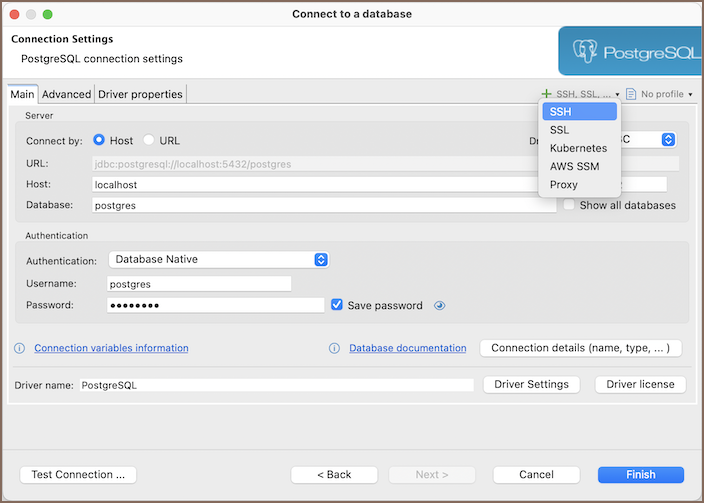
Configure network options in the connection dialog.
Info
For information on network settings, see Network configuration.
Secret providers
External secret managers provide connection credentials at runtime. For information, see Secret providers.
Connection details
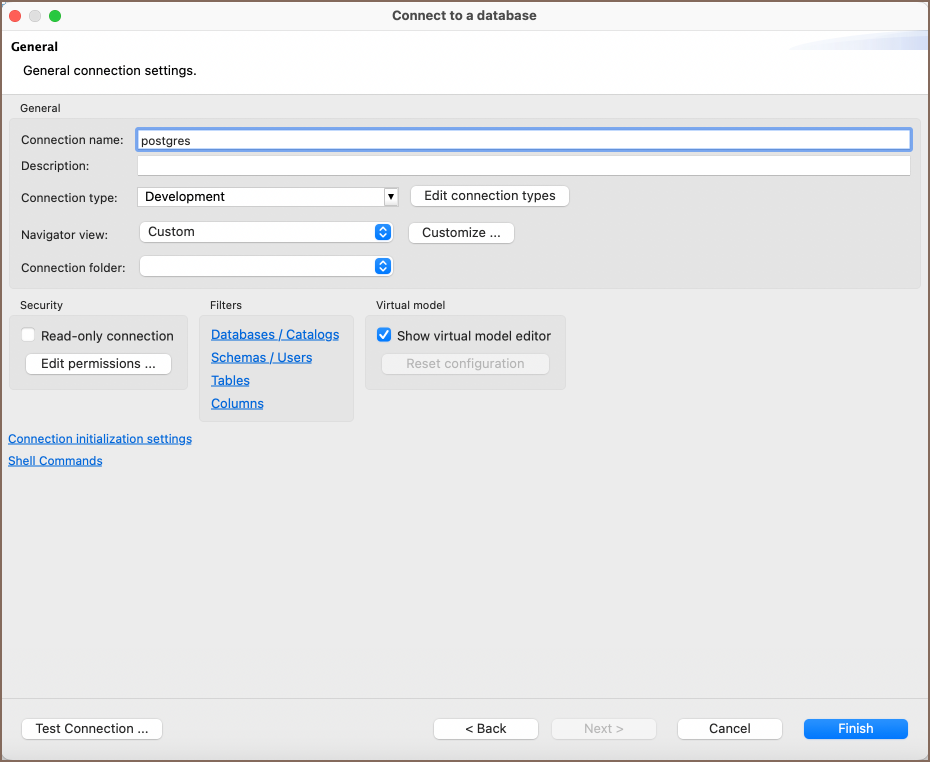
Click the Connection details button to open the General settings, which contain connection details and links to additional configuration options.
| Setting | Description |
|---|---|
| Connection name | Identifies the connection. You can use variables in the SQL Editor, connection parameters, and driver properties. For information on variables, see SQL Editor |
| Connection type | Classifies the connection as Development, Test, or Production. Development is selected by default. For information on connection types, see Connection types |
| Description | Stores a description for the connection |
| Connections view | Selects the simple or advanced view in Connections. For information, see Simple and advanced view |
| Connection folder | Places the connection in a folder. For information, see Group database objects in folders |
| Security | Restricts read-only access, data editing, structural changes, script execution, and imports. For information, see Managing security restrictions for a database connection |
| Filters | Includes or excludes visible objects by name patterns. Filters can have a local or global scope. For information, see Configure filters |
| Virtual model | Defines virtual constraints and foreign keys, column transformers, and row colorings. For information, see Virtual keys |
| Connection initialization settings | Configures auto-commit, transaction isolation, the default database or schema, keep-alive and idle timeout, and bootstrap SQL. For information, see Configure connection initialization settings |
| Shell commands | Runs commands before or after connecting or disconnecting. You can configure timing, the working directory, and wait or process handling. For information, see Working with shell commands in DBeaver |
Tip
You can configure separate connections for metadata reads and SQL editors. For information, see Separate connections.
Driver properties
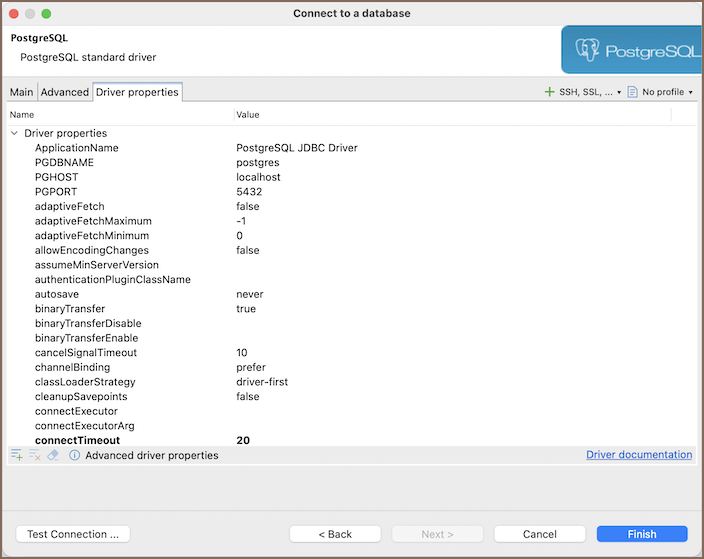
Each driver provides additional properties. Use driver properties to configure driver-specific settings.
Info
For information on driver-specific settings, see Database drivers.