

AI tools & MCP
Team Edition comes with a set of built-in AI tools and can connect to external MCP servers, allowing the AI Assistant to act on your databases instead of only answering with text. Describe what you need in AI Chat or an ai command, and the assistant exports the data, opens the editor, or reads the metadata for you.
Built-in tools ship with Team Edition as DBeaver Internal. To add more, connect an MCP server - its tools appear in the same Installed Tools and MCP list.
You can find more information about Model Context Protocol (MCP) here.

Enable AI Tools and MCP
- Open Window -> Preferences -> AI -> Tools & MCP
- Select Enable Tools and MCP.
Tools work in AI chat and through the ai command.
Note
If tools are disabled, the assistant falls back to standard text responses.
Supported providers
AI tools are available only with providers that support tool calling:
Info
If your provider doesn’t support tool calling, AI Assistant will continue to respond with text or SQL suggestions as usual. Make sure the model you select supports tool calling.
Supported tools
 Available since 25.3
| Category | Description |
|---|---|
| Data transfer actions | Import, export, and compare data or schemas using Team Edition's transfer wizards. |
| Data read actions | Read sample data or metadata for improved context and more accurate suggestions. |
| View and editor actions | Open, close, or manage editors, views, and connections in the workspace. |
| Script actions | Retrieve script contents or list available scripts in your workspace. |
| User interaction | Ask you to clarify an ambiguous request by choosing from a list of options. |
External MCP servers
Available since 26.1
To add an MCP server:
- Open Window -> Preferences -> AI -> Tools & MCP
- Click Add New MCP (
 )
) - Fill in the connection settings and click Apply
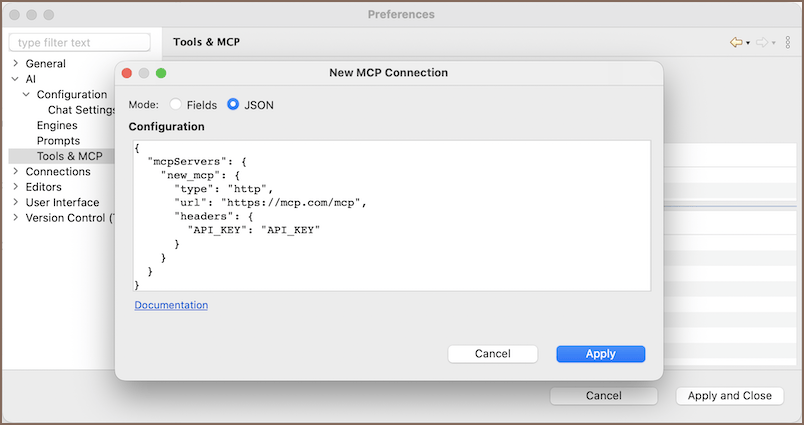
| Setting | Description |
|---|---|
| Mode | Fields - fill in settings using form fields. JSON - paste a raw JSON configuration |
| Connect by | HTTP - connect to a remote server via URL. STDIO - run a local process |
| Name | A display name for the server |
| Server URL | The server endpoint (HTTP mode only) |
| HTTP Headers | Optional key-value headers to include in requests (HTTP mode only) |
All connected servers appear in the Installed Tools and MCP list. Each server shows its connection status, enabled state, and the number of available tools.
Select a server and use the edit ( ) or
delete (
) or
delete ( ) icons to update or remove it.
Encrypt MCP configuration
By default, MCP server settings are stored in a plain mcp.json file on disk. When you enable Encrypt MCP
configuration, the settings move to secure storage instead. This protects sensitive data like API keys or server URLs
from being readable as plain text.
Execute tools without confirmation
Each tool has an Allow mode that controls whether the assistant can run it without asking:
| Mode | What it does |
|---|---|
| Ask | Asks for confirmation each time before running the tool. |
| Always allow | Runs the tool automatically without asking for confirmation. |