

Oracle
Connect to Oracle in Team Edition, configure the driver, and work with your database objects.
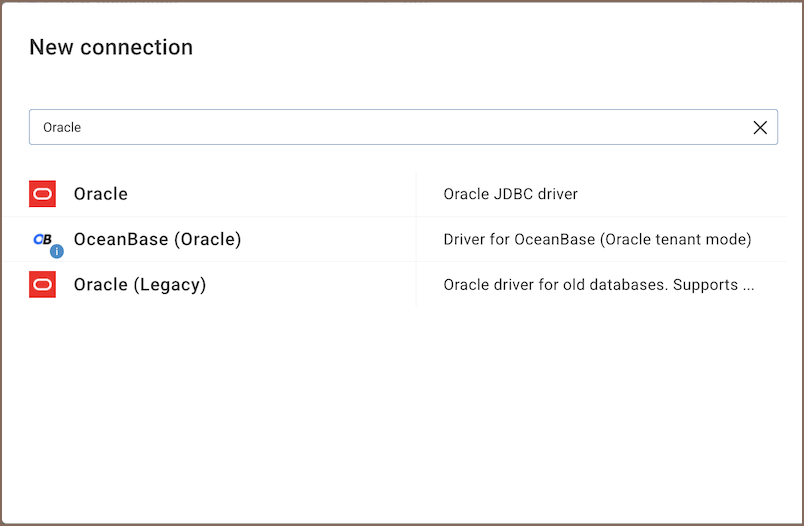
To get started, click Connection in the toolbar, select New Connection, then choose the driver that matches your
database: use 'Oracle (Legacy)' for versions 8.x, 9.x, 10.x and 'Oracle' for version 11 and
later
Info
For information on the full workflow, see Creating a connection.
Note
The desktop version of Team Edition also supports advanced authentication methods, SSH/Proxy connections, and driver configuration. See PostgreSQL in Team Edition desktop.
Connection settings
The connection dialog organizes settings into these entries:
| Entry | Description |
|---|---|
| Main | Connection and authentication settings |
| Driver Properties | Oracle JDBC driver properties |
| SSH Tunnel | SSH tunnel settings |
| AI | AI assistant and MCP server settings |
| Connection details | Connection identification and project settings |
| Advanced settings | Oracle-specific connection options |
| Initialization settings | Connection initialization options |
Main
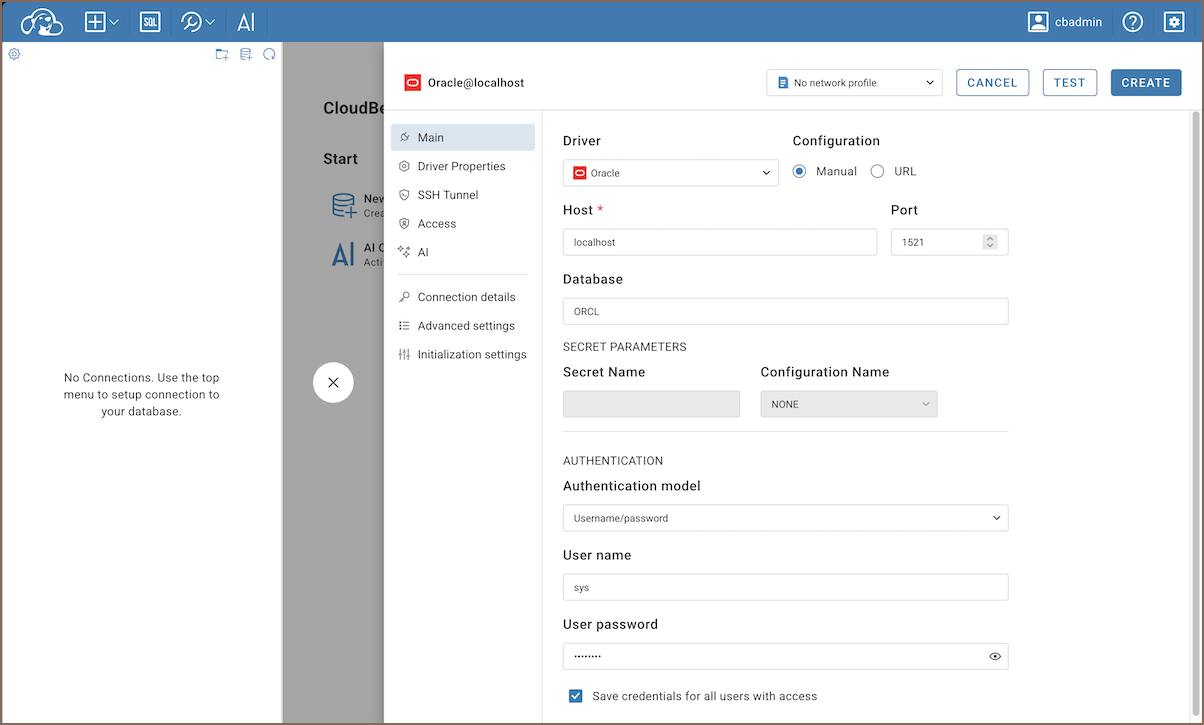
Configuration
Choose how to configure the connection, then enter the required values.
| Field | Description |
|---|---|
| Configuration | Choose Manual or URL |
| Host | Enter the Oracle server host; this field is required |
| Port | Enter the Oracle server port; the default is 1521 |
| Database | Enter the database name |
Secret parameters
Team Edition supports various cloud-based secret providers to retrieve database credentials.
Note
This tab is only available if Enable Secret Management is enabled in Settings -> Administration -> Server Configuration. Learn more
Authentication
| Field | Description |
|---|---|
| Authentication model | Choose the type of authentication you want to use for the connection. For detailed guides on authentication types, please refer to the following articles: - Username/password - Oracle Wallet - Microsoft Entra ID - Kerberos |
| Save credentials | Saves credentials so all users with access to this connection can use them without entering them manually. Learn more |
Note
Only administrators and developers can change the driver properties and SSH tunnel settings. For information on connection permissions, see Roles.
Driver properties
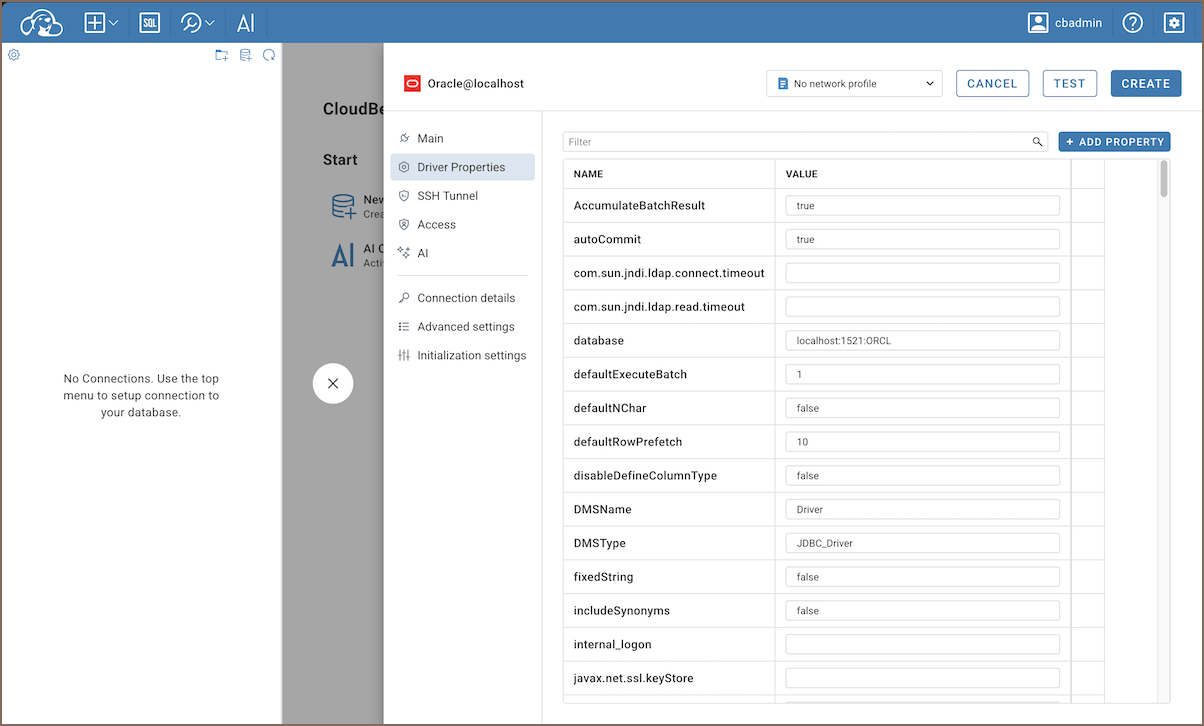
Use the Driver Properties table to view and edit properties supplied through the Oracle driver metadata. The available properties and values depend on the driver and server configuration.
SSH Tunnel
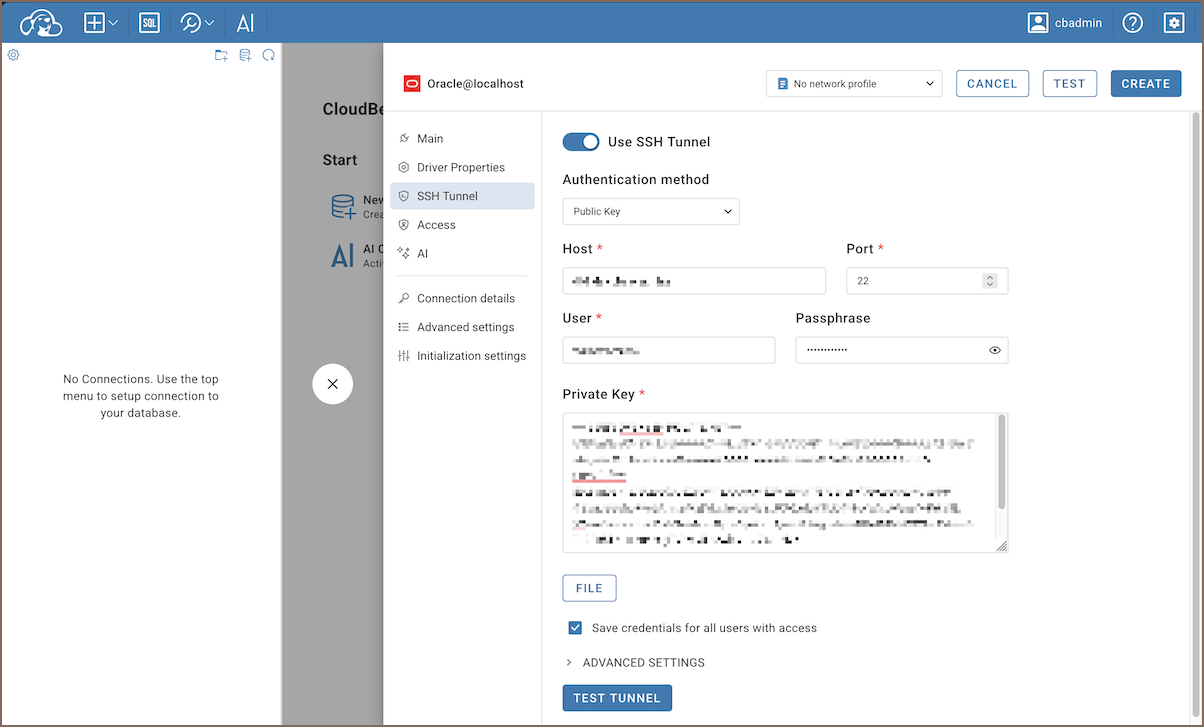
Team Edition supports SSH connections to Oracle. For setup details, see SSH configuration
Access
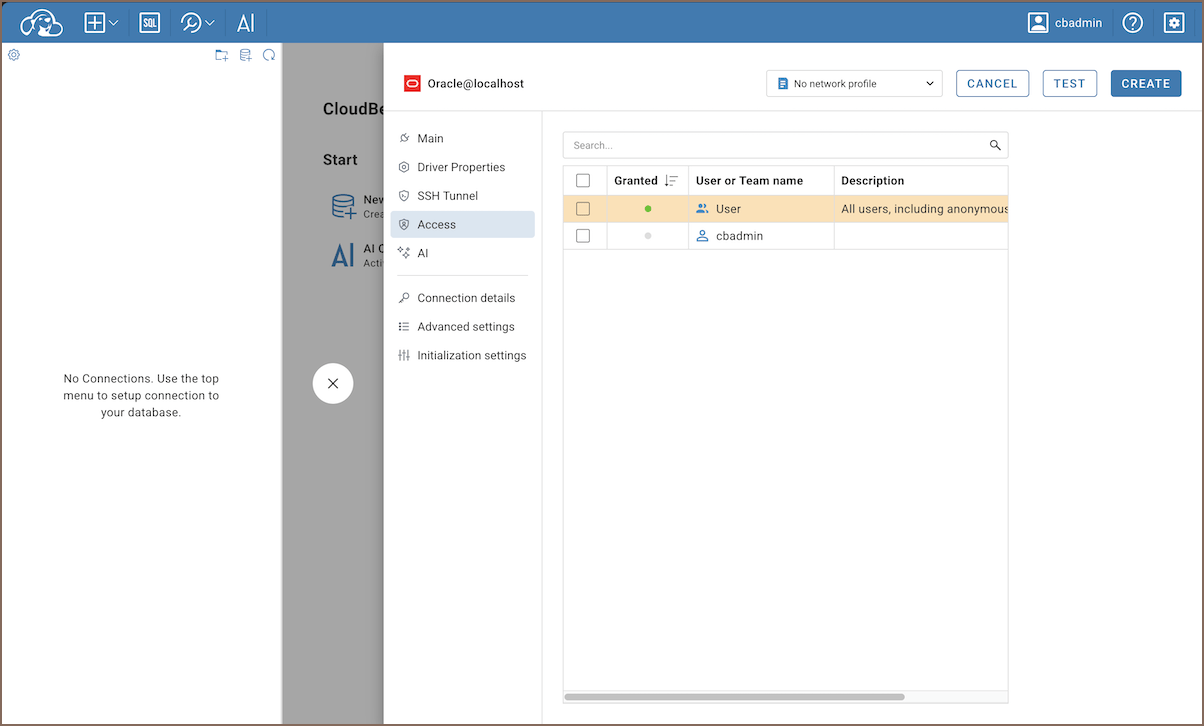
Control which users and teams can use this connection. Grant access by selecting the checkbox next to a user or team name.
Switch to the Shared project to enable the Access tab.
AI
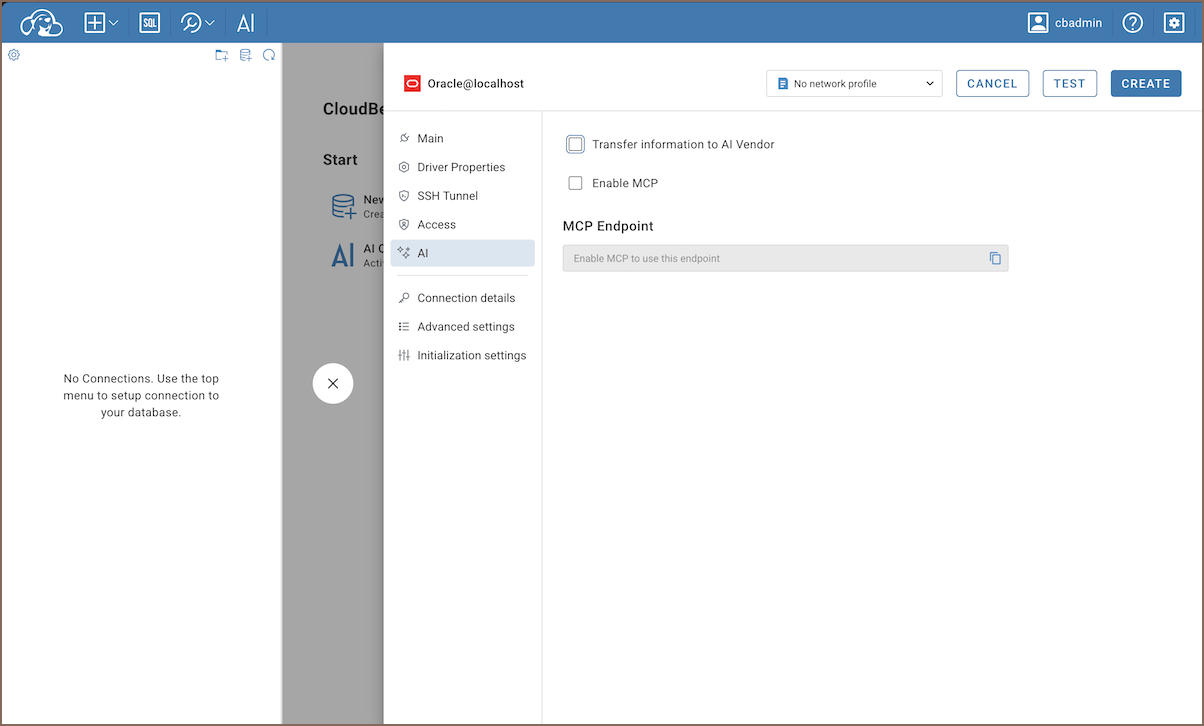
Enable Transfer information to AI vendor to let the AI assistant use this connection's schema and data when generating SQL suggestions.
Note
This tab is only available if AI Integration is enabled in Settings -> Administration -> Server Configuration. For information on setting up AI integration, see AI assistant setup.
You can also expose this connection as an MCP server for external AI clients. For setup details, see MCP server.
Connection details
Use these settings to identify and organize the connection:
| Field | Description |
|---|---|
| Connection name | Enter a connection name; this field is required |
| Project | Select the project for the connection |
| Description | Enter a description |
| Connection type | Select the connection type Learn more |
Default connection view
Note
This section is available only for shared connections. For details, see Connection details.
| Option | Description |
|---|---|
| Simple / Advanced | Sets the default view for this connection in the Connections. |
| Show system objects | Shows system objects in the Connections. |
Info
For more details on connection view, see Simple and Advanced View
Advanced settings
Configure the Oracle-specific connection options shown in this section.
Misc
| Option | Description |
|---|---|
| Service type | Select the Oracle service type |
| Role | Select the role for the connection |
| Set Username to OS_USER property | Set the user name as the OS_USER property |
Performance
| Option | Description |
|---|---|
| Use metadata queries optimizer | Optimize metadata queries |
| Use RULE hint for system catalog queries | Add the RULE hint to system catalog queries |
| Simple constraint reading query | Use a simple query to read constraints |
| Use UNION for table metadata reading | Use UNION when reading table metadata |
| Search metadata in synonyms | Include synonyms when searching metadata |
Content
| Option | Description |
|---|---|
| Show only connected user schema | Show only the connected user's schema |
| Hide empty schemas | Hide schemas without objects |
Always show DBA objects |
Always show DBA objects |
Always use DBA_* views |
Use DBA_* views where available when reading metadata, and fall back to ALL_* views |
Use SYS schema prefix |
Use SYS. in metadata queries; otherwise, use view names without an explicit schema |
Data
| Option | Description |
|---|---|
| Show DATE values specifically as DATE | Show Oracle DATE values as DATE instead of TIMESTAMP; requires date/time formatting to be enabled |
Initialization settings
Use these settings when Team Edition initializes the connection:
| Field | Description |
|---|---|
| Keep-alive interval (seconds) | Set the interval for keeping the connection open |
| Auto-commit mode | Set the default auto-commit mode |
| Read-only connection | Open the connection in read-only mode |
| Default catalog | Set the default catalog |
| Default schema | Set the default schema |
Supported objects
Team Edition lets you view and manage a wide range of Oracle objects:
- Schemas
- Tables
- Columns
- Constraints
- Indexes
- Foreign Keys
- Dependencies
- References
- Partitions
- Triggers
- Rules
- Policies
- Views
- Materialized Views
- Indexes
- Sequences
- Queues
- Types
- Packages
- Procedures
- Functions
- Synonyms
- Schema Triggers
- Table Triggers
- Database Links
- Java
- Jobs
- Scheduler
- Jobs
- Programs
- Recycle bin
- Tables
- Global metadata
- Types
- Public Synonyms
- Public Database Links
- Storage
- Tablespaces
- Files
- Objects
- Security
- Users
- Roles
- Profiles
Note
Table elements like columns, indexes, and constraints appear in the Connections tree only if this option is enabled in Connections settings
Additional features
Oracle specific support
| Category | Objects |
|---|---|
| Security | Users, roles |
| Programmability | Packages, standalone procedures, triggers |
| Storage and data organization | Tablespaces, sequences, materialized views |
| Database links and external access | Synonyms, database links |
| Database management | Jobs |
Tools and integrations
| Category | Feature |
|---|---|
| Data transfer | Data import |
| Data export | |
| Session management | Session manager |
| Data visualization | GIS guide |
| ERD guide | |
| Query management | Query manager |
| Query history | |
| SQL tools | Visual query builder |
| Administration | Audit logging |