

Data transfer to Slack
 Available since 26.3
Team Edition can send a Data Transfer text report or exported result files to Slack.
Configure a Slack profile
Before sending Data Transfer results, create a Slack profile:
- Go to Window -> Preferences -> General -> Slack.
- Select Add ...
 .
. - Choose a token type and enter the profile settings.
- Select OK to save the profile.
The profile list shows the Name and Type of each profile. You can use Remove ( )
or Edit ... (
)
or Edit ... ( ) to manage an existing profile.
Configure a long-lived token
-
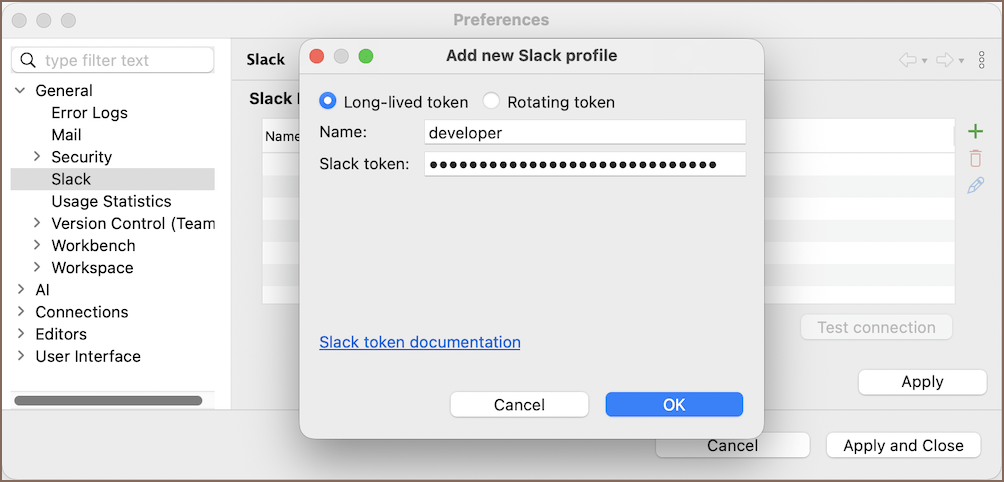
Choose Long-lived token.
-
Enter a Name and Slack token.
- Select OK.
- Select Test connection.
You can save the profile after both required fields are set.
Info
For information about Slack tokens, see Slack token documentation.
Configure a rotating token
-
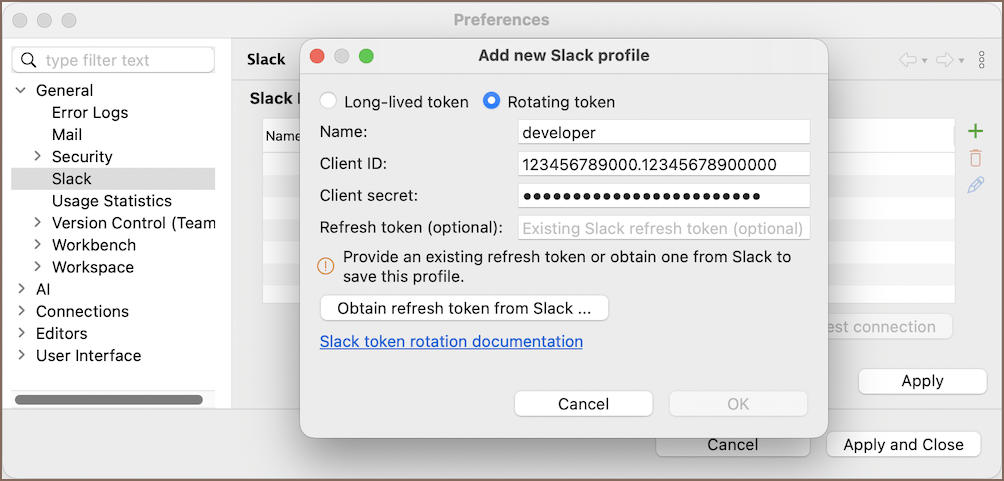
Choose Rotating token.
-
Enter a Name, Client ID, and Client secret.
-
Add a refresh token in one of these ways:
- If you already have a Slack refresh token, enter it in Refresh token (optional). Team Edition exchanges it for an access token on the next connection. Continue to step 8.
- If you don't have a refresh token, obtain one from Slack in the following steps.
-
Select Obtain refresh token from Slack .... This opens Slack OAuth authorization.
-
Configure the authorization settings:
Setting Description Callback endpoint Team Edition uses <Team Edition server origin>/api/oauth/callbackas the callback URL and hides the callback fields. The complete URL must exactly match an allowed redirect URL configured for the Slack app.Callback port Sets the local callback listener port; the default is 18443Request scopes for Requests the selected scopes for User or Bot; User is the default Upload files Requests files:write; enabled by defaultSend messages Requests chat:write; enabled by defaultStart direct messages with people Requests im:write; disabled by defaultStart group direct messages with people Requests mpim:write; disabled by default -
Select Authorize to start browser authorization.
- Complete authorization in the browser. Team Edition waits for the callback, stores the returned tokens, and closes the dialog after authorization succeeds.
- Select OK to save the profile.
- Select Test connection.
Info
For information about token rotation, see Slack token rotation documentation.
Set up Data Transfer
After configuring a Slack profile, set up Data Transfer to send its results:
- Create an export task.
- Go to the Output page.
- Enable Send results to Slack.
- Configure the Slack settings.
- Run the task.
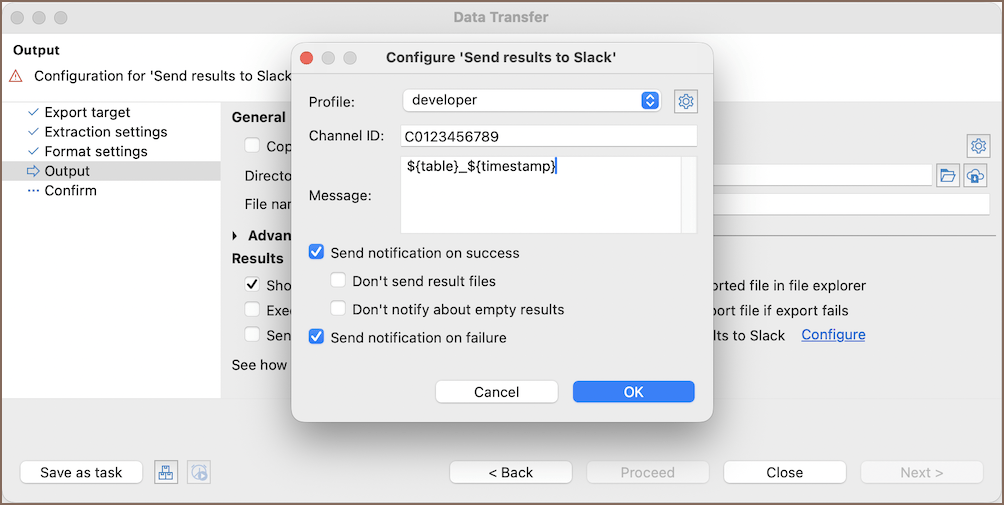
The following settings are available:
| Setting | Description |
|---|---|
| Profile | Selects the Slack profile to use |
| Configure profiles ... | Opens Slack preferences |
| Channel ID | Sets the Slack channel or conversation ID (which usually starts with C, G, or D) |
| Message | Adds an optional initial message |
| Send notification on success | Sends a notification when the task succeeds |
| Don't send result files | Sends a text report without exported result files |
| Don't notify about empty results | Skips the notification when the exported results are empty |
| Send notification on failure | Sends a notification when the task fails |
When the task runs, Team Edition sends a text report or the exported result files, along with the optional initial message. Clipboard output isn't sent to Slack.