

Database full-text search
Full-text search finds specific values stored inside your table data, across one or more connections, without writing a SQL query.
To search database content, select the Search button ( ) on the
main toolbar, or the arrow next to it, then the DB Full-Text tab in the Search window.
) on the
main toolbar, or the arrow next to it, then the DB Full-Text tab in the Search window.
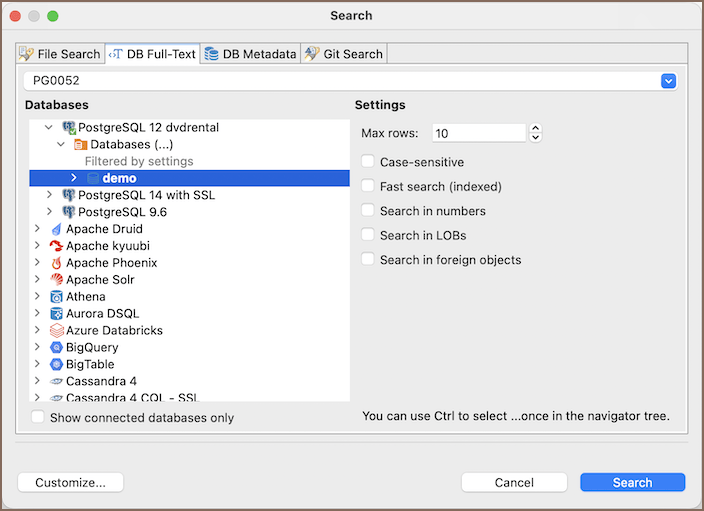
Search settings
Expand the tree in Databases and select the checkboxes next to the connections or database objects to search, enter your search text in the String field, and refine the search with these settings:
| Setting | Description |
|---|---|
| Max rows | Set the maximum number of rows to search per table. Setting this too high can slow the search down (10 by default) |
| Case-sensitive | Match the exact case of your search text |
| Fast search (indexed) | Search only in indexed columns, and skip columns that aren't indexed |
| Search in numbers | Include numeric columns; your search text must be a number to match |
| Search in LOBs | Include BLOB, CLOB, and other binary columns; this can slow the search down |
| Search in foreign objects | Include foreign tables and database links; this can affect performance |
Note
The Search button is enabled only after you select connections or database objects in the Databases tree - not a higher-level node such as a group of connections.
Select Search. The results open in a Search view:
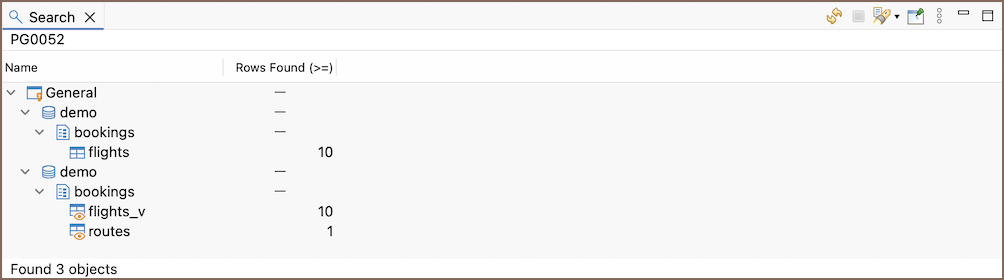
Double-click a row in the Search view to open the object in a dedicated Database Object editor.