

AI Assistant settings
Use this page to configure the general behavior of AI in DBeaver.
Note
AI Assistant is turned on by default. If it was disabled earlier, you can re-enable it in Window -> Preferences -> AI by selecting Enable AI integration.
AI Assistant setup
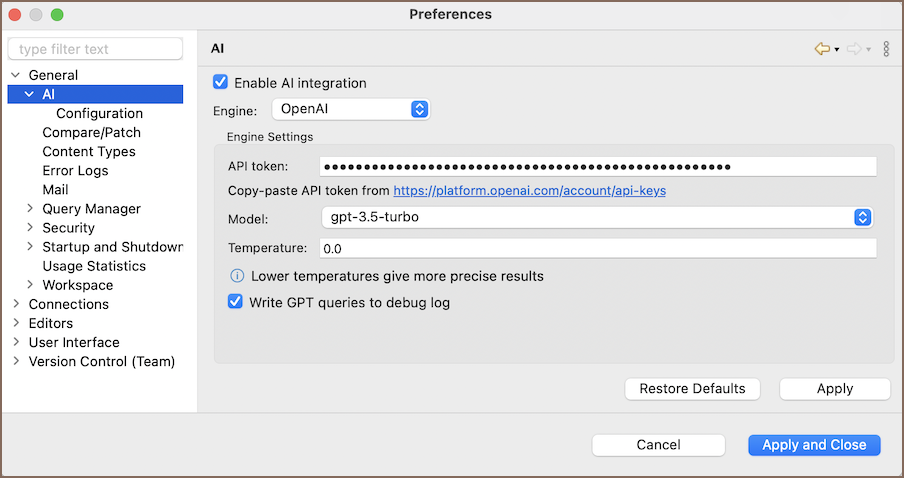
To get started, open Window -> Preferences -> AI-> Model configurations, choose a provider, and paste your API token.
Profiles
The Model configurations page manages AI configurations as profiles. Each profile pairs a name with one provider and its own settings, so you can keep several configurations side by side - for example, two OpenAI profiles with different models or keys.
- Click Add icon (
 ) to create a profile: pick a provider, then set its ID (
fixed after creation) and Name (you can rename it anytime).
) to create a profile: pick a provider, then set its ID (
fixed after creation) and Name (you can rename it anytime). - Click the trash icon (
 ) to delete the selected profile.
Info
The profile selected when you apply changes becomes the default and appears in bold in the list. AI features use the default profile unless you pick another one explicitly.
Chat Settings
For configuring AI Chat settings, navigate to Window -> Preferences -> AI ->Configuration -> Chat Settings.
| Setting | Description | Default |
|---|---|---|
| Use stream mode | Displays the AI's reply as it's generated instead of waiting for the full response. Gives a faster perceived response and lower memory use. Available only if the selected AI provider supports it. | On |
| Execute in a new SQL console | Opens a new SQL console when you run a query from the AI chat and keeps the executed query there. When you turn this off, DBeaver reuses the currently active console instead. | On |
| Include source in query comment | Shows your original request above the AI-generated query in the SQL Editor. | Off |
Format SQL query  |
Formats the generated SQL query using your database's default keyword case. | Off |
| Table join rule |
Controls how the AI joins tables in generated queries: the AI's default judgment, explicit JOIN clauses, or sub-queries. |
Default |
| Days to keep chats |
Sets how many days chat history is stored locally. Older chats will be deleted automatically. | 7 |
Important
If you add filters in the Connections, only the filtered tables are sent to the AI. The same applies in the Data Editor — if you filter tables, they won’t appear in completion or be validated correctly in queries, because if they’re not in Connections, there’s no metadata about them.
AI Configuration
For configuring specific settings, navigate to Window -> Preferences -> AI -> Configuration.
General
| Setting | Description | Default |
|---|---|---|
| Language | Choose the language for AI responses. This affects the language used in answers, explanations, and code comments. | English |
Info
Besides the listed options, you can also type in a language that's not included in the dropdown menu.
SQL Completion
| Setting | Description | Default |
|---|---|---|
| Enable AI Auto Complete | Suggests SQL completions triggered by a shortcut, based on the current query and comments. | On |
AI query execution
These settings control how AI-generated SQL queries are executed. You can choose to run them immediately, show a confirmation prompt, or disable autocommit so changes must be committed manually.
| Setting | Description | Options | Default |
|---|---|---|---|
| Select | Controls execution of SELECT queries. |
- Execute immediately - run SELECT queries without confirmation.- Show confirmation - ask for confirmation before executing. |
Execute immediately |
| Modify | Controls execution of data modification queries (INSERT, DELETE, UPDATE). |
- Execute immediately - run modification queries without confirmation. - Show confirmation - ask for confirmation before executing. - Disable autocommit - turn off autocommit so changes require manual commit. |
Show confirmation |
| Schema | Controls execution of schema modification queries (CREATE, DROP, ALTER, etc.). |
- Execute immediately - run schema modification queries without confirmation. - Show confirmation - ask for confirmation before executing. |
Show confirmation |
| Other | Controls execution of queries DBeaver cannot classify as valid SQL (including NoSQL queries). | - Execute immediately - run unknown or unclassified queries without confirmation. - Show confirmation - ask before executing queries not recognized as SQL. |
Show confirmation |
Tip
For the AI command, using Show confirmation is strongly recommended. It lets you preview the generated SQL in a dialog before execution, so you can review or cancel risky changes.
Send database structure
| Setting | Description | Default |
|---|---|---|
| Send column data type information | Sends column data types (like INT, VARCHAR, etc.) to the AI provider. Improves completion quality, but consumes more tokens. |
On |
| Send object description | Sends object description to the AI provider. Improves completion, but may consume significant amount of tokens. | Off |
| Send foreign keys information |
Sends foreign key information to the AI provider. Improves completion quality, but consumes more tokens. | Off |
| Send unique and primary keys information |
Sends unique and primary key information to the AI provider. Improves completion quality, but consumes more tokens. | Off |
Automatic prompt reduction
When sending database metadata and sample data to the AI provider, the amount of information is limited by the selected context size. If the content exceeds this limit, DBeaver automatically shortens the prompt in two steps:
- Removes extra details (data types, keys, constraints, sample data) if all are enabled and the size is too large.
- If it’s still too large, trims the snapshot until it fits the context limit.
Read sample data
| Setting | Description | Default |
|---|---|---|
| Default sample rows count | Default number of rows the Read table sample rows tool returns when a row count isn't given. | 10 |
| Max sample rows count | Maximum number of rows the Read table sample rows tool can return. | 200 |
Info
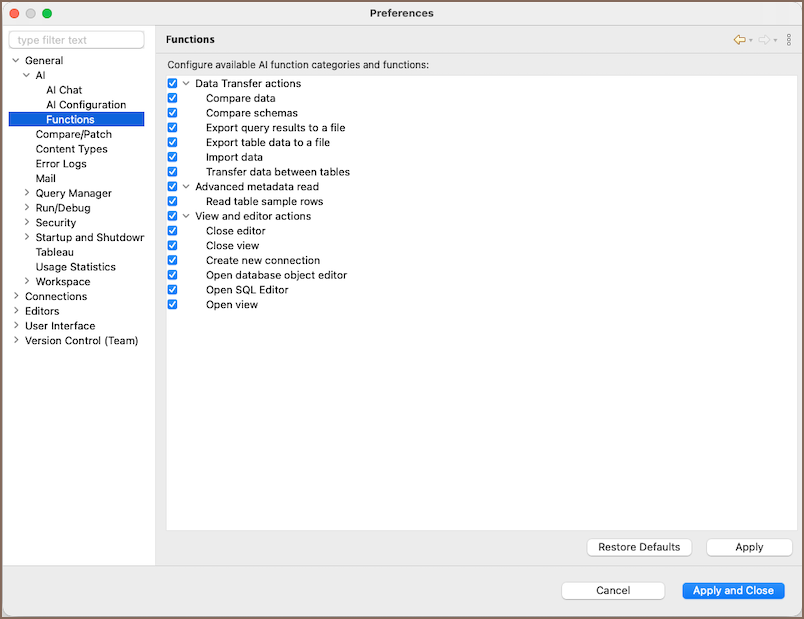
These settings only apply when the Read table sample rows tool is enabled. For information on enabling tools, see AI Tools & MCP.
Tools and MCP
DBeaver supports two types of AI tools: built-in internal tools and external tools from connected MCP servers.
Info
For information on using tools, see AI Tools & MCP.
Prompts
 Available since 26.0
Use this page to customize the built-in instructions that DBeaver sends to the AI provider for specific features. These instructions are applied automatically when you use the related AI feature.
Open it in Window -> Preferences -> AI -> Prompts.
Note
User-defined instructions are added on top of default instructions. Default instructions can’t be changed.
| Prompt | What it affects |
|---|---|
| Analyze Data Compare results |
Explains differences found in Data Compare results. |
| Describe database objects |
Returns detailed database object description and its role in the database schema. |
| Explain SQL queries |
Explains the structure and business value of the SQL query, including involved entities and relationships. |
| Explain SQL query execution plan |
Explains the SQL query execution plan and helps understand how the database runs the query. |
| Fix SQL query errors |
Fixes SQL query errors using the query text, the error message, and environment information. |
| AI Auto Complete |
Performs AI Auto Complete based on the query, comments, and surrounding queries. |
| SQL query generation | Generates SQL queries from a natural language description. |
| Smart mapping |
Finds the closest matching data types when converting columns between source and target databases. |
Troubleshooting
AI chat shows N/A on Windows Server
If AI chat displays N/A and the error log contains unhandled event loop exceptions, the cause is likely a missing WebView2 component. For information on how to fix it, see Troubleshooting WebView2 issues.