

AI chat
DBeaver provides AI Chat for working with databases in natural language. You can enter requests in plain text to generate SQL queries, get explanations, or ask questions about your databases.
Work with AI Chat
-
Click on the AI Chat icon located in the DBeaver toolbar.

- Alternatively, open the SQL Editor and click on the AI Assistant icon
 located in the left toolbar.
Note
The toolbar is customizable. For further information, refer to Toolbar Customization article.
- Alternatively, open the SQL Editor and click on the AI Assistant icon
-
In the chat window that opens, select a connection and, optionally, a scope.
- Enter your request in natural language.
-
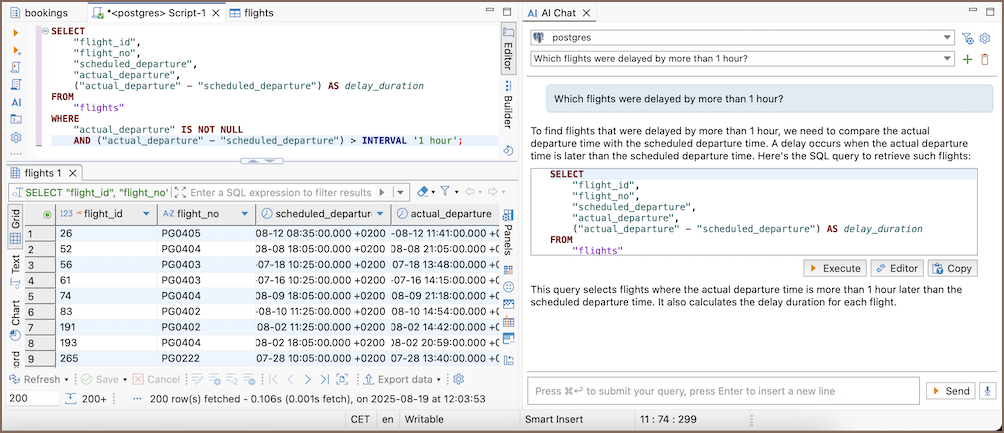
Press the Send button to get the SQL translation. You can then choose from the following options:
- Execute to run the generated SQL query
-
Editor to open the query in the SQL Editor and continue working with it directly
Tip
If the cursor is on a query, clicking Editor will replace it. Move to a new line to keep the old query.
-
Copy to copy the query to your clipboard
Tip
To stop response generation, select the Stop button next to the input field.
Info
For information on AI Chat keyboard shortcuts, see Shortcuts.
AI Chat configuration
Connection field
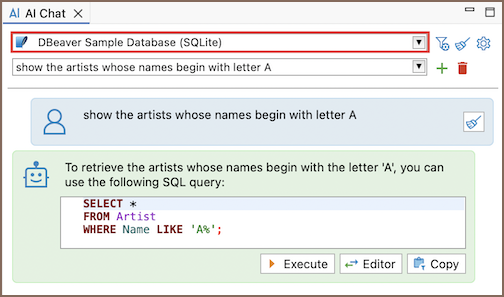
To use a specific connection in AI Chat, select the connection from the toolbar at the top of the chat panel. The selected connection defines which database the AI will use when generating SQL queries.
Multiple conversations
You can create multiple chats for different connections.
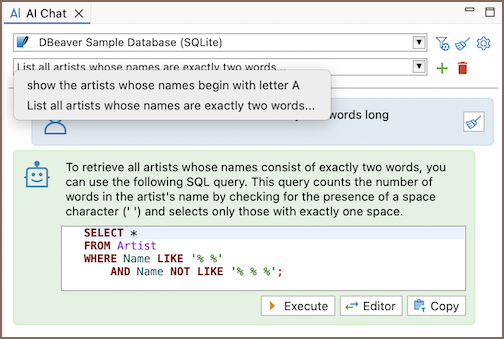
The first chat is created automatically when you open AI Chat. Each chat is named based on your first prompt. Messages related to the same query or object in the same connection are kept together in one conversation.
| Action | Button/icon | How to do it |
|---|---|---|
| Add a new chat |  |
Click the button to start a new conversation |
| Switch chats | (Dropdown menu) | Use the dropdown menu to switch between existing chats |
| Delete a chat |  |
Select the chat from the dropdown, then click the delete button |
Important
Deleted conversations can’t be restored.
Resetting query context
AI Chat keeps the history of your questions so you can build on them. Sometimes you may want to start fresh. To reset
the context or clear history up to a certain message, click the reset button ( )
next to that message.
)
next to that message.
Example
You asked about the “orders” table and then want to switch to “customers”. Reset before your new question so AI doesn’t mix both topics.
Defining the scope
To improve accuracy, especially in databases with large schemas, you can limit what database context AI sees.
- In the AI Chat toolbar, click the Change scope button
 to open the context menu.
 -
Under Applies to, choose whether the scope below is remembered for the connection or just for this chat:
Option Description This connection The scope is saved with the connection and reused across conversations This conversation The scope only applies to the current chat and resets when you start a new one -
Under Metadata sent to AI, choose how much database context AI sees:
Scope option Description Current schema AI focuses only on the schema you’re currently using Current database AI is limited to the currently selected database All objects AI can access metadata for all schemas and objects in the current connection Custom Lets you define a more specific scope, such as a particular table or set of objects
Active configuration
 Available since 26.2
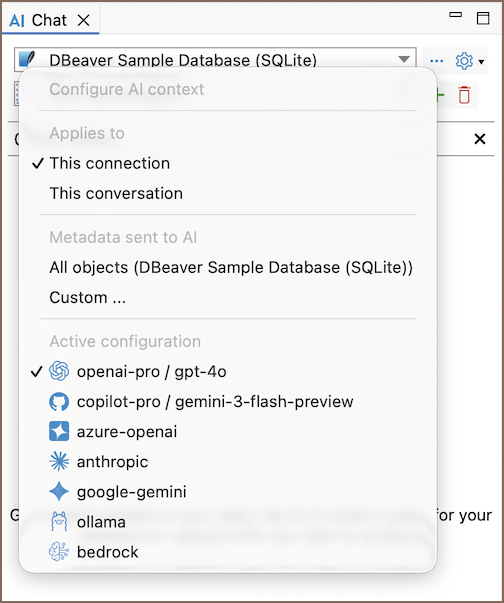
Each conversation starts with the default AI profile. To change the active profile or model, use the selector row below AI Chat:
- Select Profile, then choose a profile. This selection applies only to the current conversation and doesn't change the default profile in Preferences.
-
Select Model, then choose a model. The first time you open Model for a profile, the available models load automatically. Later openings reuse the loaded list.
Info
The switch only applies to the current conversation - it doesn’t change the default profile in Preferences.
Import files
You can upload files directly in AI Chat and use AI to import data or open files as tables.
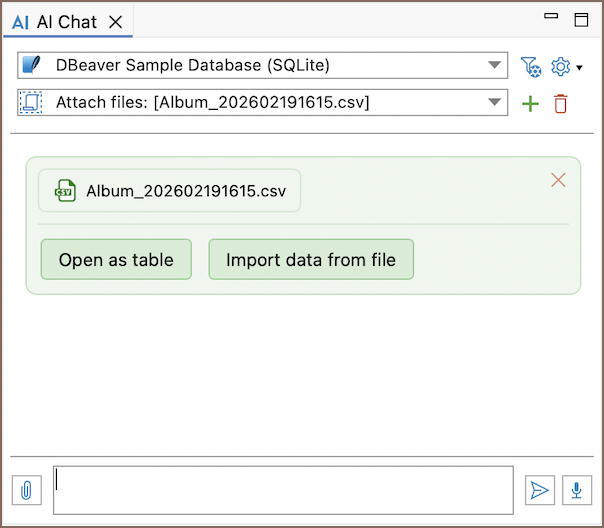
To add files, do one of the following:
- drag and drop file(s) into the AI Chat input area
- click the Attach a file button (
 ) in the chat input and select file(s) manually
File handling in AI Chat is limited to the formats listed below:
| Workflow | Supported formats / drivers |
|---|---|
| Open as table | - CSV - JSON - Parquet - XML - XLSX - SQLite |
| Import data from file | Supports all file formats available for data import. |
Info
When importing data, you can upload multiple files of the same format and import them together.
Clarifying questions
Since 26.2
This feature is available in Lite, Enterprise, and Ultimate editions only.
When your request can be read in more than one way, AI asks you to clarify it right in the chat instead of guessing. The question appears as a card with the options to pick from.
Info
For more details, see User interaction.
Voice input
You can dictate your AI Chat requests using your operating system's voice input tools.
| OS | Tool |
|---|---|
| Windows | Voice Typing (Win + H) or Voice Access |
| macOS | Dictation |
To use voice input in AI Chat:
- Click in the AI chat input field.
- Start your OS's voice input tool and speak your request.
- Review and edit the transcribed text, then press Send.
AI Chat settings
Adjust chat options to make AI Chat work the way you prefer.
Go to Window -> Preferences -> AI -> Chat Settings.
Info
For the full list of AI Chat options, see Chat Settings.
Customize the AI Chat display
- In the AI Chat toolbar, click the Change scope button to open the
dropdown menu.
-
Select what to show:
- Show profile and model shows or hides both selectors together. You can't hide only Model.
- Show total tokens spent shows or hides total token-usage statistics.
Message statistics and token usage
Available since 26.0
You can show per-message statistics in AI Chat, including message time, time spent, and token usage.
- In the AI Chat toolbar, click the Change scope button to open the
dropdown menu.
-
Enable the stats you want to see:
- Show message time
- Show time spent
- Show tokens spent