

FAQ
How to check driver version
The easiest way to check your driver version.
- In Connections, right-click your connection.
- Click Edit Connection.
- In the window that opens, click Test Connection.
- In the pop-up, check the Driver field - that’s your driver version.
How to update driver version
To update a driver version:
- In Connections, right-click your connection.
- Click Edit Connection.
- In the window that opens, click Driver Settings.
- Go to the Libraries tab.
- Select the driver, then click Download/Update.
- If you see a Download/Update button, it means the driver is available for download/update.
-
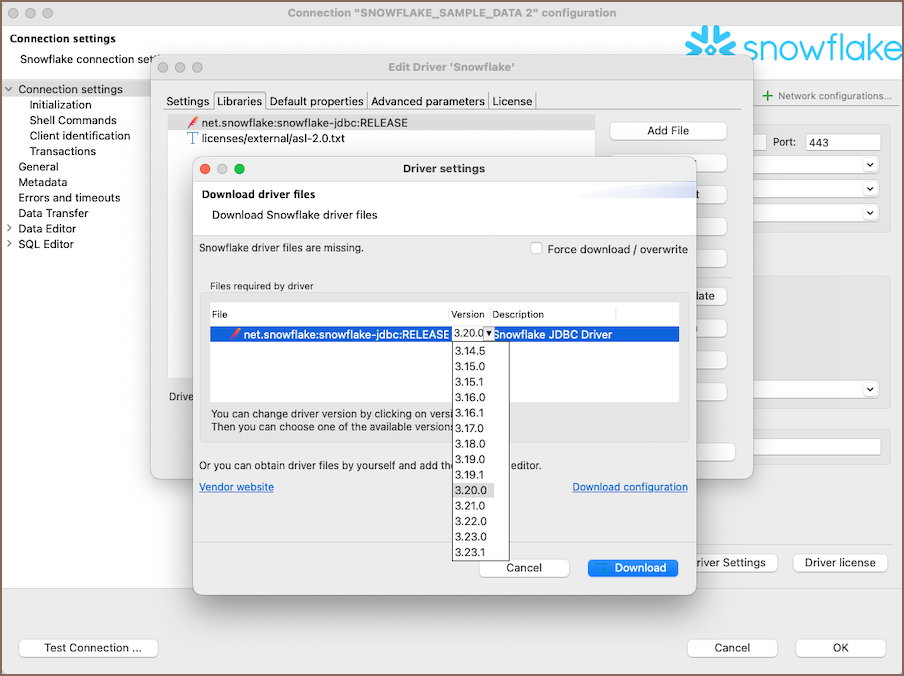
In the pop-up, click the arrow in the Version column.
-
Pick a version, then click Download.
Note
DBeaver uses two types of drivers: built-in and downloadable (Maven-based). You can only change the version for downloadable drivers. To update a built-in driver, update it manually.
How to update driver version manually
To update a driver version manually:
- In Connections, right-click your connection.
- Click Edit Connection.
- In the window that opens, click Driver Settings.
- Go to the Libraries tab.
-
Double-click the driver file - this opens its folder.
Info
If there’s no driver listed (for example, you deleted it), click Add File or Add Folder, then select the driver file manually.
-
Replace the file with the new version. You need to download the JAR file manually. Sources vary depending on the driver:
- Official vendor site - some drivers are only available on the database vendor’s site.
- GitHub releases - many open-source drivers publish binaries in the Releases section.
- Maven Central - some drivers are available at search.maven.org.
- Other public repositories - some projects host drivers on project-specific sites or custom registries.
Tip
You don’t need to delete the whole folder - just replace or remove old JAR files to avoid conflicts.
-
Click OK, then Test Connection to verify it works.
Info
For details, see Driver Manager guide
Microsoft Store
-
Does a standard DBeaver license work with the Microsoft Store version?
Yes.
-
Can I use an Ultimate Edition add-on with Enterprise Edition or Lite?
No. Each add-on is tied to a specific product - an Ultimate Edition add-on works only with Ultimate Edition.
-
Where can I see my purchased add-ons?
Add-ons are managed by Microsoft, not DBeaver. You can view them on your Microsoft account Subscriptions page.
-
How do I cancel a subscription?
On your Microsoft account Subscriptions page.
How to get logs
To check logs for errors or connection issues navigate to Window -> Show View -> Error Log.
Info
For more info, see log files guide
Why application-level access restrictions are not implemented
Database permissions control which databases, schemas, tables, views, and other objects a user can see or change. They also control which SQL statements the user can run.
Application restrictions, including connection-level security restrictions and centrally managed administrative preferences, can broadly limit actions such as editing data or structure or executing SQL scripts, but they don't grant, replace, or bypass database permissions.
To restrict access to specific objects or operations, configure permissions for the database account used by the connection.