

Shell commands
Use DBeaver to run shell commands when a connection event occurs. For example, you can run scripts or back up data. This article explains how to configure these commands and adjust their settings.
Configure shell commands
To configure shell commands in DBeaver:
- Start creating a new connection.
- In the connection creation wizard, navigate to Connection details -> Shell Commands to configure shell commands.
Info
Alternatively, if the connection is already created, right-click it and select Edit Connection, then go to Connection settings -> Initialization -> Shell Commands.
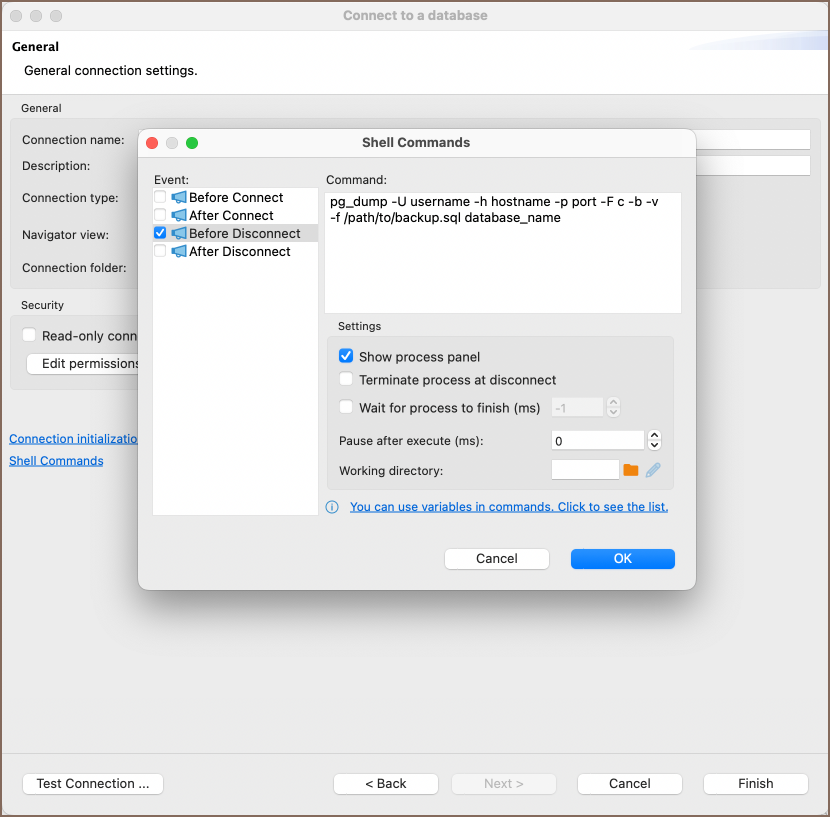
You can run a command before or after connecting and before or after disconnecting. Use the settings on this page to control how each command runs.
Events
You can run a shell command for any of these events:
| Event | Description |
|---|---|
| Before Connect | Runs before connecting. |
| After Connect | Runs after connecting. |
| Before Disconnect | Runs before disconnecting from the database. |
| After Disconnect | Runs after disconnecting. |
Command window
Enter the command to run for the selected event in the command window.
Settings
Use these settings to control the command:
| Setting | Description |
|---|---|
| Show Process Panel | Shows the running process in a separate panel. |
| Terminate Process at Disconnect | Stops the process when the connection is closed. |
| Wait for Process to Finish (ms) | Sets how long to wait for the process to finish. |
| Pause After Execute (ms) | Sets how long to wait after starting the command. |
| Working Directory | Sets the directory where the command runs. |
| Clear command | Removes the command configured for the selected event. |
Click the information tip to see the variables you can use in commands.
Manage trusted commands
DBeaver stores shell commands configured for connection events in a whitelist. To manage this list, click Manage trusted shell commands on the Shell Commands page.
DBeaver opens the confirmed_shell_commands.json file. Add, edit, or delete command entries in the JSON array,
then save the file. The changes are available the next time a command runs.
Example
A confirmed_shell_commands.json file can contain command entries like these:
Examples
Use Shell commands in DBeaver for tasks such as these:
Back up a PostgreSQL database before disconnecting
- Event: Select Before Disconnect.
-
Command Window: Enter the following command:
-
Settings: Select Show Process Panel to see the backup progress.
This command creates a custom-format dump of the specified PostgreSQL database before the connection closes.
Run a script after connecting
Run a script after connecting to automate a routine task:
- Event: Select "After Connect."
-
Command Window: Enter the following command:
-
Settings: Set Wait for Process to Finish (ms) if other tasks should wait for the script to finish.
This command runs the script immediately after the connection is established.
Password from shell command
Besides running commands on connection events, DBeaver can also read a database password from the output of a shell command at connect time. This is handy for fetching secrets from a vault or CLI instead of storing the password locally.
Info
For details, see Password from shell command.