

SQL generation
DBeaver can generate SQL scripts automatically from database objects in the Data Editor and the Connections.
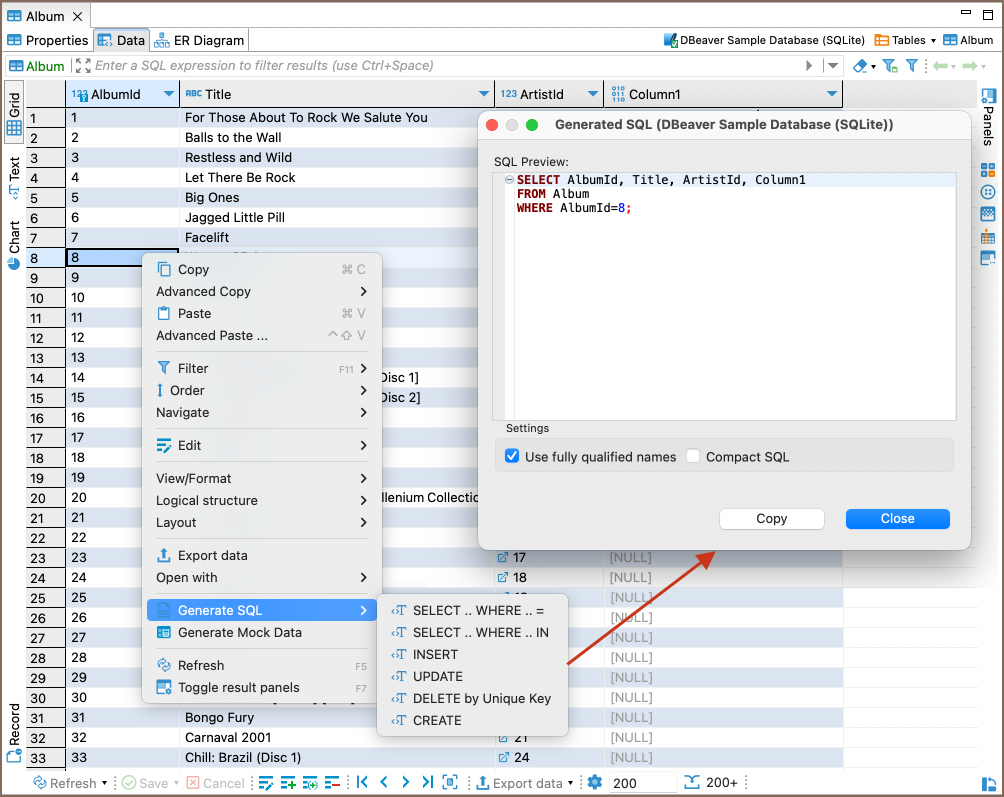
Generate SQL in the Data editor
- Right-click on the database object in the Data Editor.
- Click Generate SQL.
- Choose an SQL command from the context menu.
- The generated statement opens in a new window where you can review and copy it.
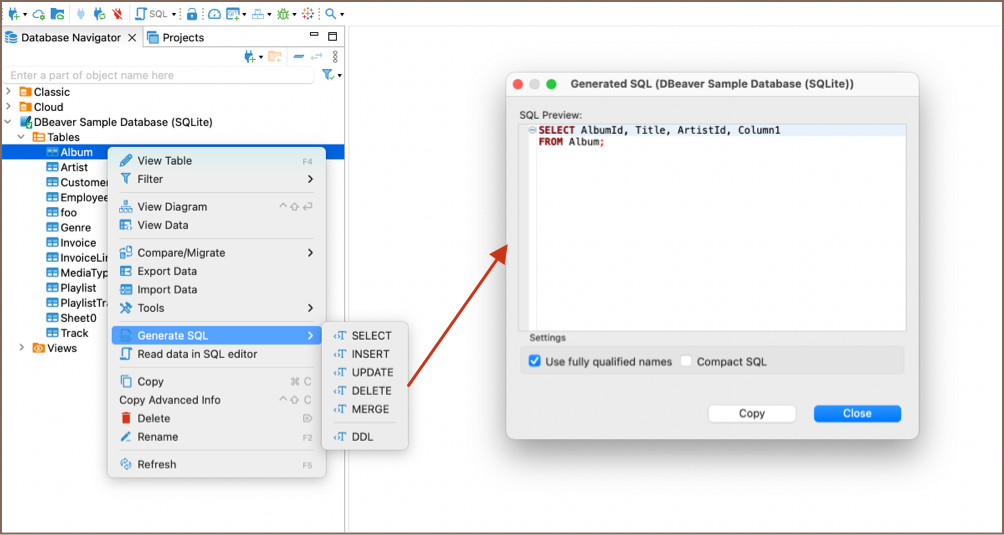
Generate SQL in the Connections
- Right-click on a database object in the Connections.
- Navigate to Generate SQL.
- Choose the type of SQL statement you want.
- The generated statement opens in a new window.
Generate SQL in diagrams
You can generate SQL from tables selected in a Diagram.
- Select one or more tables in the diagram.
- Right-click the selected tables.
- Click Generate SQL.
- Choose the SQL command.
- The generated statement opens in a new window.
Tip
To generate a JOIN, select multiple tables before opening the context menu.
Additional settings
The generated SQL window has options to customize the output.
| Option | Description |
|---|---|
| Use the fully qualified names | Includes [schema name].[table name] in table references |
| Compact SQL | Condenses the SQL script into a single line |
| Separate foreign keys | Isolates foreign key definitions in the script |
| Exclude auto-generated columns | Omits automatically generated columns |
| Use custom data/time format | Customizes date and time formats in the script |
| Show comments | Adds comments to the script |
| Show permissions | Includes permission settings in the script |
| Show full DDL | Adds a full Data Definition Language section |
| Show partitions DDL | Adds partitioning info to the DDL section |
| Use explicit type cast | Adds explicit type casting for SQL values |
Add CAST to parameters definition |
Adds explicit type conversion to parameter definitions |
| Format SQL | Applies database-specific SQL formatting options |
| Save to file | Saves the generated SQL script to a file |
Note
Available options vary depending on the database.