

Password from shell command
DBeaver can read a database password from the output of a shell command or script instead of storing the password in the connection settings. On each connect, DBeaver runs the command and uses the first line of its output as the password.
The password returned by the command isn't saved to disk. This works well when a command-line tool can print the password, or for short-lived credentials that rotate often.
Tip
This authentication method runs a single command to fetch a password. To run scripts on connection events - before or after connect and disconnect - see Shell commands.
Enable password retrieval via CLI
Password retrieval via CLI is disabled by default. To turn it on:
- Open Window -> Preferences -> Connections.
- Select Enable password retrieval via CLI.
- Click Apply and Close.
Once enabled, Password from shell command appears in the Authentication dropdown when you configure a connection.
Note
This method works with databases that support username/password authentication. It replaces the password step, so the username still comes from the connection settings.
Shell command authentication
-
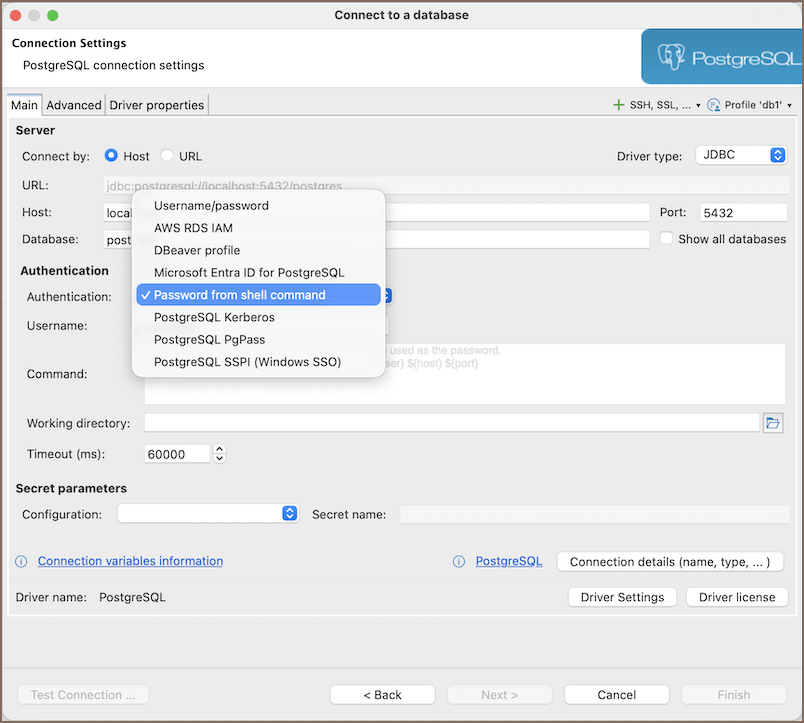
From the Authentication dropdown menu, select Password from shell command.
-
In the Username field, enter the database username.
-
In the Command field, enter the shell command that prints the password.
Info
DBeaver reads the first line of its output (stdout) and uses it as the password. See Examples.
-
Leave the Working directory field empty when the Command has the full path to the script. To use a relative command like
sh pg-password.sh, set this field to the folder that contains the script. - In the Timeout (ms) field, set how long DBeaver waits for the command to finish, in milliseconds. The
default is
60000. Raise it if the command is slow to respond. -
Click the Test Connection button to verify your settings. If everything is configured correctly, DBeaver connects using the password returned by the command.
Important
The command runs on your machine with your permissions, and its output is treated as a password. Only enter commands you trust, and avoid printing the password to logs or the console.
Examples
macOS and Linux
Create a script that prints the password:
In practice, the script can call a command-line tool that prints the password. For example, 1Password provides the op
CLI:
Save it as pg-password.sh, then enter this in the Command field:
Windows
Create a batch file that prints the password:
In practice, the batch file can call a command-line tool that prints the password, for example, 1Password's op:
Save it as pg-password.bat, then enter this in the Command field: