

Data transfer to Slack
 Since 26.3
This feature is available in Lite, Enterprise, and Ultimate editions only.
DBeaver can send a Data Transfer text report or exported result files to Slack.
Configure a Slack profile
Before sending Data Transfer results, create a Slack profile:
- Go to Window -> Preferences -> General -> Slack.
- Select Add ...
 .
. - Choose a token type and enter the profile settings.
- Select OK to save the profile.
The profile list shows the Name and Type of each profile. You can use Remove ( )
or Edit ... (
)
or Edit ... ( ) to manage an existing profile.
Configure a long-lived token
-
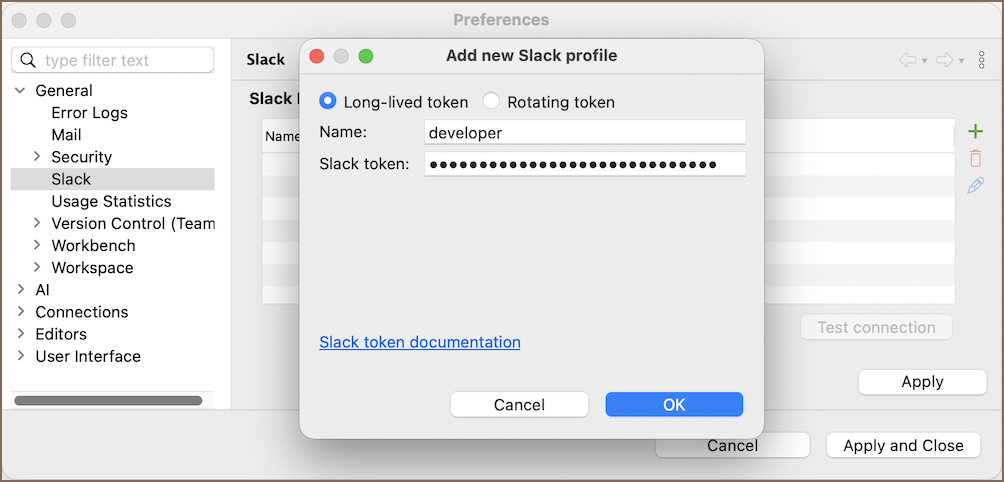
Choose Long-lived token.
-
Enter a Name and Slack token.
- Select OK.
- Select Test connection.
You can save the profile after both required fields are set.
Info
For information about Slack tokens, see Slack token documentation.
Configure a rotating token
-
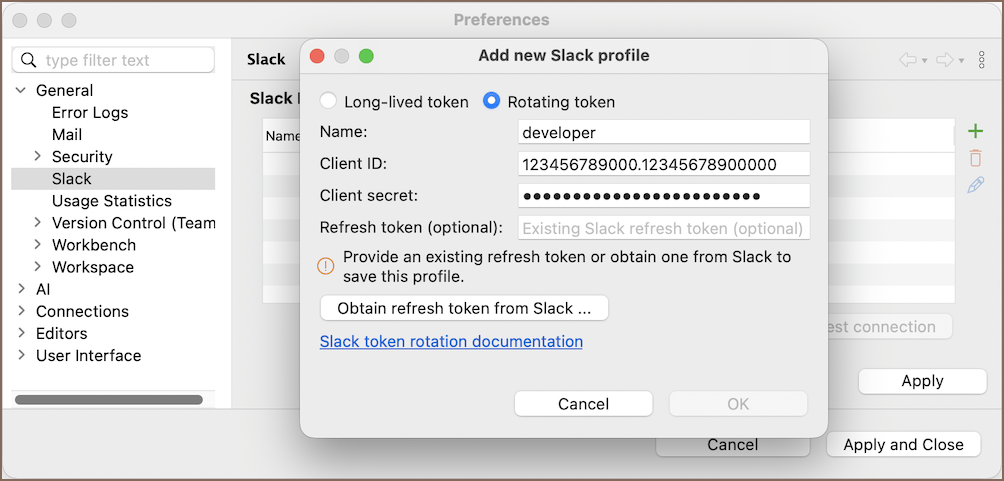
Choose Rotating token.
-
Enter a Name, Client ID, and Client secret.
-
Add a refresh token in one of these ways:
- If you already have a Slack refresh token, enter it in Refresh token (optional). DBeaver exchanges it for an access token on the next connection. Continue to step 8.
- If you don't have a refresh token, obtain one from Slack in the following steps.
-
Select Obtain refresh token from Slack .... This opens Slack OAuth authorization.
-
Configure the authorization settings:
Setting Description Callback endpoint Sets the local OAuth redirect path; the default is /slack/oauth/callbackCallback port Sets the local callback listener port; the default is 18443Request scopes for Requests the selected scopes for User or Bot; User is the default Upload files Requests files:write; enabled by defaultSend messages Requests chat:write; enabled by defaultStart direct messages with people Requests im:write; disabled by defaultStart group direct messages with people Requests mpim:write; disabled by defaultNote
The Callback endpoint and Callback port form the localhost callback URL
localhost:<Callback port><Callback endpoint>. The complete URL, including the port, must exactly match an allowed redirect URL configured for the Slack app. -
Select Authorize to start browser authorization.
- Complete authorization in the browser. DBeaver waits for the callback, stores the returned tokens, and closes the dialog after authorization succeeds.
- Select OK to save the profile.
- Select Test connection.
Info
For information about token rotation, see Slack token rotation documentation.
Set up Data Transfer
After configuring a Slack profile, set up Data Transfer to send its results:
- Create an export task.
- Go to the Output page.
- Enable Send results to Slack.
- Configure the Slack settings.
- Run the task.
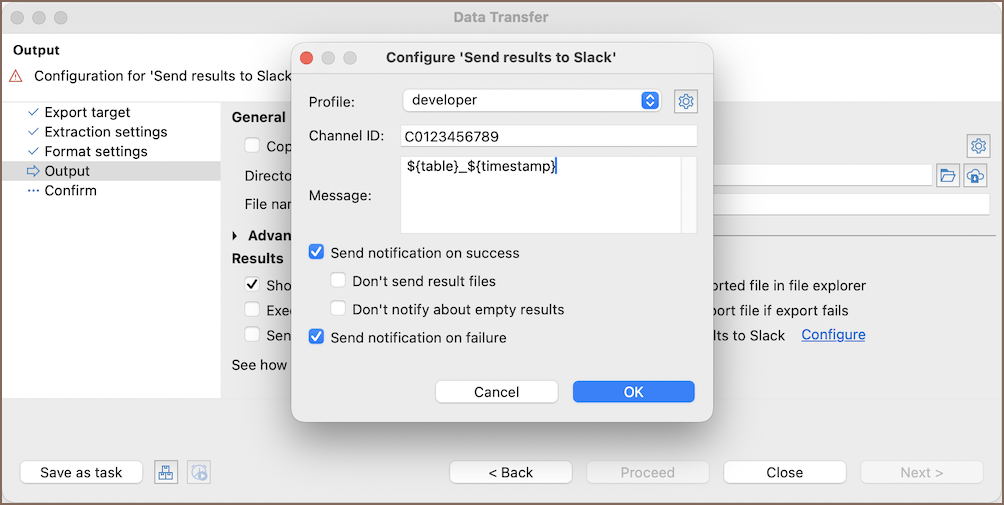
The following settings are available:
| Setting | Description |
|---|---|
| Profile | Selects the Slack profile to use |
| Configure profiles ... | Opens Slack preferences |
| Channel ID | Sets the Slack channel or conversation ID (which usually starts with C, G, or D) |
| Message | Adds an optional initial message |
| Send notification on success | Sends a notification when the task succeeds |
| Don't send result files | Sends a text report without exported result files |
| Don't notify about empty results | Skips the notification when the exported results are empty |
| Send notification on failure | Sends a notification when the task fails |
When the task runs, DBeaver sends a text report or the exported result files, along with the optional initial message. Clipboard output isn't sent to Slack.