

Configure connection
This article describes how to update saved connection settings, manage connection state, and organize saved connections.
Edit a connection
-
Right-click the connection in Connections and select Edit connection.
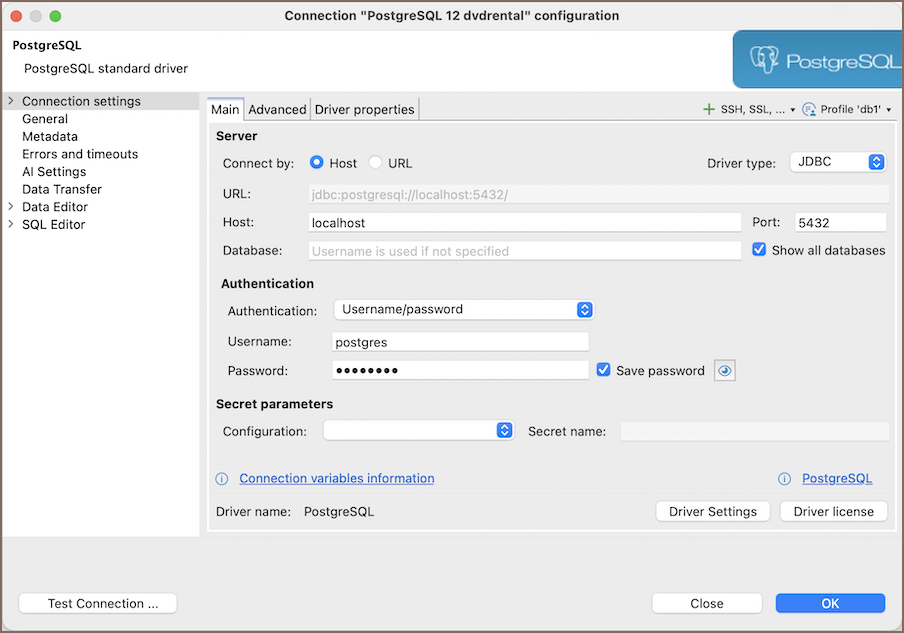
-
Update the required connection settings.
- Select Test Connection to verify the updated configuration.
- Select OK to save the changes, or Cancel to discard them.
Note
If an active connection's saved settings change, reconnect to apply the new settings to the active session.
Tip
You can change the current database user's password. Learn more.
Apply changed settings by reconnecting
Reconnect after saving changed settings for an active connection.
- Edit an active connection and save the changed settings.
- When DBeaver asks whether to reconnect, choose to reconnect and apply the new settings.
Note
If the connection has an open transaction, choose whether to commit, roll it back, or cancel before reconnecting. For information on transaction handling, see Auto and manual commit modes.
Control connections
Connect to a database
- Select a connection in Connections.
-
Choose Connect (
 ) from the toolbar.
Alternatively, choose Connect from the Database menu or the connection's context menu.
Disconnect from a database
- Select an active connection in Connections.
-
Choose Disconnect (
 ) from the toolbar.
Alternatively, choose Disconnect from the Database menu or the connection's context menu.
Note
If the connection has an active transaction, choose whether to commit, roll it back, or cancel the action. For information on transaction handling, see Auto and manual commit modes.
Disconnect all connections
- Open the Database menu.
- Select Disconnect All.
Invalidate and reconnect a stale session
Use Invalidate/Reconnect to replace a stale session without changing the saved connection configuration. This action is different from reconnecting after changing settings.
- Select the active connection in Connections.
-
Choose Invalidate/Reconnect (
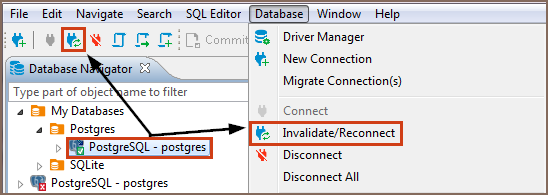 ) from the
toolbar.
) from the
toolbar.Alternatively, choose Invalidate/Reconnect from the Database menu or the connection's context menu.
Manage saved connections
Rename a connection
- In Connections, right-click the connection and choose Rename. Alternatively, select the connection and press F2 on Windows/Linux or macOS.
- Enter the new name and complete the dialog.
Copy a connection
- In Connections, right-click the connection and choose Copy.
- Select the destination folder or node, right-click it, and choose Paste.
Delete a connection
- In Connections, right-click the connection and choose Delete.
- Confirm the deletion by choosing Yes, or choose Cancel to keep the connection.
Info
For information on connection actions, see Connections.
Organize connections in folders
- In Connections, right-click the location where you want the folder and choose Create -> New Folder. Alternatively, use Alt+Insert on Windows/Linux or ⌘+N on macOS to open the creation choices, then select New Folder.
- Drag connections into the folder.
- To create a subfolder, right-click an existing folder and choose Create -> New Folder, then drag connections into the new subfolder.
Info
For information on organizing connections in folders, see Connections.