

Quick start with AI
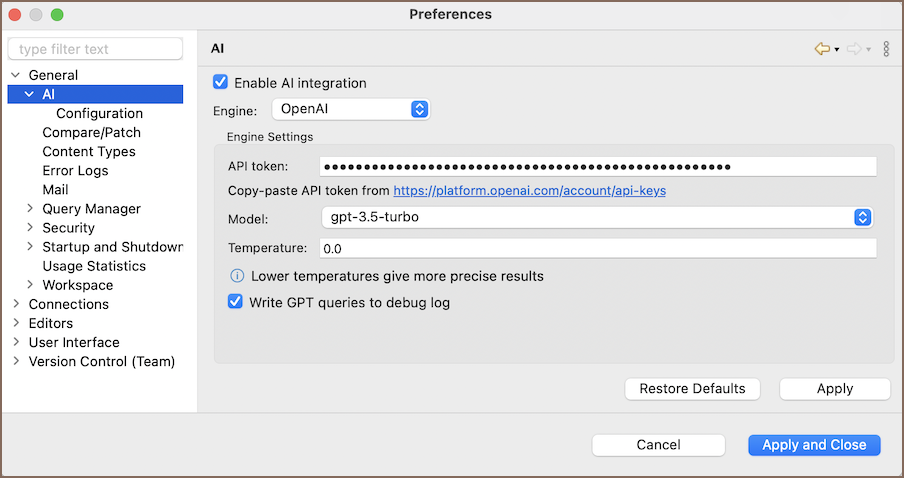
To get started, open Window -> Preferences -> AI-> Model configurations, choose a provider, and paste your API token. Then adjust preferences to match your workflow.
Tip
Different vendors have different limits, models, and regions. Pick what fits your data policy and budget.
Use AI chat
- Open the SQL editor.
-
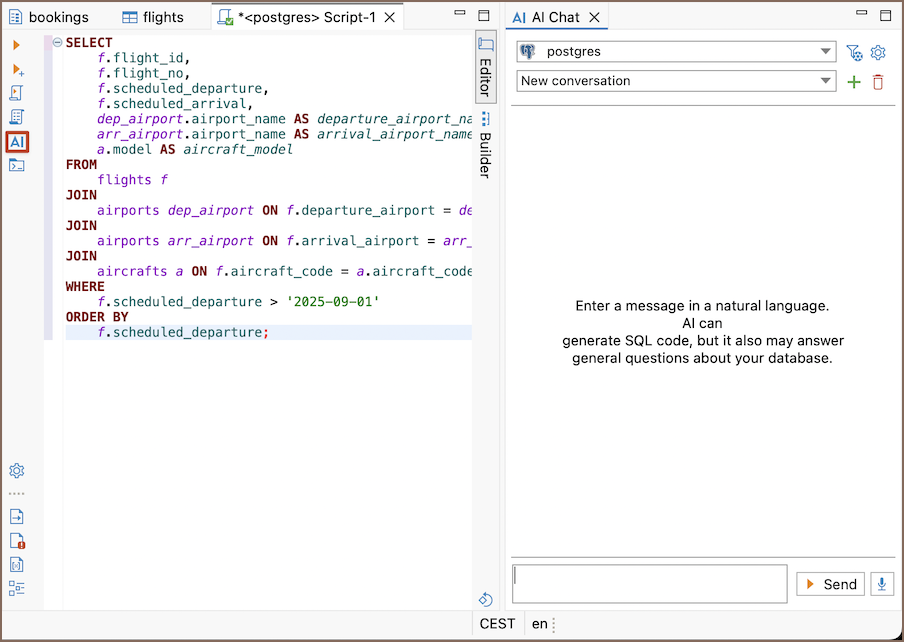
Click AI on the main toolbar, or from the editor toolbar.
-
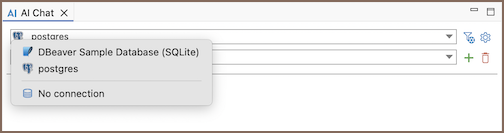
Pick a connection.
Info
Optionally set a scope to improve accuracy on large instances.
-
Type what you need in AI chat.
- Execute or refine.
Info
For details, see AI chat.
Generate SQL directly in the editor with @ai
Want to stay focused in the SQL editor? Use @ai when you don’t need the full chat flow.
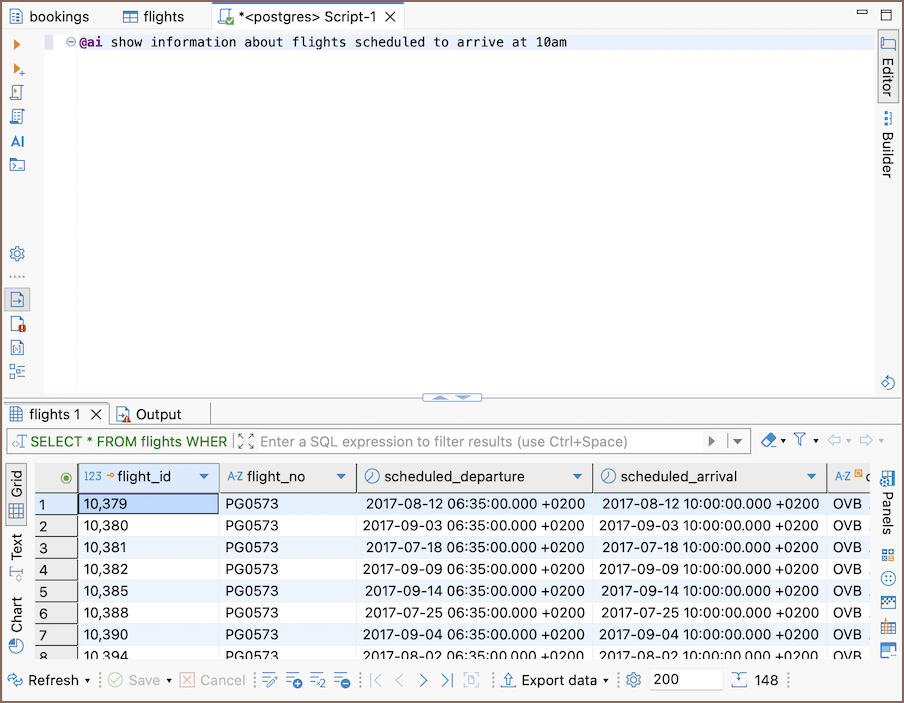
- In the SQL editor, enter
@ai your request... - Execute and review
Warning
Depending on your execution settings, AI commands may run without preview. Enable confirmations if you prefer to review first.
When the SQL looks right, validate it or quickly understand its intent before you run it on real data. For more, see AI command.
Understand what the query is doing
Need a clear explanation, risks, or edge cases?
- Select the SQL
- Right-click, AI commands -> Explain query using AI
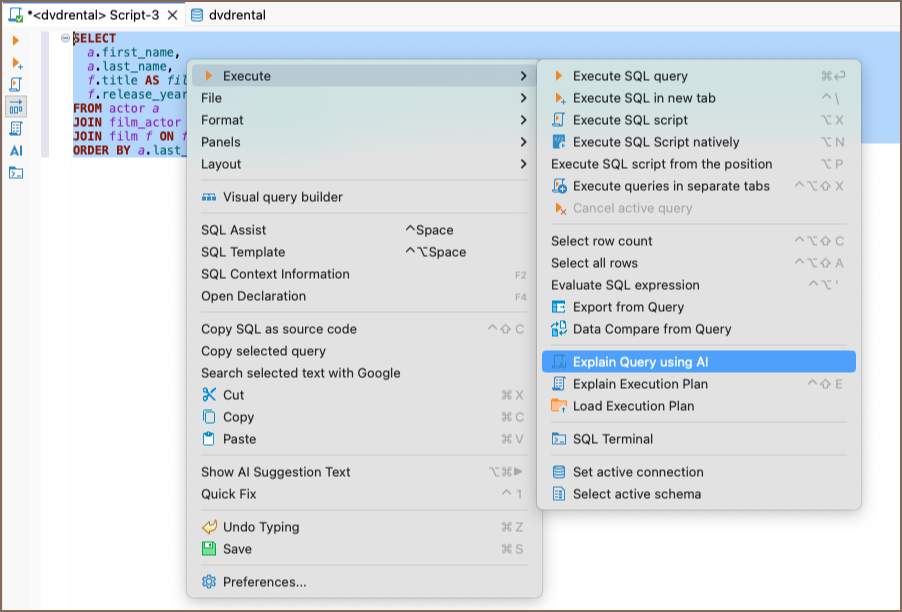
- Read the explanation in AI chat, and ask follow-ups
Info
For details, see Explain query using AI.
Get inline AI Auto Complete
Prefer autocomplete-style help? Let AI suggest a full statement as ghost text based on a short intent comment.
- Write your query in the SQL editor
-
Add a brief intent comment
-
Right-click, AI commands -> AI Auto Complete
- Press Enter to insert
Info
See AI Auto Complete for more details.
Use Tools
Run actions through plain language. AI can open tools, compare data, read a few sample rows, or export tables without you clicking through menus.
Example
- compare stage.Album schema with prod.Album schema
- export these results as CSV
- import a CSV into stage.Album
Info
For details, see AI Tools.
Fix an error when the query fails
If the SQL fails, use AI to explain and repair it in one pass.
-
Click Explain and Fix

-
Apply the fix

Info
For the flow, see AI error explanation.
Describe a database object when you need context
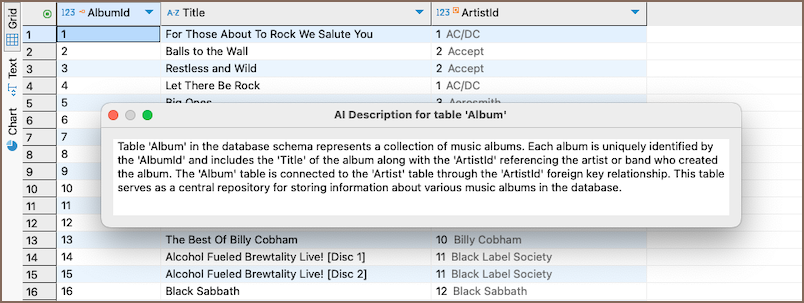
Ask AI to describe a table, view, or other object in plain language. The result opens in AI chat.
- Open Connections or Properties editor
-
Right-click the object, Describe database object
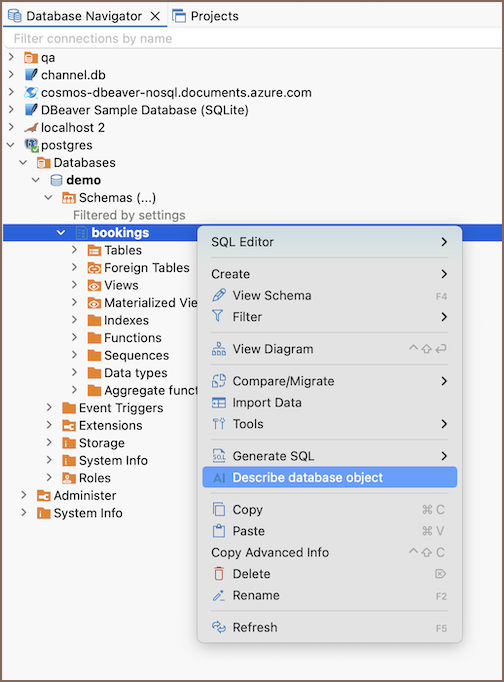
-
Review the description in AI chat, and ask follow-ups
Info
For supported objects and flow, see Describe database object.