

Troubleshooting task scheduler issues
Note
This feature is available in Enterprise, and Ultimate editions only.
User Authentication and Corporate Security
Important
Scheduled tasks don’t work when the Master password is enabled.
When you:
- Enable enterprise security for database credentials.
- Use mail server authentication to send data transfer results.
These settings won’t work in scheduled tasks by default. To fix this, use one of the following:
- switch to OS-specific encryption (Integrated security)
- enable Automation (console) mode to run tasks without password prompts
OS-specific encryption and Automation (console) mode don’t use the Master password, so they are less secure. Credentials are still encrypted but could be at risk if someone gets access to your computer.
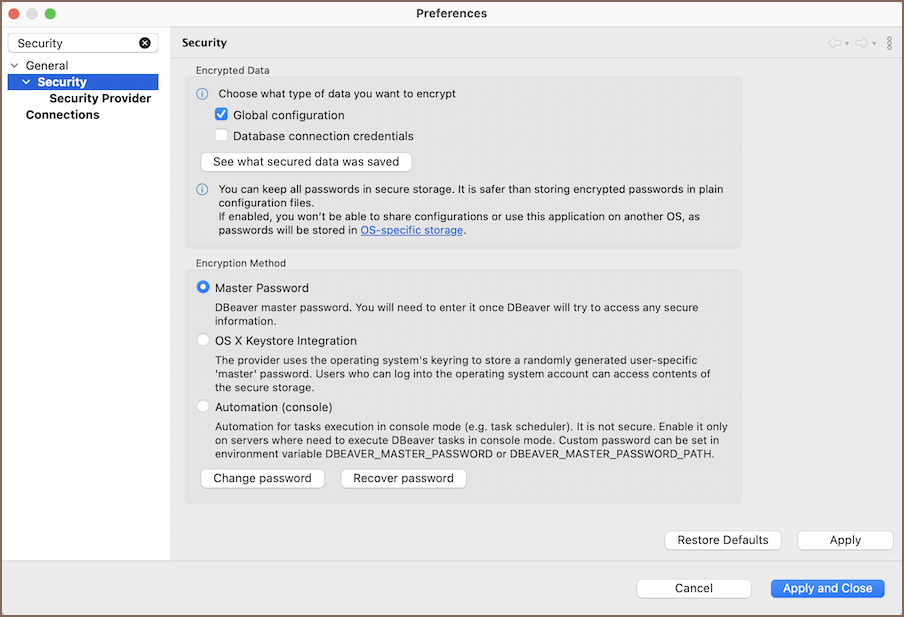
To configure scheduled tasks without the Master password:
- Go to Preferences -> General -> Security.
-
Either:
- switch to Integrated security
- or enable Automation (console) mode
Info
For more details on configuring security, see Security.
Windows Task Scheduler
There are two implementations of the Windows scheduler present:
- CLI-based (Legacy): uses
schtasks.exeto communicate with the scheduler; sensitive to locale-dependent data, such as Unicode names and date-time format. - COM-based (New): uses COM API to communicate with the scheduler; more flexible and provides more features than the CLI version.
COM-based implementation is used by default, starting from the 21.1 version of DBeaver EE.
Excluding legacy Scheduler
If you encounter an error in Windows which contains the following text: com.sun.jna.platform.win32.COM.COMException,
do the following:
-
Open the file
dbeaver.ini.Tip
Detailed instructions on finding
dbeaver.iniare available in our article. -
Place the line
-Ddbeaver.scheduler.windows.legacy=truebelow the-vmargsline.
Windows Task Scheduler - incorrect date format
Applicable to legacy Scheduler
If you encounter an error in Windows which looks like this:
ERROR: Invalid Start Date (Date should be in %some_format% format).
do the following:
- Open the file
dbeaver.iniin the directory with your DBeaver installation - Place the line
-Ddbeaver.scheduler.windows.dateFormat=%some_format%(where %some_format% is a format from the error message) below the-vmargsline.
This flag is available starting from the 7.3.4 EA version of DBeaverEnterprise and might be removed in the future.
MacOS
Unable to read or write to crontab
When scheduling tasks on macOS 10.15 or newer versions, the OS will prompt you to elevate DBeaver's permissions to administer your computer.
If you do not grant these permissions, DBeaver will fail to schedule your tasks with an error Unable to read or write to crontab.
To bypass this, simply restart DBeaver and try to schedule the task again. The operating system will prompt you to elevate the permissions again.
If macOS never prompted to do that in the first place, you could grant Full disk access permissions in the macOS settings. Here is how to do that:
- Open
System Preferences - Click on
Security & Privacy - Choose the
Privacytab - Choose the
Full Disk Accessfolder - Unlock the preferences lock to the bottom if it is locked
- Click the + button
- Select DBeaver in the file picker that opens
- Click
Open - Close the lock
Tasks from password protected projects cannot be run
You need to pass a password for one or more projects via the command-line interface.
To do so, you need to set the dbeaver.project.password parameter in the external configuration file like so:
# You can specify a single password for all projects:
dbeaver.project.password=p4$$w0rd

# Otherwise, you can specify a list of passwords for given projects:
dbeaver.project.password=@General:p4$$w0rd,@Other:12345
The syntax for a single entry is @ <name of the project> : <password of the project>; others are separated by the , symbol.
Note
@ and : symbols are mandatory.
Tasks fail with a security error when run from the command line
If your task fails with a DBSecurityException, the problem is your current encryption method. Master password and
Integrated security both require an active user session to unlock credentials - they don’t work in headless (
console) mode.
To fix this, switch to the Automation (console) encryption method:
- Go to Window -> Preferences -> General -> Security.
- Under Encryption Method, select Automation (console).
- Select Apply and Close.
Tip
For setup and management details, see Automation security.