

Initial configuration
The Product Configuration wizard opens when you start DBeaver for the first time. Use it to choose the settings you need to start working with DBeaver.
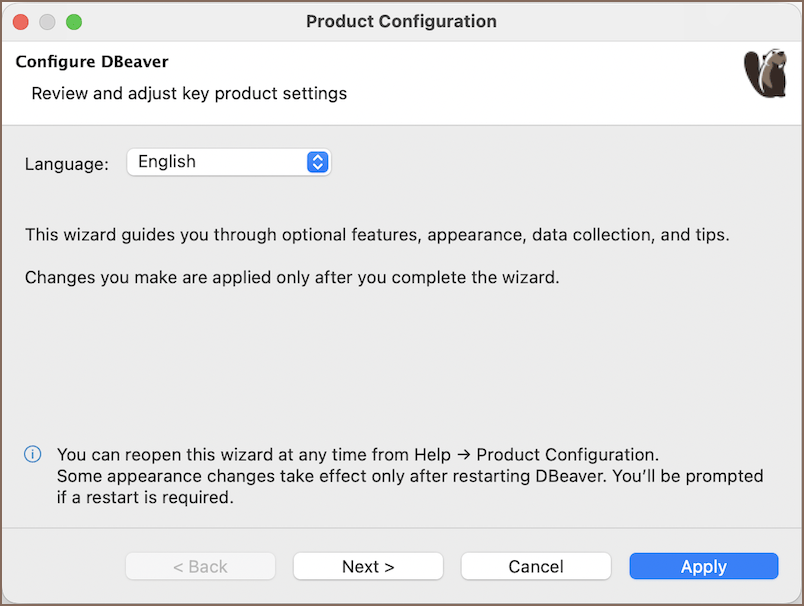
Complete the initial configuration
Review the following settings in the wizard:
- Language: Select the language for the DBeaver interface. Restart DBeaver to apply the change. For more information, see Interface language.
- Appearance: Select a theme and choose how much database structure the Connections tree shows. Simplified shows schemas and tables. Full shows the complete database structure. Select Custom to choose the objects yourself. Restart DBeaver to apply a theme change. For more information, see User interface themes and Simple and advanced view.
-
Features: Enable optional tools that you need for your work. Depending on your edition and installed extensions, the wizard can include the following features:
-
Data collection: Choose whether to share anonymous usage statistics. Shared statistics include information about your operating system, locale, features, interface actions, and database types. They do not include personal information, connection settings, query text, or database contents. For more information, see Statistics collection.
- Final steps: Select the optional actions available for your installation, such as creating the sample database or showing the Tip of the day.
Select Apply to save the settings and start using DBeaver.
Tip
You can reopen the wizard at any time from Help -> Show Product Configuration.
Configure settings as an administrator
Administrators can set organization-wide defaults before users start DBeaver.
- Set shared preferences, such as the default navigator view, interface language, and SQL Editor behavior, in the preference files.
- Provide database connections in the workspace before deployment. For details, see Manage predefined connections.
- Restrict actions such as data export, data editing, SQL execution, or saving credentials when required. For details, see Admin preference restrictions.
Info
Use preference files and policy restrictions when a setting must be consistent for all users.