

DDL
 Since 26.2
This feature is available in Lite, Enterprise, and Ultimate editions only.
The DDL driver creates a virtual database structure from SQL files. Use it to review a database design and browse its structure without connecting to the real database described by the files.
To create a virtual database structure from SQL files, enter DDL in the search field on the initial Connect to a database page, then select the DDL data source. For information on creating a connection, see Database Connection.
Important
The DDL driver displays database structure only. It ignores INSERT statements, doesn't display table
rows, and doesn't apply changes to a real database. To change the virtual structure, update the original SQL files and
reconnect the DDL connection.
DDL driver connection settings
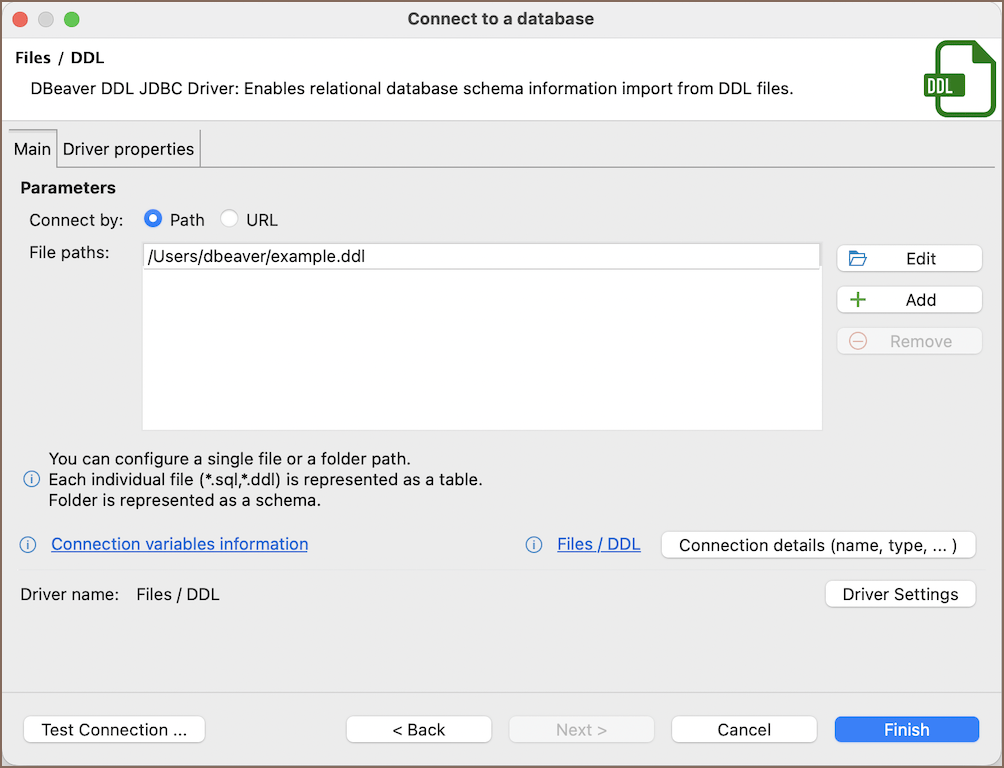
Use the following fields to set up a connection with the DDL driver:
| Field | Description |
|---|---|
| Connect by (Path/URL) | Choose whether to connect using a local host path or a URL. |
| File paths | Specify the location of the SQL or DDL file(s). The list displays file names, file type icons, and sizes. Select a column header to sort the list. Choose an action: - Edit: Modify an existing file or folder selection. - Add: Add a new file or folder. - Remove: Delete a selected file or folder. When Editing or Adding, choose from: - File: Select a single file. - Folder: Choose a directory containing multiple SQL or DDL files. - Remote: Access a remote folder via Cloud Storage. This feature is available only in Ultimate Edition. |
| Driver name | This field will be auto-filled based on your selected driver type. |
| Driver settings | If there are any specific driver settings, configure them here. |
Info
For details on driver properties, see File-based driver properties.
Organize DDL files
Store related objects together in separate files or folders. You can add both .sql and .ddl files to the connection.
If several files define one database structure, add the folder rather than selecting every file individually. DBeaver
displays all objects in the Default schema.
Important
Start each table definition with a complete CREATE TABLE statement.
Use table names without schema or database names. Define primary keys, unique constraints, indexes, and foreign keys in the DDL file.
Create DDL statements
Each file can contain one or more CREATE TABLE, ALTER TABLE, and CREATE INDEX statements. Add ALTER TABLE and
CREATE INDEX statements after the related table definition. You can also define indexes inside CREATE TABLE.
Example
CREATE TABLE departments (
    id INTEGER PRIMARY KEY,
    name VARCHAR(100) NOT NULL
);

CREATE TABLE employees (
    id INTEGER PRIMARY KEY,
    name VARCHAR(100),
    department_id INTEGER,
    CONSTRAINT fk_employees_departments
        FOREIGN KEY (department_id)
        REFERENCES departments(id)
);

CREATE INDEX employees_department_idx ON employees (department_id);
Supported database objects
The DDL driver supports the following database objects:
- Tables
- Columns
- Primary keys
- Unique constraints
- Indexes
- Foreign keys
Supported data types
The DDL driver recognizes the following data types:
- Numeric types
- Character types
- Date and time types
- Binary and large object types
- Boolean, structured, array, XML, and null types
- Spatial types, including geometry and geography types
Note
If DBeaver doesn't recognize a data type, it uses VARCHAR for that column.
Use DDL files with file drivers
When creating a CSV, JSON, XML, XLSX, or Parquet connection, use a companion .ddl file to define the data file's
structure. Save the .ddl file in the same folder as the data file and match its full name, for example,
employees.csv.ddl next to employees.csv.
For information on creating companion DDL files, see: