

MCP server
 Since 26.3
This feature is available in Lite, Enterprise, and Ultimate editions only.
DBeaver can run as a local Model Context Protocol (MCP) server. This allows an MCP clients such as Claude Code, Codex, VS Code, and others use database tools with a connection that you select.
You can find more information about Model Context Protocol (MCP) here.
Enable MCP server
- Open Window -> Preferences -> AI -> MCP Server.
- Select Enable MCP server.
- Keep the default port
8976, or enter another available port. - Click Apply and Close.
Info
The server uses Streamable HTTP under /mcp/ and accepts local connections only. Allowed hosts and origins are
localhost, 127.0.0.1, and [::1] on the configured port.
Enable MCP for a connection
Enable access separately for each connection that you want to expose:
- Open Edit connection -> AI Settings.
- Select Enable MCP access to this connection.
-
Use Copy next to Endpoint to copy the URL. To change the global server settings, select Open local MCP server settings....
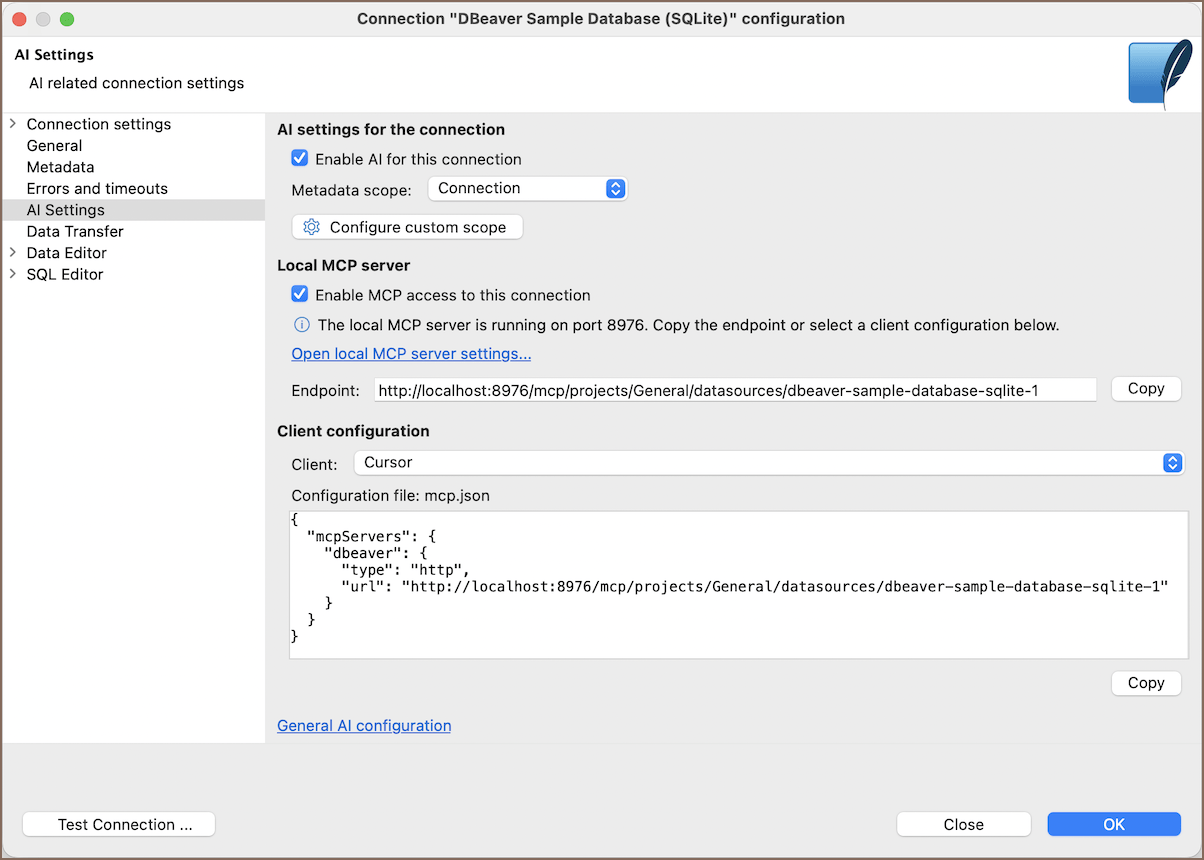
The connection settings show an endpoint in this format:
Configure an MCP client
- Open Edit connection -> AI Settings, find Configuration.
- Select an agent. For example, select Claude Desktop.
- Copy the generated configuration and add it to the client.
The page generates a URL-based configuration. When the selected client supports command configuration, it also shows that option.
Note
The endpoint works only for its selected project and connection. Requests for another project or connection are rejected, as are requests to a connection where MCP access isn't enabled.
Supported tools
DBeaver exposes MCP-enabled AI tools for the selected connection. Each tool runs with the current connection as its datasource.
Info
For information on tool actions and permissions, see AI Tools and MCP.